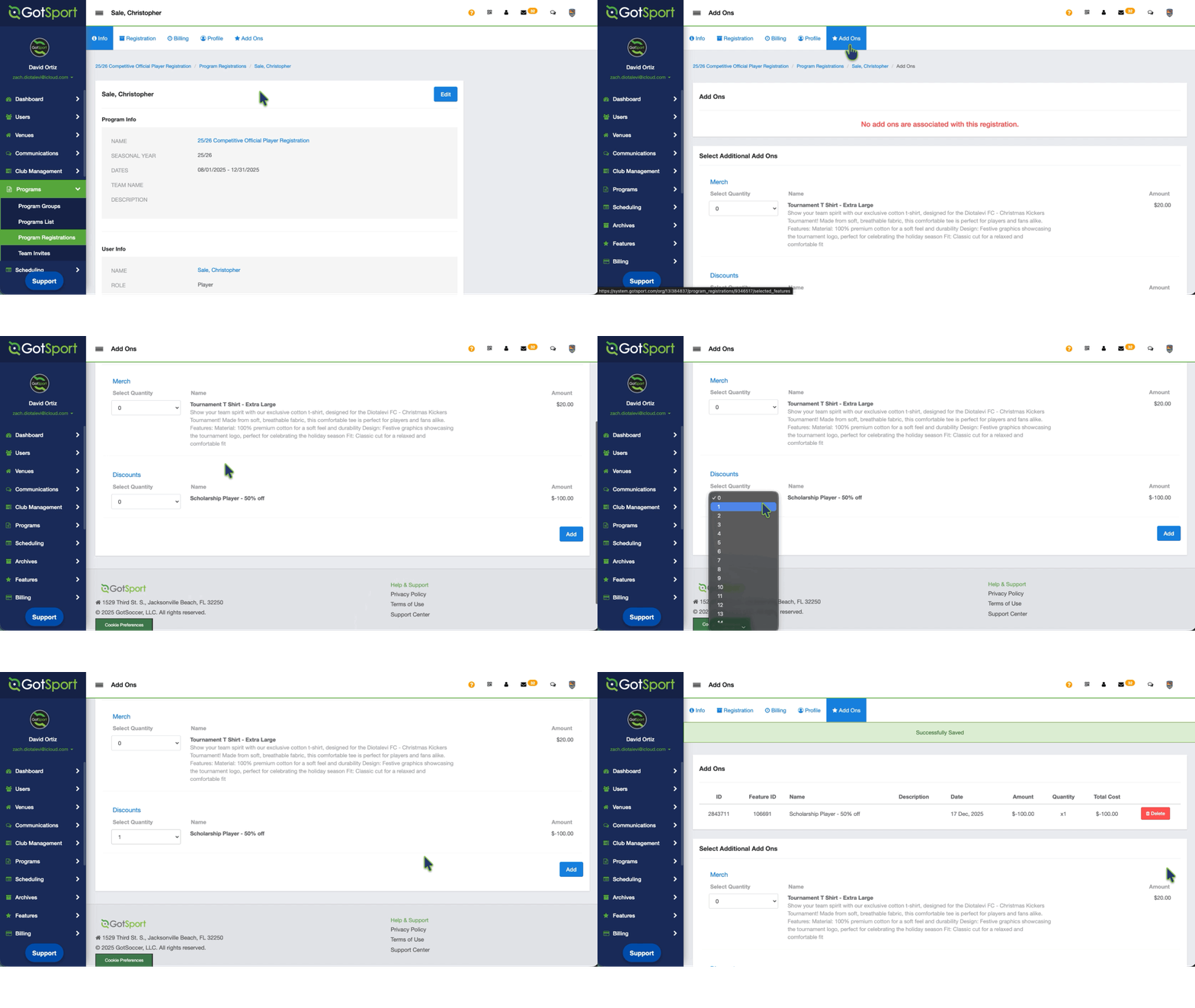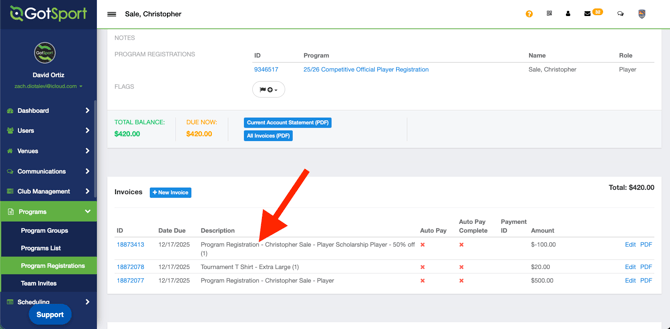
This article is broken down into two sections, creating the feature and applying it to your program, and how to apply the feature to a registration.
- Click HERE to navigate directly to Creating the Office Use Only Feature
- Click HERE to navigate directly to How to Apply the Office Use Only Feature
Creating the Office Use Only Feature
Step 1:
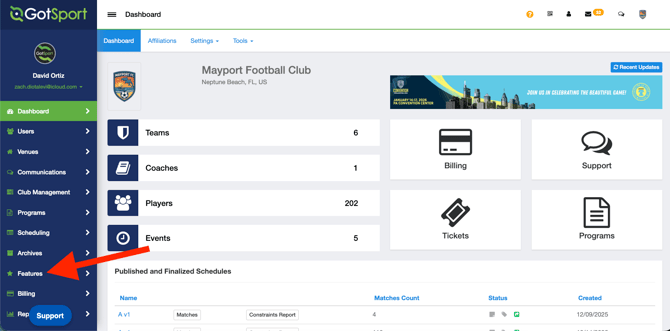
- From your Admin Dashboard, click the "Features" module on the left side.
NOTE**** You MUST create the Feature within the Features module, not within the specific event or program
Step 2:
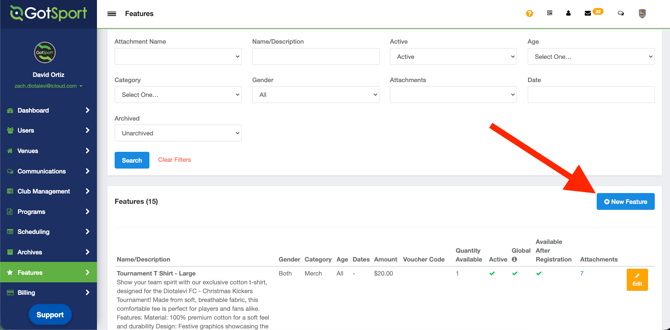
- Click "New Feature"
Step 3:
- Create your Feature and adjust your settings as applicable.
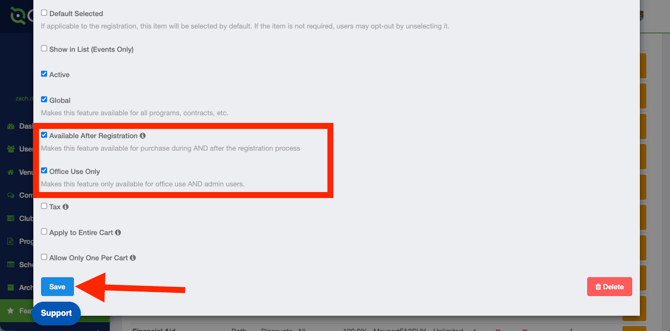
- In order for the feature to NOT be shown to users registering, you'll need to toggle the "Office Use Only" to ON
- Additionally, you will need to toggle the "Available After Registration" to ON as well.
- Lastly, "Global" setting needs to be toggled ON so you can add the Feature to your program registration after you've set it up.
NOTE*** The "Available After Registration" setting can only be used if the discount or surcharge is a Dollar Amount, not a Percentage amount. Example: -$15 off, not 25% off.
Please see this guide for additional Feature information: As Club Admin - Create Features
Step 4:
- After clicking Save, the next step is to add the Feature to your Program(s)
- Click Programs > Programs List
- Select your program you want to add the feature into
- Click the "Features" tab at the top.
- Click "Quick Add" and then click "Add" next to the feature you've created.
Step 5:
- That's it! Now you have successfully added the Feature to your program registration, but "Office Use Only" will ensure that it is hidden for the registrant, unless they have an "Admin" role with your Club/Organization.
How to Apply the Office Use Only Feature to a Registration
Step 1:
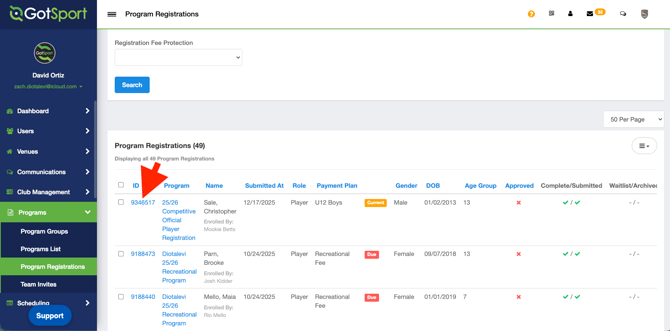
- From Programs > Program Registrations, locate the registration you want to add the feature to
- Click on the ID of the registration
Step 2:
- Once within the specific registration, click "Add Ons"
- Here you will see ANY features that are marked as "Available After Registration"
- Locate and add the feature you'd like to apply to the registration, then click SAVE
- The invoice will be automatically created and applied to the Billing Account.