Instructions:
Step 1:
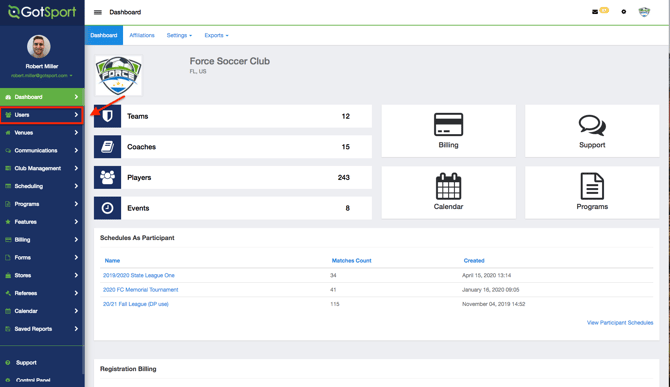
- From the Dashboard, click the Users tab.
Step 2:
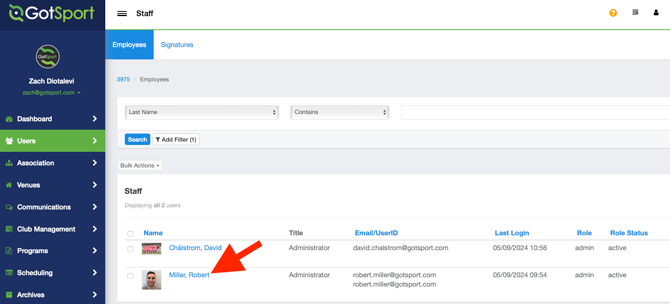
- Select the Admin's Name
Step 3:
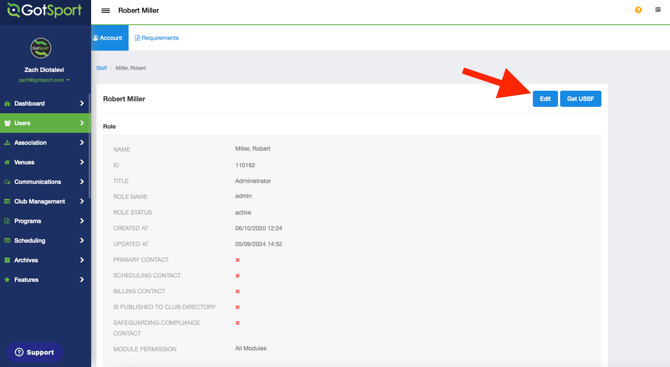
- Click Edit.
Step 4:
- Check the boxes for the modules you want the admin to have access to and click Save.
- The boxes that are left unchecked will not be visible to the admin. For example, if the Billing module is not selected, the user will have the Billing tab to even click on.
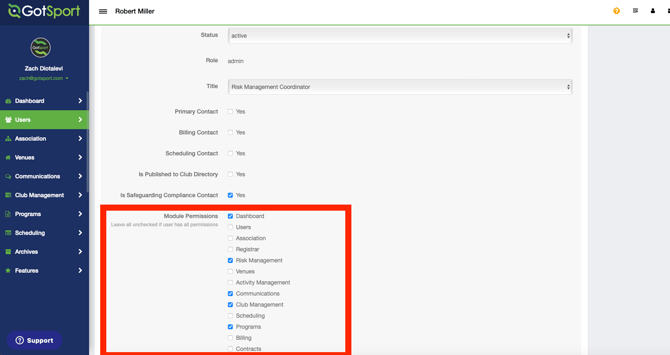
Note: Leaving all of the boxes unchecked will leave the user with Full Access to all modules.
-
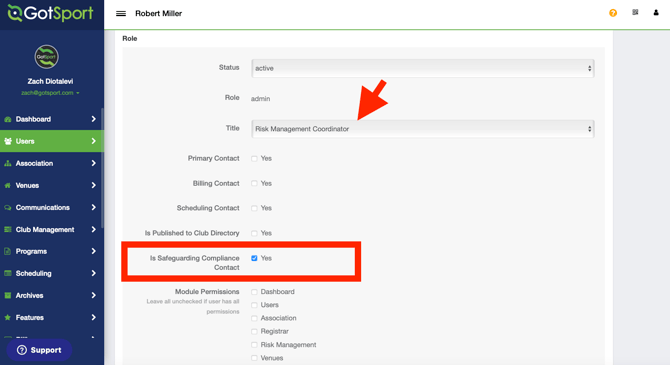
Additionally, you can designate the user as a Primary Contact for a specific role within your organization. In the below example, the Risk Management Coordinator is also the Safeguarding Compliance Contact for the club.
Step 5:
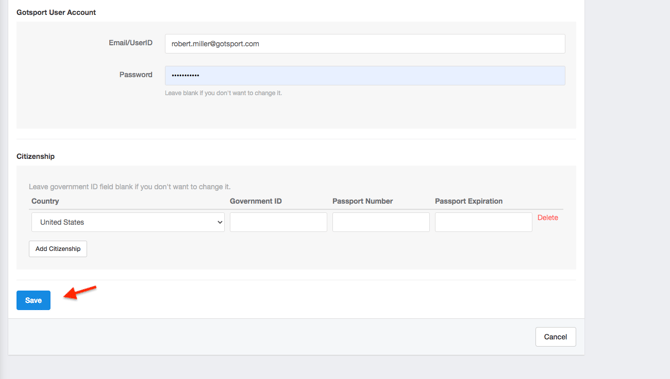
- Click Save.
To remove a club admin's role, follow the steps below:
How to Remove Admin User Access
Step 1:
- From the Dashboard, click the Users tab and select the admin's name
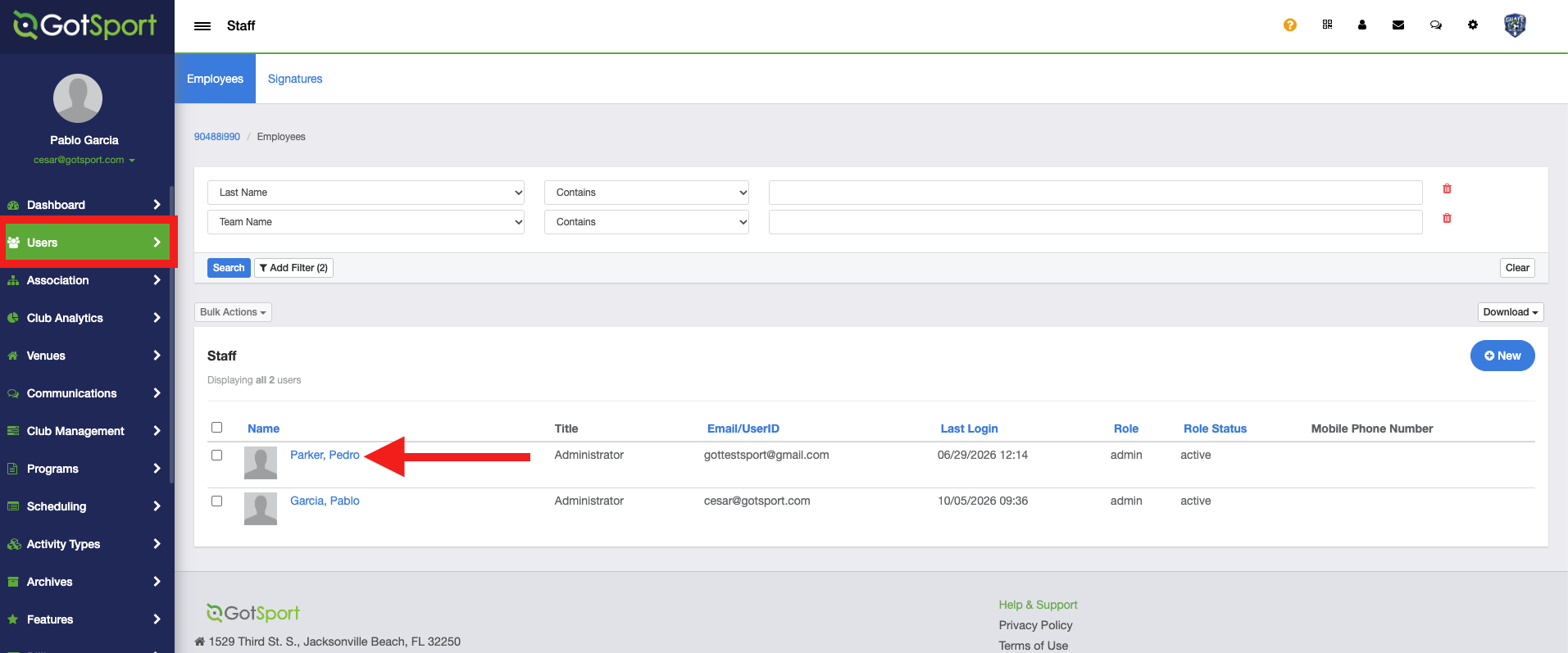
Step 2:
-
After clicking on the admin's name, scroll to the bottom of the page and click the red Delete button
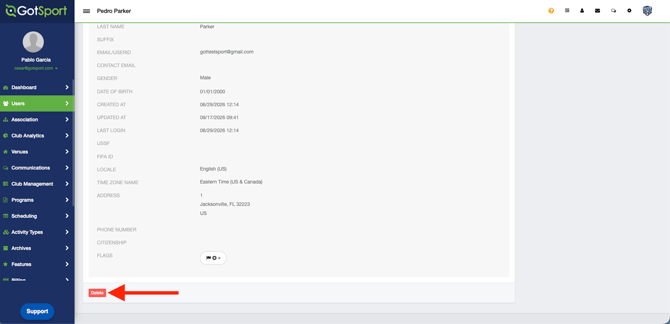
-
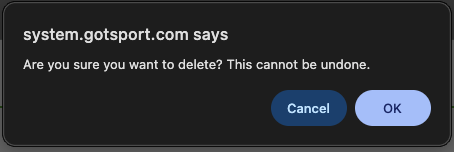
You will see the following message. Click OK to proceed with removing admin access for that user.