
Overview:
Additional Resources and Information
Before you start adding players: for both ECNL and N1 passcard events, a player can be listed as primary on only one team. Once a player is added to a team they cannot be removed without submitting a specialized form and getting approval. Mistakes can delay rostering, so double-check that each player is going onto the correct team.
Instructions:
Roster your players and staff
- Log in to your account. (See: How to Login)
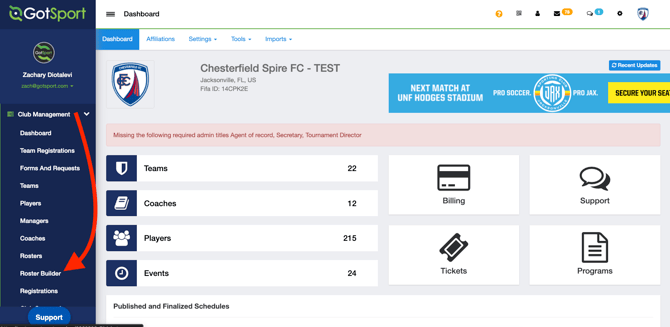
- Go to Club Management > Roster Builder.
- In the dropdown, choose the league your teams are affiliated with, then click Submit.
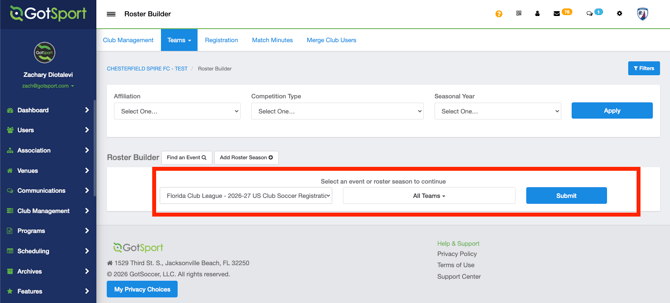
-
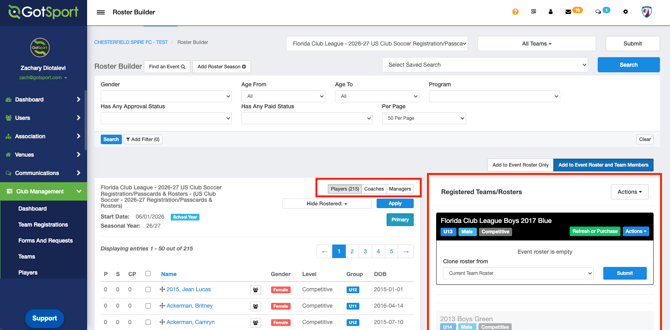
- Left column — the people available to add (players, or coaches/managers).
- Right column — the teams affiliated with that league.
- Filters at the top help you narrow the list.
- Toggle buttons switch the left column between players and coaches/managers.You're now in the Roster Builder. Here's how the screen is laid out:
- Build the team roster.
- Players — check the box next to each player, then click ADD TO TEAM above the team name on the right.
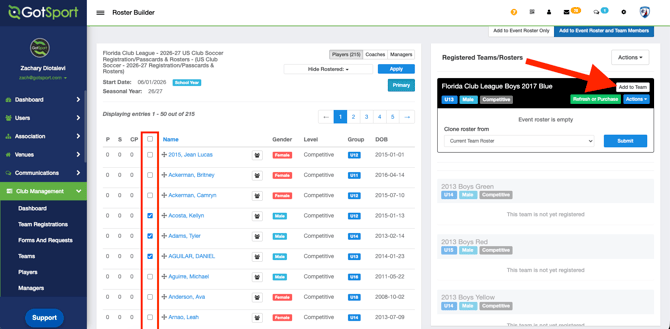
- Coaches / Managers — Click onto the Coaches or Managers tab. Click the checkbox to the left of their name and click ADD TO TEAM
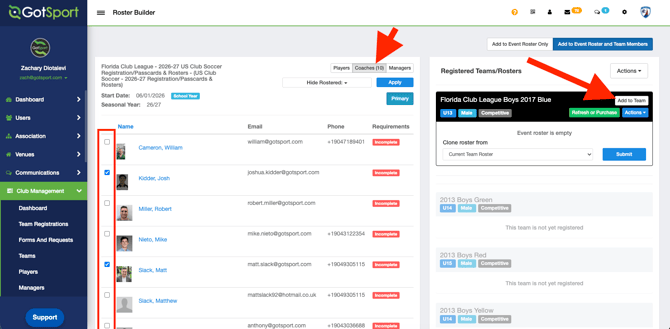
- Players — check the box next to each player, then click ADD TO TEAM above the team name on the right.
- Repeat until everyone you need is on the team.
- As you add people, a status report confirms each one against the basic roster rules (AGE and ROSTER LIMIT). If someone can't be added, an error appears within the Roster Builder— that person doesn't meet the current US Club Soccer roster rules for that team.
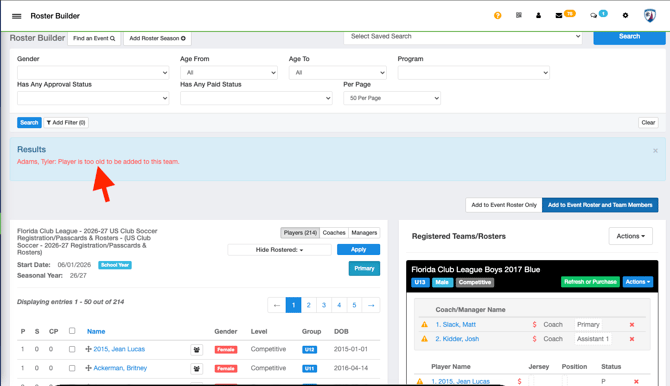
- If you believe the error is wrong, contact your US Club Soccer General Manager.
- As you add people, a status report confirms each one against the basic roster rules (AGE and ROSTER LIMIT). If someone can't be added, an error appears within the Roster Builder— that person doesn't meet the current US Club Soccer roster rules for that team.
Understand the status icons
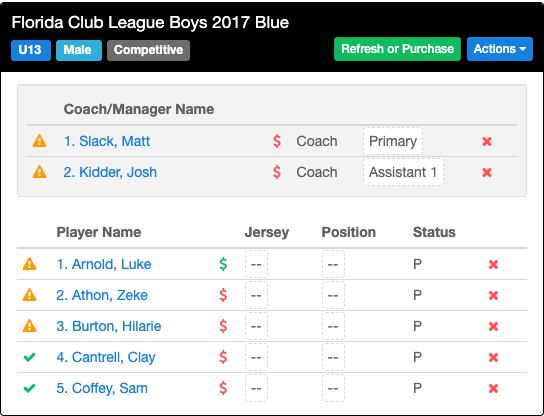
Each person on the team shows a set of icons. Coach and Players Cards will only be available when the green check mark and green dollar sign appear next to the user. Here's what each one means and what to do:
| Icon | What it means |
|---|---|
| ⚠ Yellow warning triangle | Risk Management Requirements haven't been completed yet. Click the "Refresh or Purchase" button to sync the records |
| ✓ Green check | Requirements have been checked and are complete. |
| $ Red dollar sign | This person hasn't been paid for yet. |
| $ Green dollar sign | This person has been paid for. |
Purchase the memberships
- When you're ready to buy memberships for a team, click the Refresh or Purchase button next to that team's name. The system checks each person's risk management requirements.
- Review the results. Anyone missing a requirement shows a red error message. You can still purchase memberships for everyone listed — but a card won't be available for anyone still missing a requirement.
- Decide who to include:
- To buy memberships for everyone shown, click Submit.
- To leave someone out, close the pop-up and click the red X next to that person to remove them from the team, then try again.
- The selected people are added to your cart. From here you can click View Summary to go to your cart.
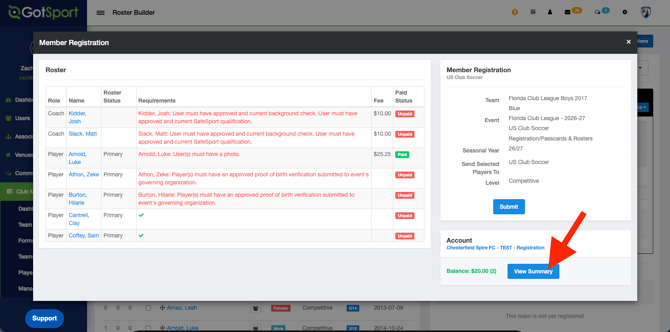
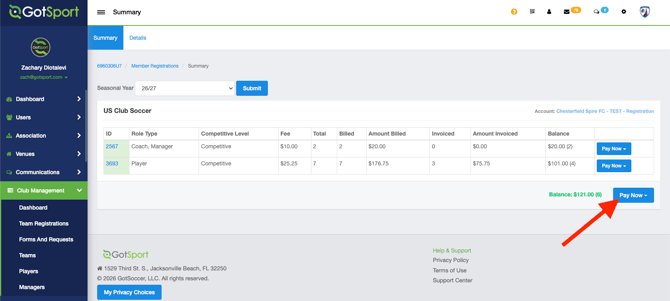
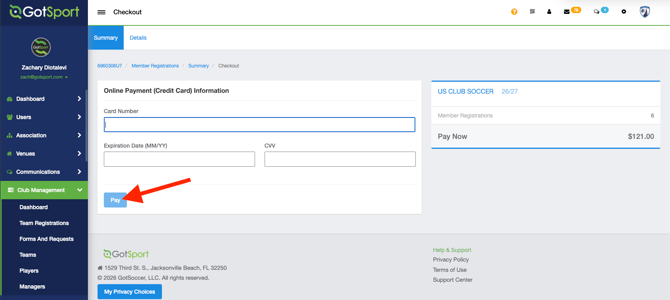
- In your cart, click Pay Now, enter your credit card in the pop-up, and complete payment. You'll receive a confirmation, and your memberships are purchased.
Managing your cart
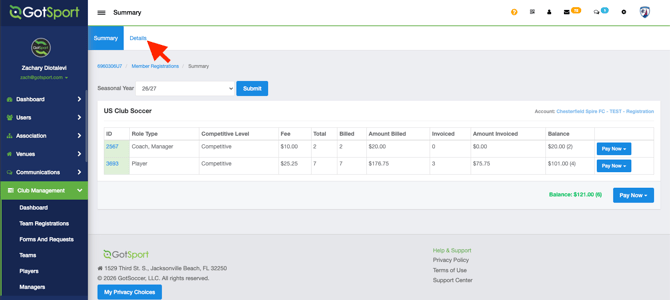
- Click Details at the top of the page to review everyone in your cart. The Invoice ID and Payment ID stay blank until payment is submitted.
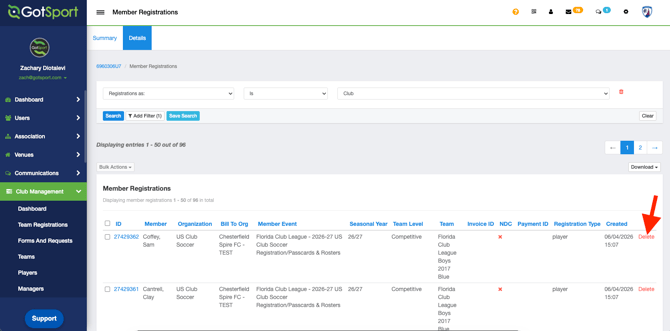
- To remove someone, click Delete. You can only remove memberships that haven't already been paid for.
- Click Summary at the top to return to your cart. Be sure the correct seasonal year is selected in the dropdown.
NOTE*** Be very careful when paying for player and staff registrations. Double check that they are all correct before you pay for them. US Club Soccer fees are non-refundable unless an exception is made by US Club Soccer, which is very rare.
Additional Resources and Information
Note*** Club or league registrars can also pre-purchase and use credits for both membership and background screening purchases. As a Club Admin - Pre-Purchasing and Using of Credits for Membership Purchases
Unless an exception is made, a player is only allowed to be registered with US Club Soccer via one club at a time. If a player is registered with another club, a Player Release Request Form link will appear in the cart. You may submit this form to initiate a player release request with the club to which the player is currently registered. This tracks communication between clubs, but the releasing club must still complete the release in the system. The releasing club is responsible for completing all three steps necessary to fully release the player: The player’s role must be removed, the player must be removed from the club’s rosters AND the club must cancel the player’s membership.
US Club Soccer: As a Club Admin - How to Cancel a Membership/Registration
US Club Soccer: As a Club Admin -How to Remove a Player from an Event Roster
US Club Soccer: As a Club Admin - How to Remove a Player Role from Your Organization
To print cards and rosters, go to Roster Builder under an event that includes Registration, Passcards and Rosters. For the team, click on Actions. Click “ID” to generate the passcards in .pdf format for all approved staff and players. Remember: Only players and staff with a green check and green money symbol ($) will display on the Roster and Passcards. US Club Soccer: As a Club Admin - How to Print US Club Soccer Rosters and Pass Cards
Additional Resources: