Step 1:
-
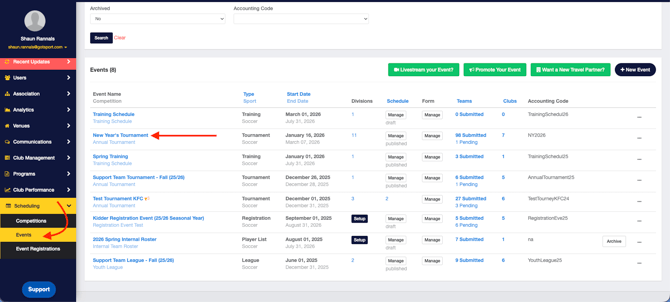
From the Dashboard, click into your event that you're wishing to turn the setting on for.
Step 2:
-
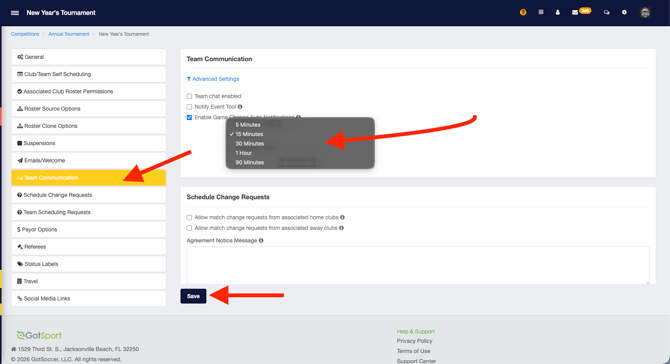
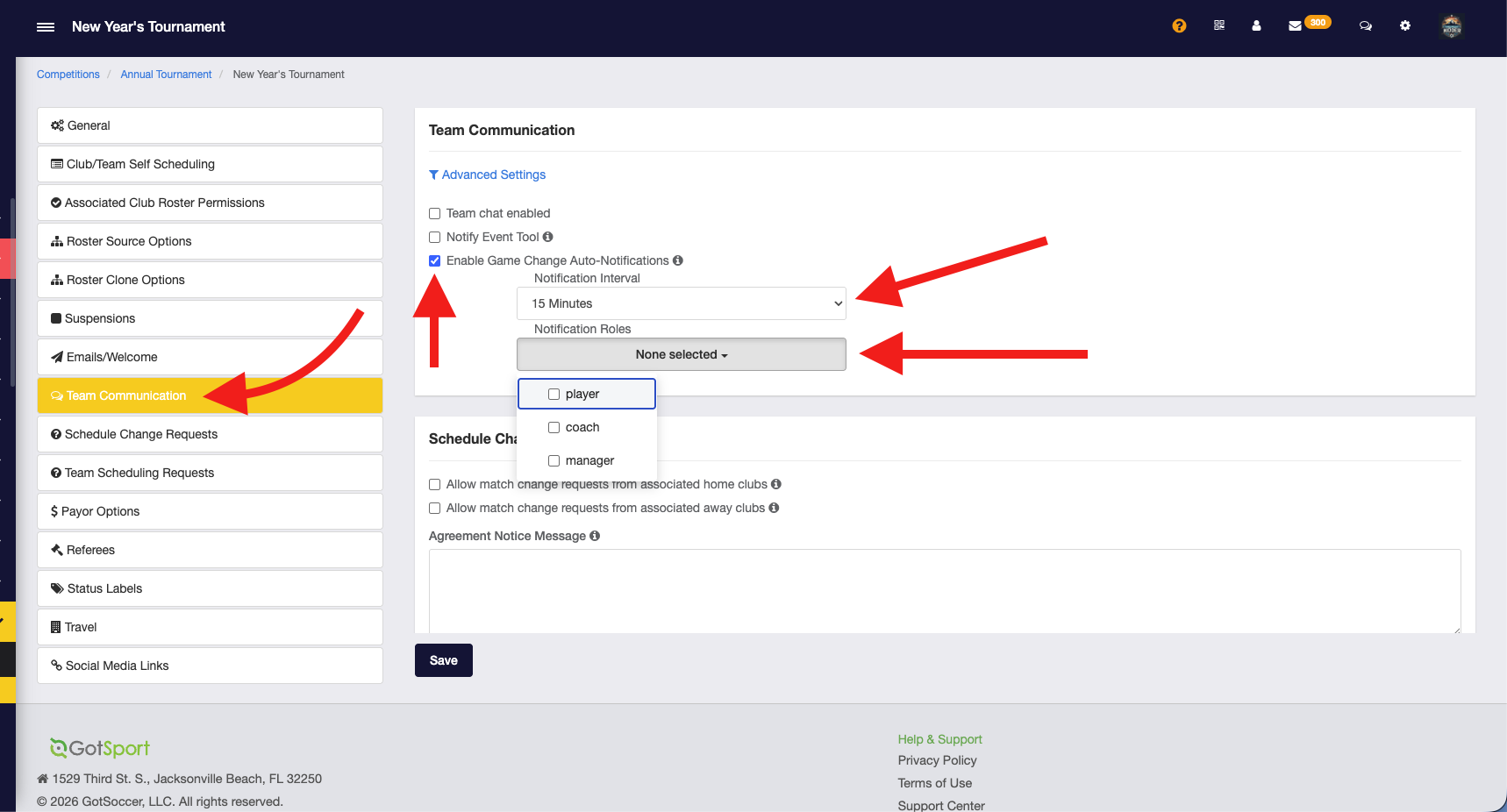
From within your event, click on the Access & Options tab. Next you'll click on Team Communications. Find the Enable Game Change Auto-Notifications setting and turn on.
- Next you will see the Notification Interval. This will be the amount of time that elapses before your automatic notfication goes out from the time you SAVE the change in schedule.
- The other dropdown, is the roles within the teams in the match(es) in which the message will be delivered to. Options are Players, Coaches, Managers.
- As always, when completed, click Save in order to save the setting being turned on.
Note: Do not forget to turn the setting off after changing matches as this will stayed on until flipped off which will send Game-Change notifications automatically.