
Click below to navigate directly to the specified section:
- How to Add a Discovery Player to a Roster (ECNL)
- How to Add a Pre-ECNL Dual Registration Player to a Roster (ECNL)
- As an Admin - How to Add a Club Affiliation Dual Registration Player to a Roster (ECNL)
How to Add a Discovery Player to a Roster (ECNL)
What is a Discovery Player (DP)?
- Allows a player to be registered with US Club Soccer to more than one club at the same time.
- May only be used in accordance with ECNL's Discovery Player rules for U-13 and older.
Instructions:
Step 1:
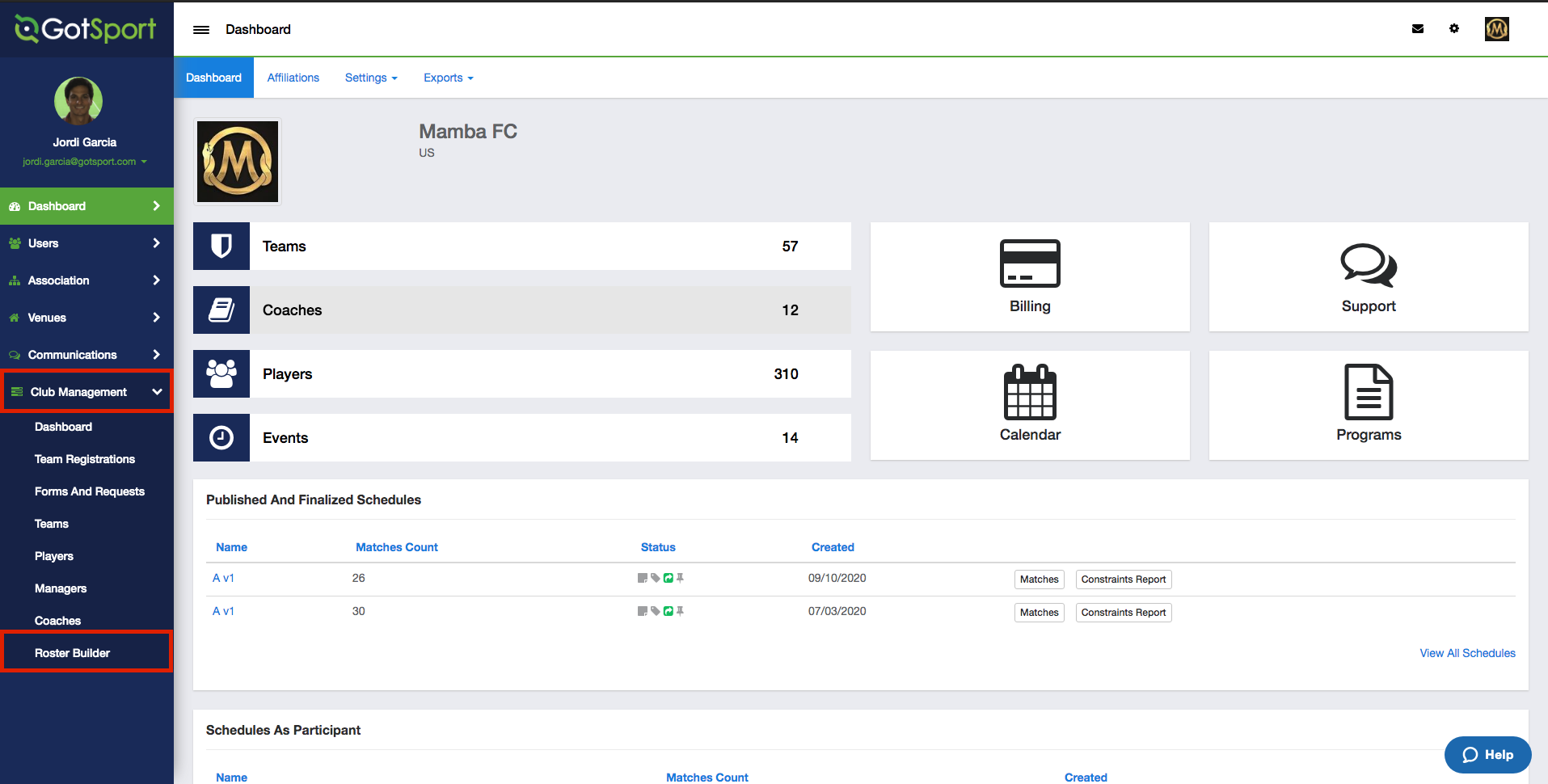
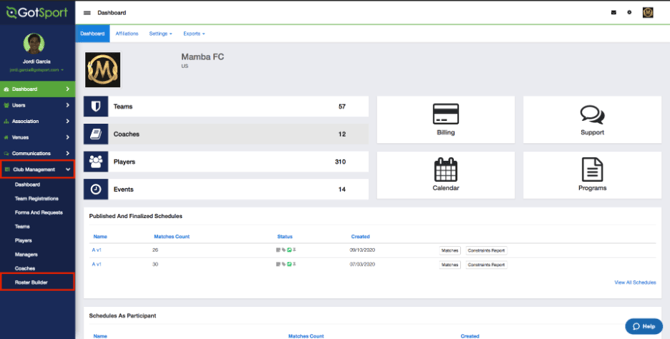
- From the Dashboard select, "Club Management", followed by "Roster Builder".
Step 2:
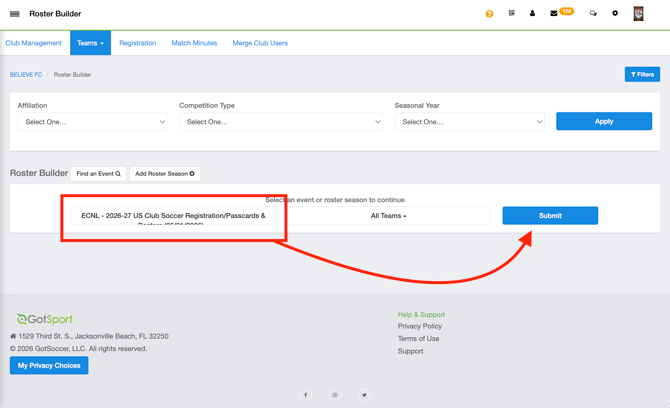
- You will select the ECNL - 2026-27 US Club Soccer Registration/Passcards & Rosters event:
Step 3:
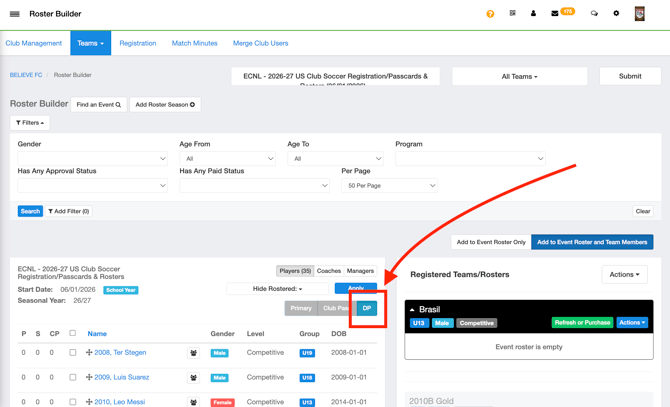
- You will now see the Primary, Club Pass and DP tab.
- Click the DP tab, and you will now see your available DP Players.
Step 4:
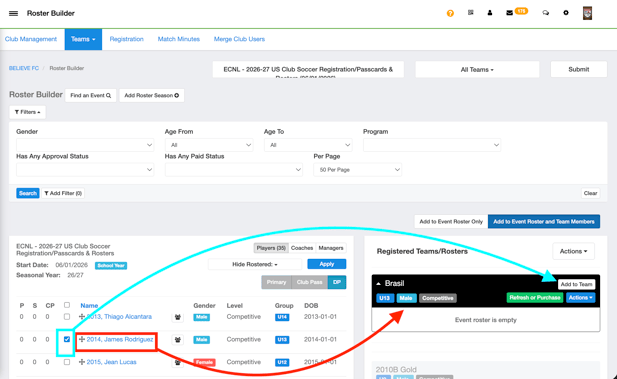
- Once here, you will drag and drop the "Crosshairs" to the left of the player to the team on the right.
- You can also check off the box and click Add to Team on the right-hand side next to the respective team.
Step 5:
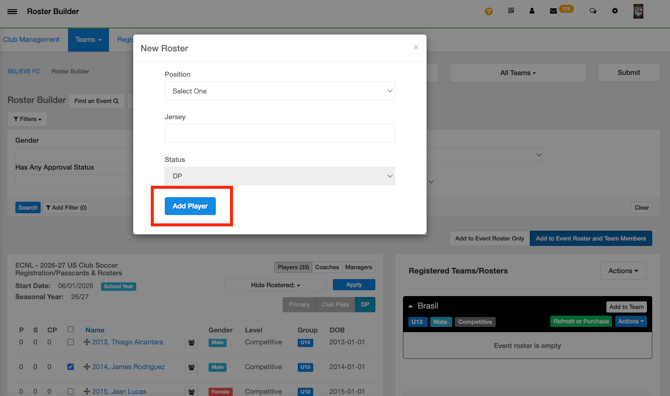
- A pop-up window will appear that gives you the option to add the position and jersey number. Once complete Select "Add Player".
Step 6:
- You will now see that player on the team with DP as their status.
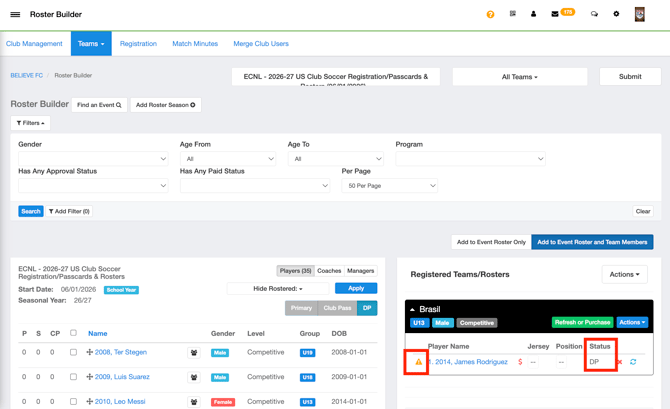
If the player is already rostered on another team in this event and is approved, they will automatically appear as approved for this team as a DP Player. This can be verified by the green check mark next to their name.
Step 7:
-
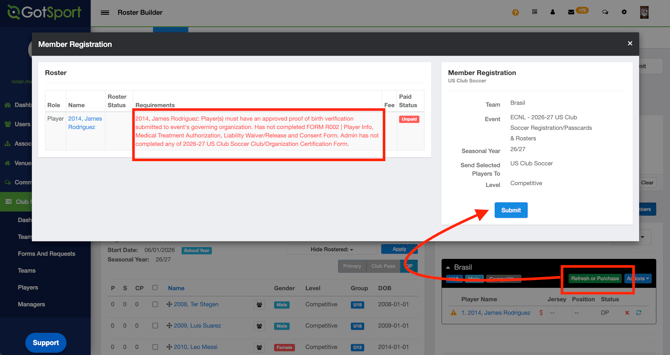
You will click on Refresh or Purchase to view players who are missing requirements. You will then click on Submit to proceed to purchase the ID Cards:
For ECNL Discovery Players (DP): Once the ECNL player is added to an ECNL roster and designated as a Discovery Player (DP) in GotSport, follow the steps in this Athlete One help article to add the Discovery Player (DP) to ECNL in Athlete One.
How to Add a Pre-ECNL Dual Registration Player to a Roster (ECNL)
What is a Pre-ECNL Dual Registration Player (Pre-ECNL DR)?
- Allows a player to be registered with US Club Soccer to more than one club at the same time.
- May only be used for Pre-ECNL players when all clubs involved agree to the player being registered with US Club Soccer to each club.
- May not be used for ECNL or ECNL RL programming.
Instructions:
Step 1:
-
From the Dashboard select "Club Management", followed by "Roster Builder".
Step 2:
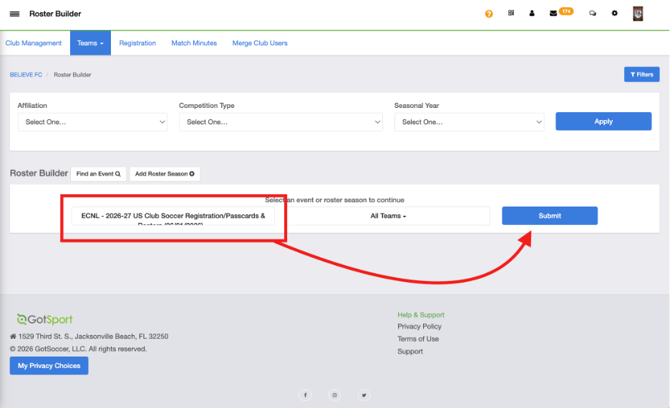
-
You will select the ECNL - 2026-27 US Club Soccer Registration/Passcards & Rosters event:
Step 3:
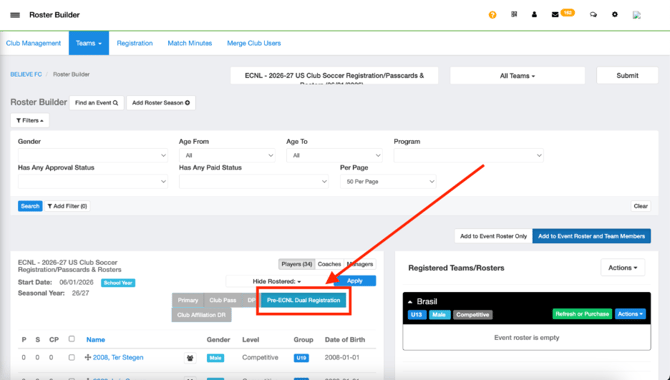
- You will now see the Primary, Club Pass and DP tab.
- Click the Pre-ECNL DR tab, and you will now see your available Pre-ECNL DR Players.
Step 4:
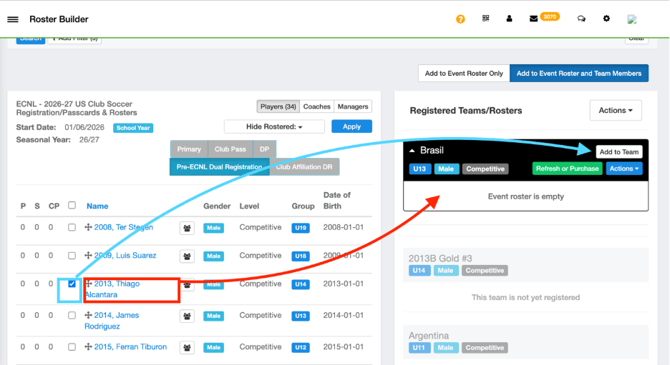
- Once here, you will drag and drop the "Crosshairs" to the left of the player to the team on the right.
- You can also check off the box and click Add to Team on the right-hand side next to the respective team.
Step 5:
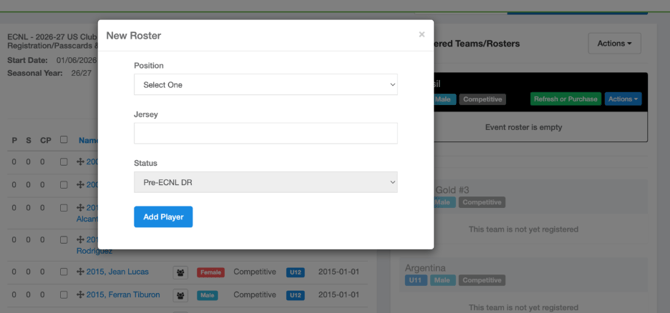
- A pop-up window will appear that gives you the option to add the position and jersey number. Once complete, select "Add Player".
Step 6:
- You will now see that player on the team with Pre-ECNL DR as their status.
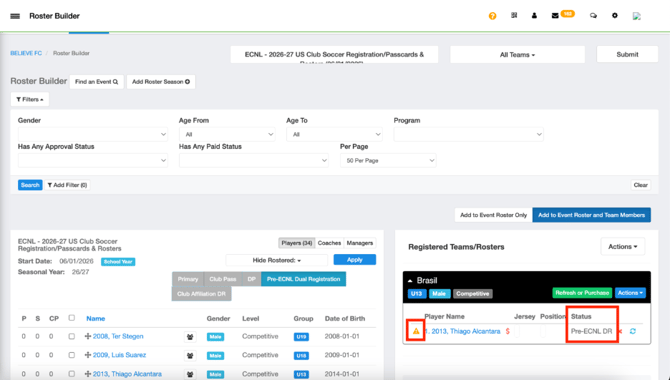
If the player is already rostered on another team in this event and is approved, they will automatically appear as approved for this team as a Pre-ECNL DR Player. This can be verified by the green check mark next to their name.
Step 7:
- You will click on Refresh or Purchase to view players who are missing requirements. You will then click on Submit to proceed to purchase the ID Cards:
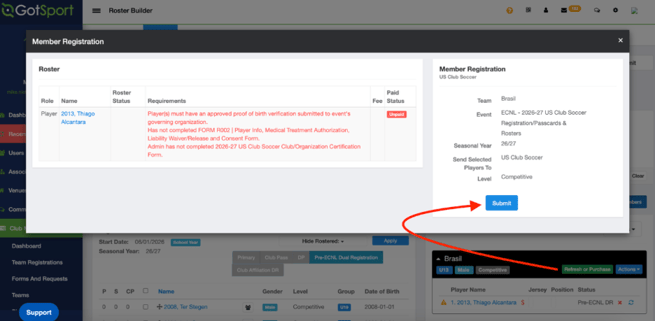
For ECNL Pre-ECNL Dual Registration (Pre-ECNL DR): Once the ECNL player is added to an ECNL roster and designated as a Pre-ECNL Dual Registration (Pre-ECNL DR) in GotSport, follow the steps in this Athlete One help article to add the Pre-ECNL Dual Registration (Pre-ECNL DR) to ECNL in Athlete One.
As an Admin - How to Add a Club Affiliation Dual Registration Player to a Roster (ECNL)
What is a Club Affiliation Dual Registration Player (CADR)?
- Allows a player to be registered with US Club Soccer to more than one club at the same time.
- May only be used under a US Club Soccer-approved ECNL Club Affiliation arrangement, in accordance with the ECNL Club Affiliation Policy.
Instructions:
Step 1:
-
From the Dashboard select "Club Management", followed by "Roster Builder".
Step 2:
-
You will select the ECNL - 2026-27 US Club Soccer Registration/Passcards & Rosters event:
Step 3:
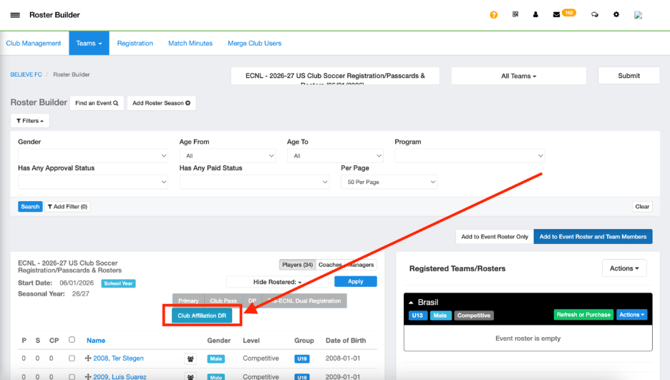
- You will now see the Primary, Club Pass and DP tab.
- Click the CADR tab, and you will now see your available CADR Players.
Step 4:
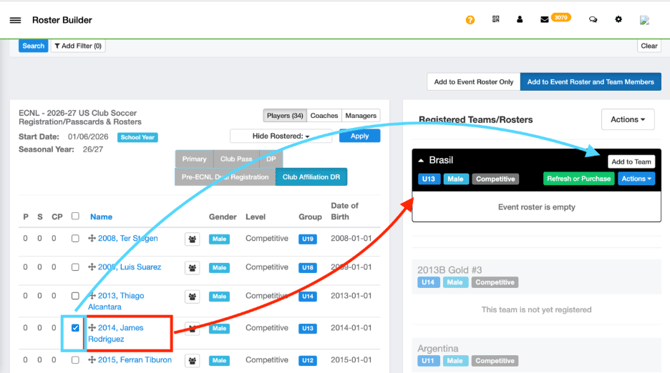
- Once here, you will drag and drop the "Crosshairs" to the left of the player to the team on the right.
- You can also check off the box and click Add to Team on the right-hand side next to the respective team.
Step 5:
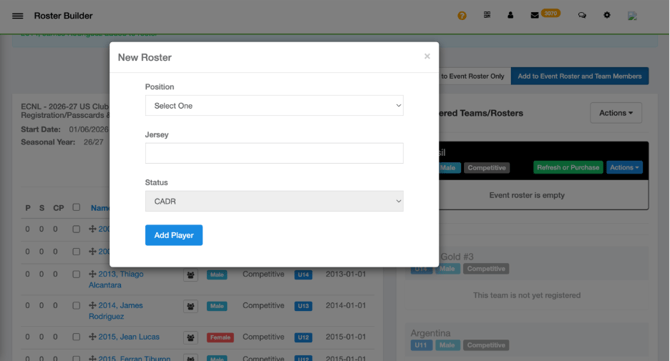
- A pop-up window will appear that gives you the option to add the position and jersey number. Once complete Select "Add Player".
Step 6:
- You will now see that player on the team with CADR as their status.
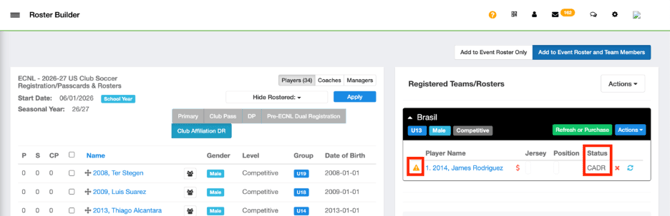
If the player is already rostered on another team in this event and is approved, they will automatically appear as approved for this team as a CADR Player. This can be verified by the green check mark next to their name.
Step 7:
- You will click on Refresh or Purchase to view players who are missing requirements. You will then click on Submit to proceed to purchase the ID Cards:
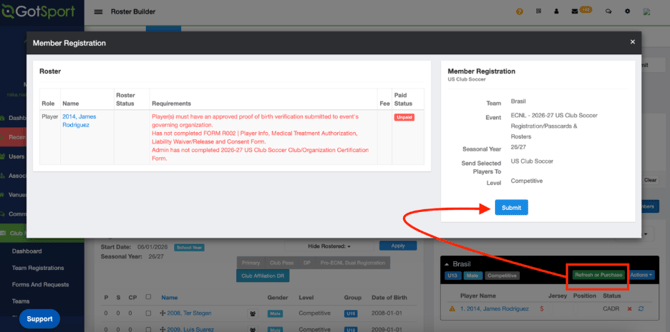
For ECNL Club Affiliation Dual Registration (CADR): Once the ECNL player is added to an ECNL roster and designated as a Club Affiliation Dual Registration (CADR) in GotSport, follow the steps in this Athlete One help article to add the Club Affiliation Dual Registration (CADR) to ECNL in Athlete One.