Instructions:
Step 1:
-
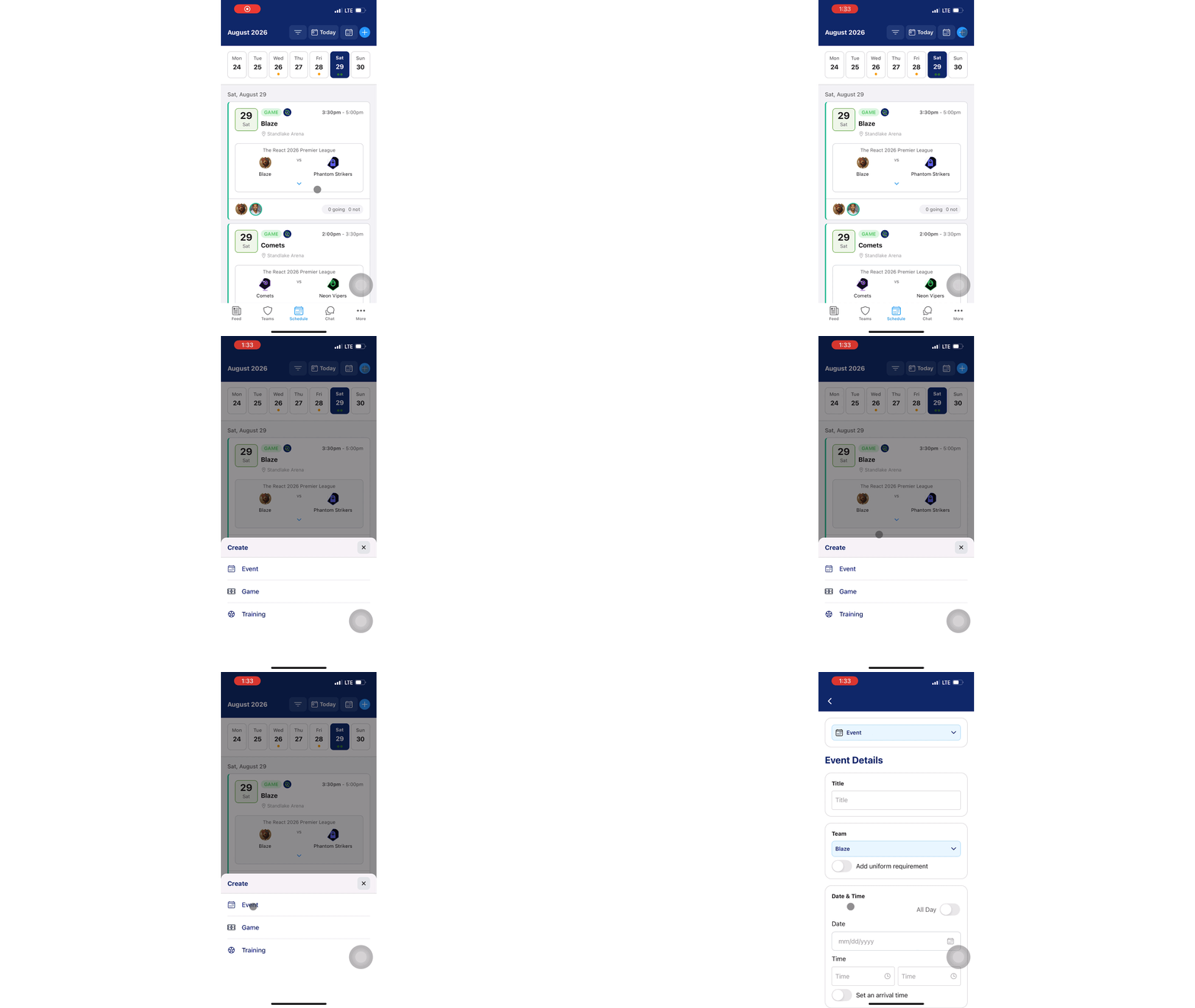
From the GotSport Team App, click the + icon
- Select the type of event:
- Event = An event can be used for a variety of different reasons such as Team Dinners, Pre-Travel Meetings, or Post Tournament recaps.
- Game = A non-GotSport Integrated Game will allow you to create a game vs an opponent for a practice or friendly
- Training = A practice or training session for your team
-
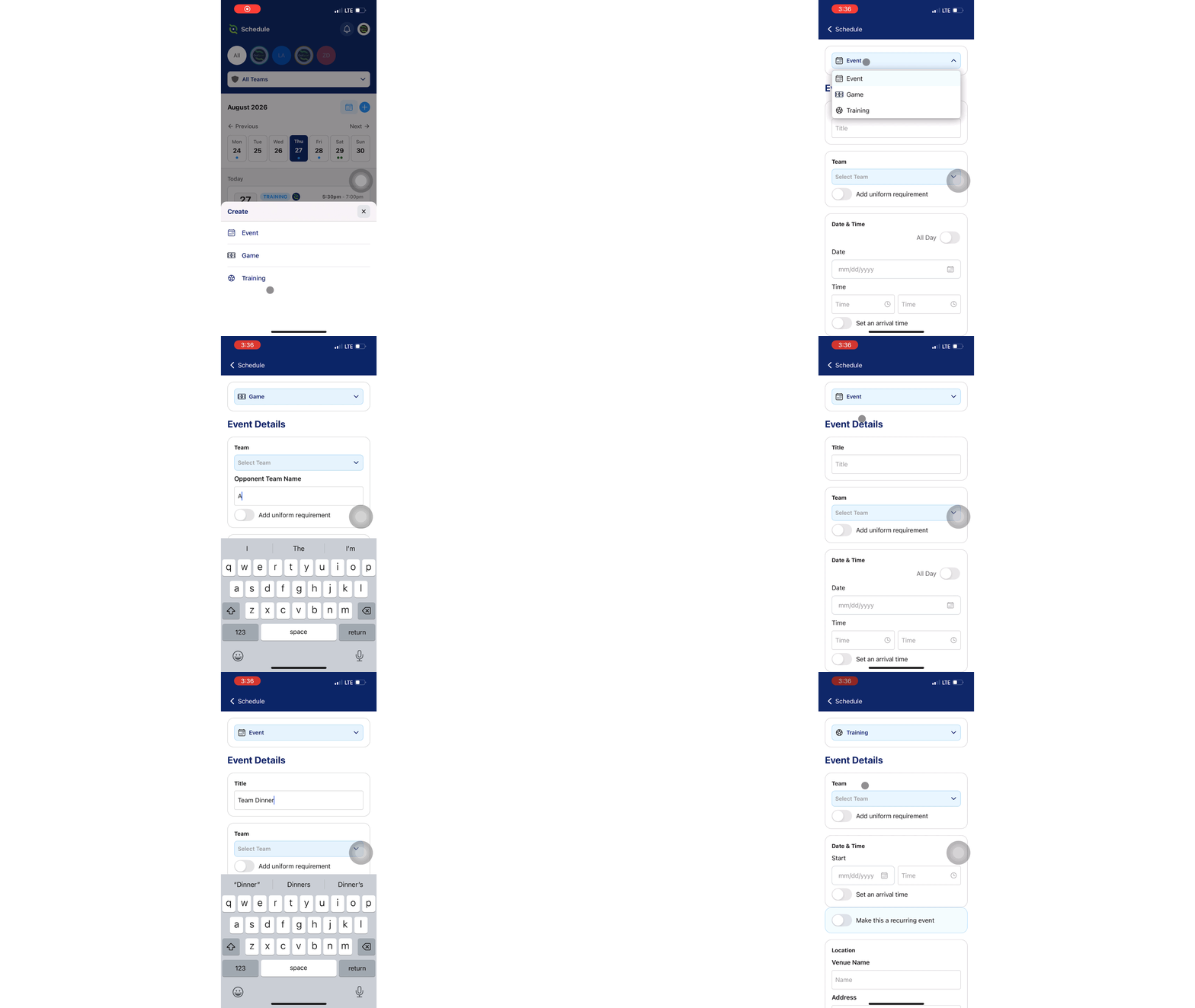
After selecting your event type, you can still change the type of event at the top using the top dropdown menu.
-
The difference of the type of the events are the different fields that are shown. With an Event, you can give the event a title. If you select a game, you'll be able to insert an opponent. All 3 event types will be shown in the Schedule tab after creation.
Step 2:
- Fill out and complete the required fields
- There are optional settings to apply, such as Arrival Time and the ability to make the event recurring
- Click Create Event upon completion
- After clicking Create Event, the event will be posted in the Schedule tab.