
Step 1: Download the App (GotSport Live: How to Get Started )
- Visit the App Store or Google Play store.
- Search for GotSport Live.

- Download and install the app.
- Use the same email associated with your GotSport coach/player/parent profile.
- Your teams and schedules will automatically appear once you log in.
- First time users login to app you will need a Unique 6 digit code

Step 3: Match Day Roster Setup
GotSport Live - Add Team Roster
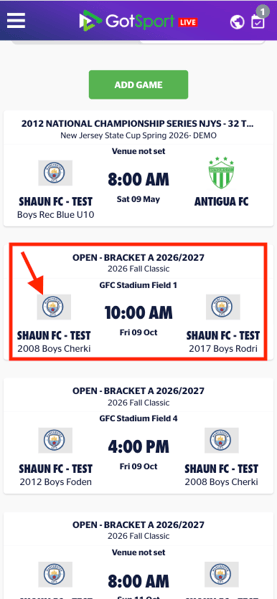
- Open your scheduled match.
- Click the bottom right Green + Button and navigate to Team Rosters
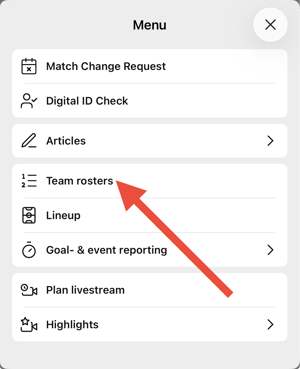
- Select the players participating in the match, including coaches.
- Save your roster once finalized.
Step 4: Optional Set Lineup
https://support.gotsport.com/add-graphical-lineup-gotsport-live
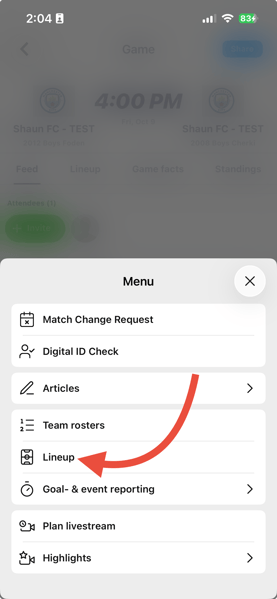
- Click on Green + button in bottom right corner.
- Tap on Lineup button.
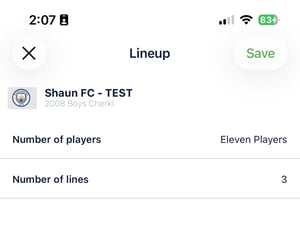
- Select the number of players and the number of lines for your lineup (formation).
- To add players to the formation or lineup, click on the + button on the field and then select the player's name who you want in that position.
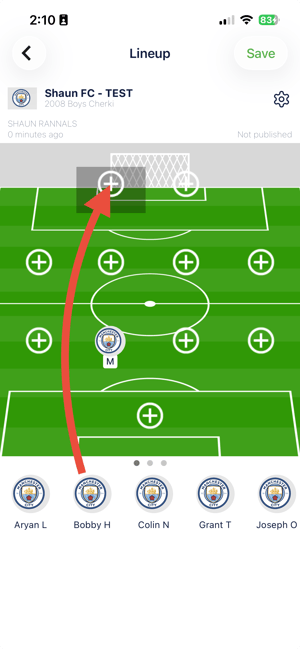
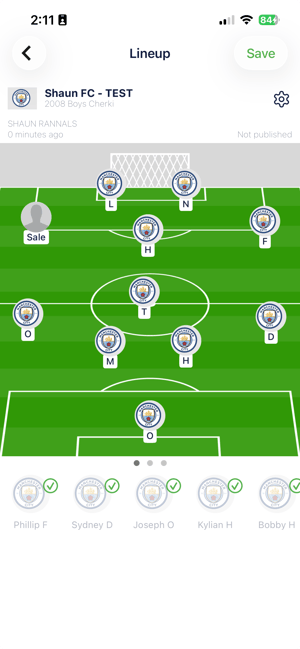
- You can move the formation around once players are assigned to the lineup. Notice in the previous screenshot, the formation is a 4-4-2, you can move players around to create a new formation (4-1-3-2 shown below). Click Save to save the lineup.
Step 5: Optional Game Chat (Need to Create)
- Open your scheduled match
- Click the bottom right Green + Button
- Navigate to Game Chat
- Once inside you can now chat and correspond with other team/coaches/admins
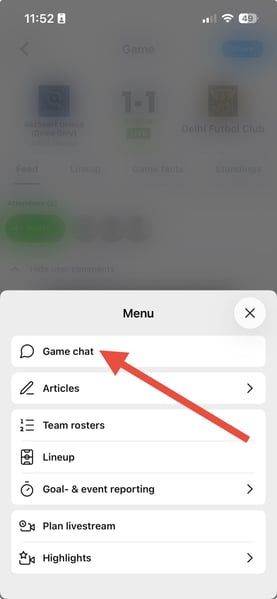
*NOTE - Some Events or Competitions may have this feature turned off. Double check with the Event Admin
Step 6: Optional Match Change Request (Need to Create)
- Open your scheduled match
- Click the bottom right Green + Button
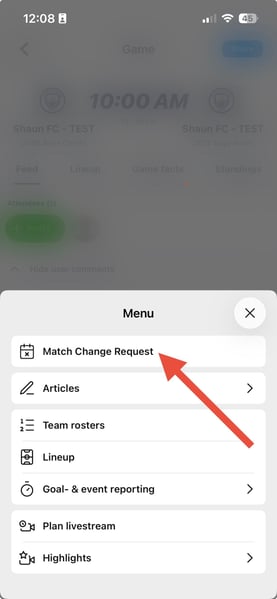
- Click/Tap into Match Change Request
- You have the ability to request a match change now
*NOTE Some Events or Competitions may have this feature turned off. Double check with the Event Admin
Step 7: Optional Virtual ID Cards & Player Status (Need to Create)
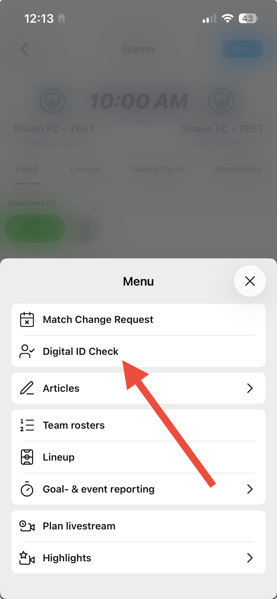
- Open the match and tap Digital ID Check.
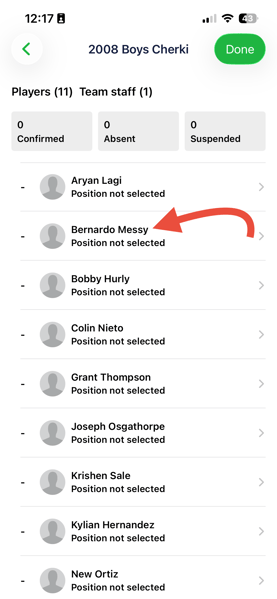
- Each player card will display their profile information from GotSport
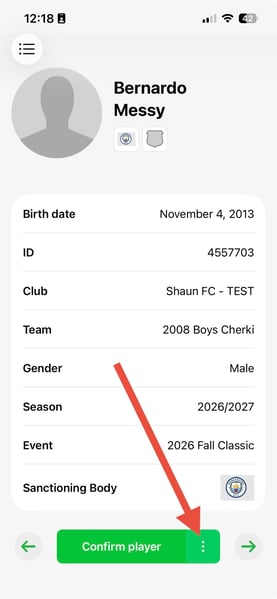
- Click into the player's profile you wish to check-in
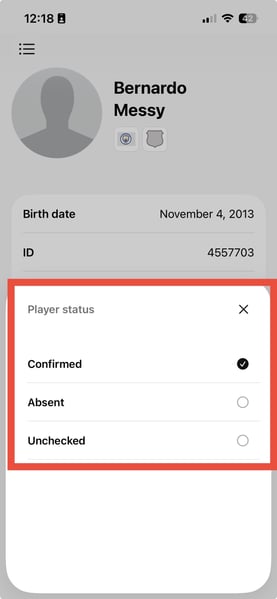
- Referees/Coaches Can Mark players as:
Confirmed – attending and eligible
Absent – not available
Unchecked – no status selected or not checked-in
*NOTE Some Events or Competitions may have this feature turned off. Double check with the Event Admin
Step 8: Entering Yellow/Red Cards, Goals, etc.
https://support.gotsport.com/goal-end-event-reporting-gotsport-live
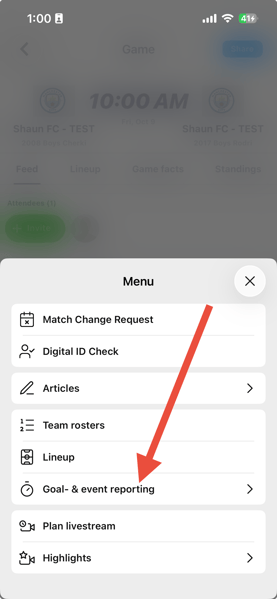
- Open the match bottom right Green + Button.
- Tap Goal & event reporting.
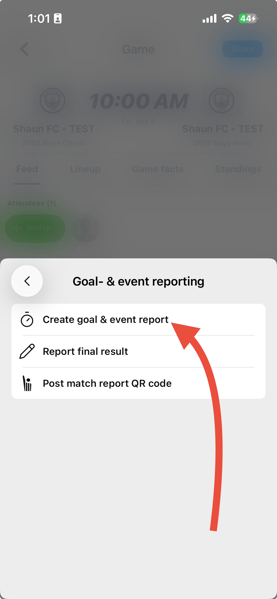
- Tap Create goal & event report.
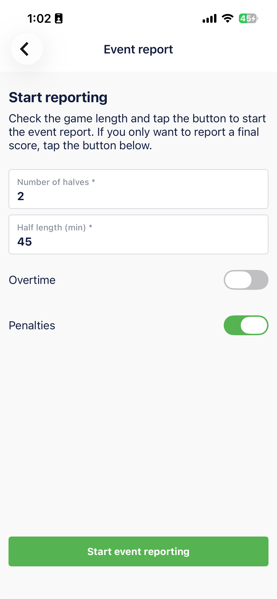
- Select the length of the game, minutes, halves, etc.
- Tap "Kick Off" in the top right. You must select "Kick Off" before you can report any other events.
- A Clock/Timer will appear on the right side of the screen. Tap to add match events.
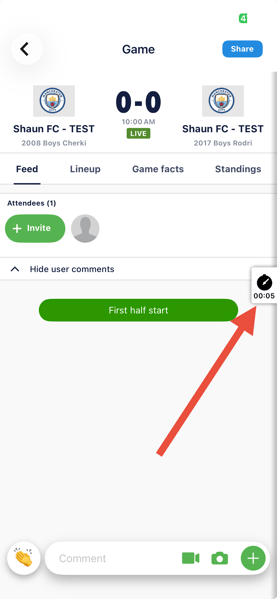
- Here you can select Yellow Card or Red Card, Goals, Substitutions, etc.
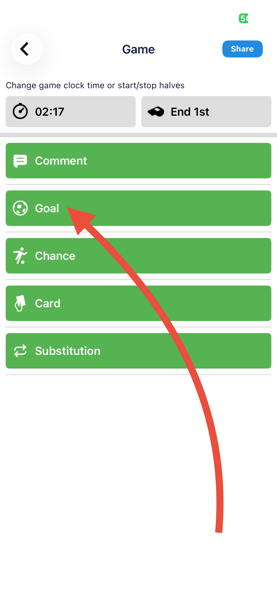
- Choose the player and add any required details.
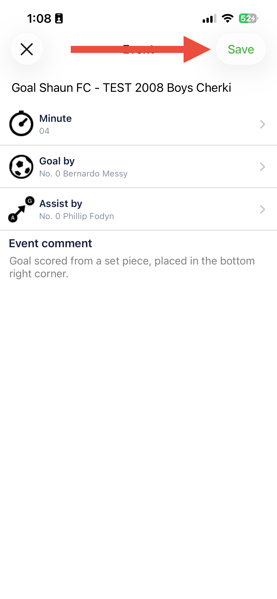
- Always Click Save.
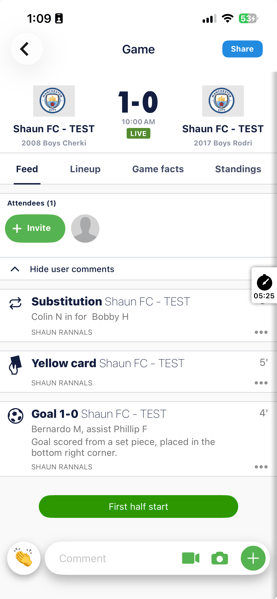
Step 9: Reporting the Final Score
- After the match ends. Click on the Green + button in the bottom right hand corner.
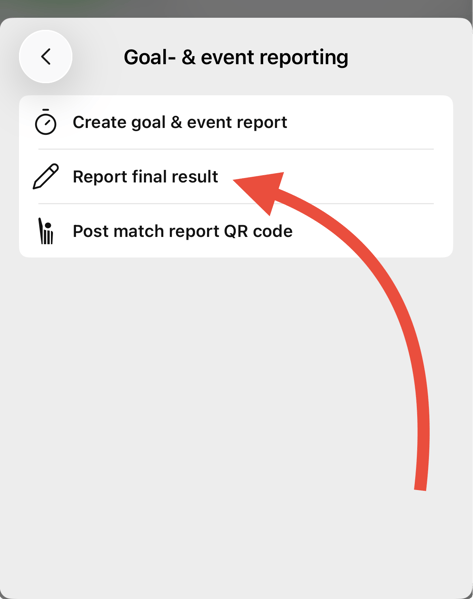
- Tap Goal & Event Reporting.
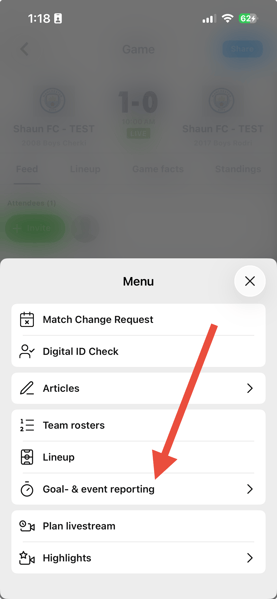
- Tap Report final result.
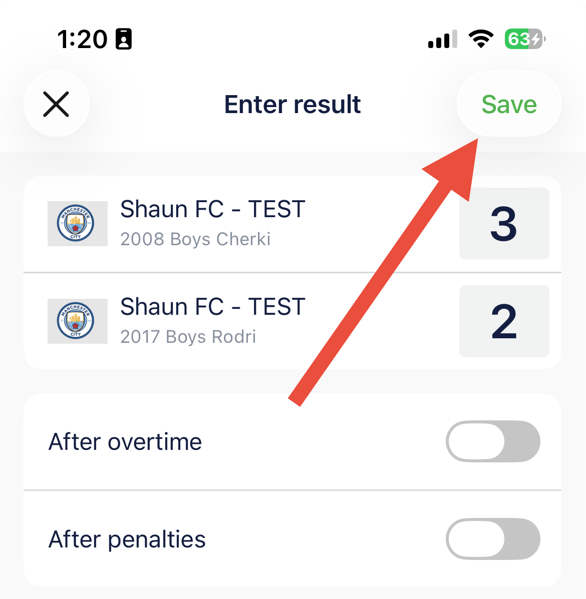
- Enter the score for each team.
- Review and confirm your submission.
- Click Save in the top right-hand corner
Step 10: How to LiveStream Video Games
-
Navigate to the game page in the GotSport Live App
-
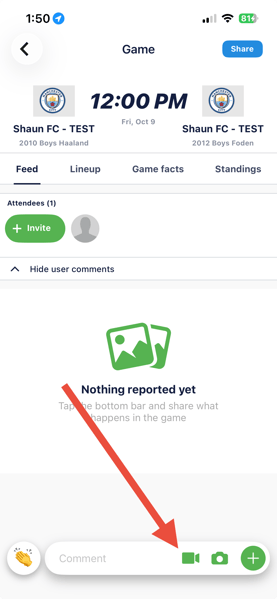
Press the Movie Camera button and select "Go Live"
-
The movie camera button can be found at the bottom of the game page. Click on the icon and select "Stream Live" from the menu that pops up.
-
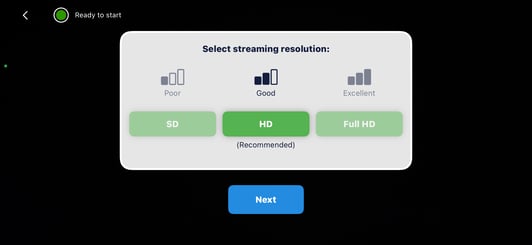
Set your streaming resolution and click Next.
-
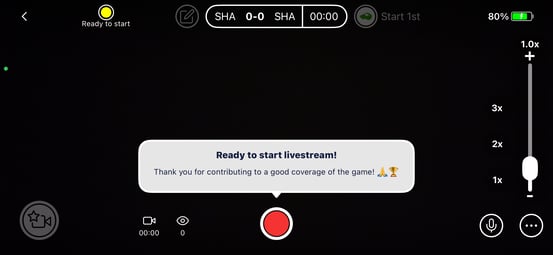
Click the Red Button “Ready to start livestream!” to begin streaming
Any Additional GotSport Live Resources
👉 Quick Start Guide – How to Get Started with GotSport Live
📖 About GotSport Live – Info About GotSport Live (PDF)
📚 Support Center – FAQs and detailed guides (Support Page)
▶️ Watch Their Full How-To Video – Step-by-step walkthrough
🎥 Book a Free 1-on-1 Demo with the GotSport Live team! Meeting Link
Recorded Video/Screenshare