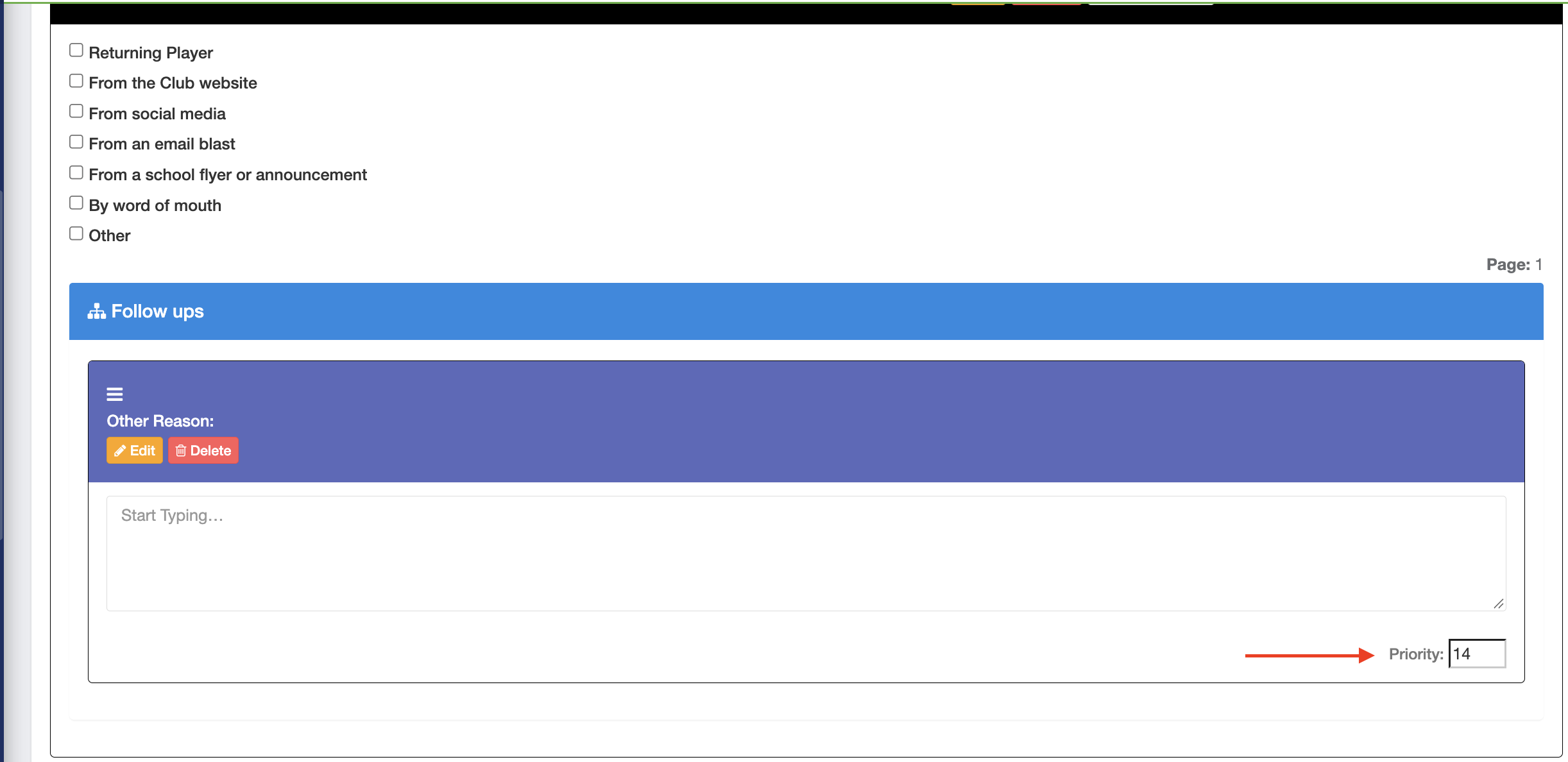
Instructions
Step 1:
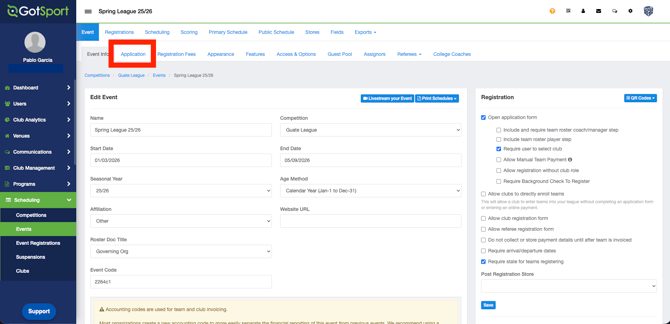
- Go to Scheduling > Events
- Create or open an event. Go to "Application" on the top menu bar
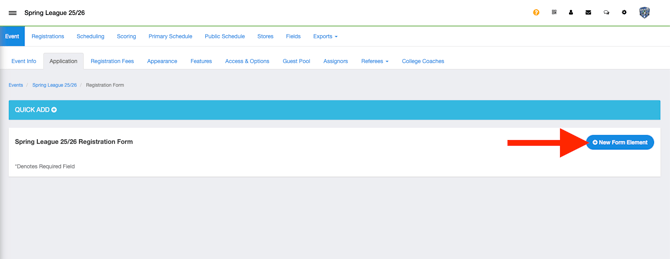
- Click "New Form Element"
Step 2:
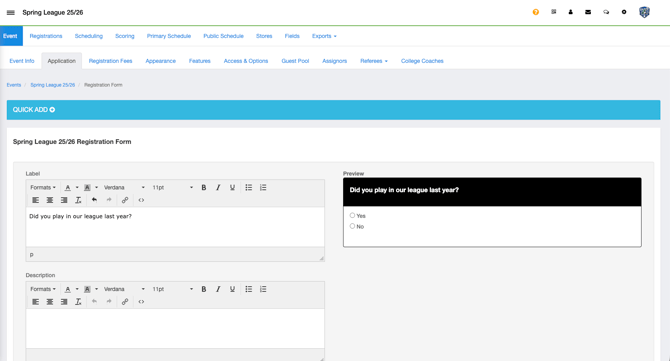
- Create the initial question you want to use as the trigger for a dependent follow‑up question, then click Save
Step 3:
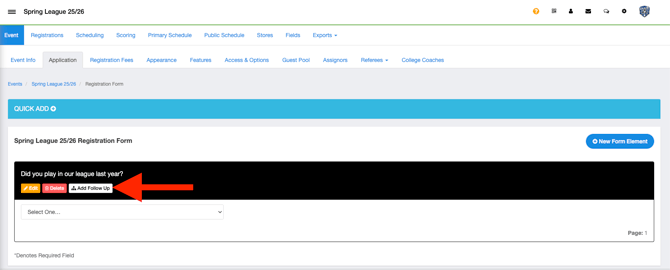
- You will then click on "Add Follow Up":
Step 4:
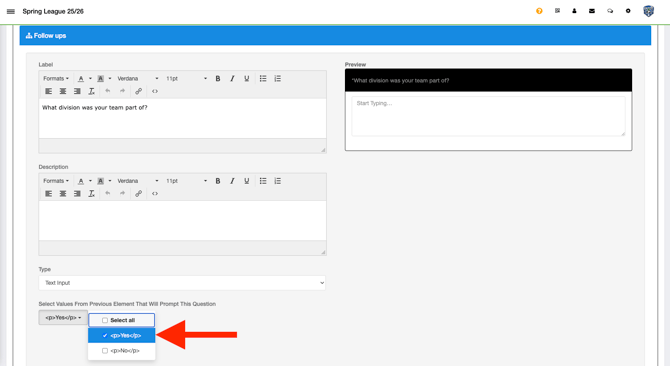
- Create your follow‑up question, select the path that links it to the initial question’s answer, and then click Save
You can create as many questions and dependent follow‑up questions as needed from the initial question. To reorder them, change the number of the Priority to move the question up or down.