
What Changed and Why
US Youth Soccer (USYS), AYSO, and US Club Soccer have collectively adopted a new age group player formation cycle running from August 1 to July 31, effective beginning with each organization's 2026–27 season/registration year. This replaces the previous calendar year (January 1–December 31) method.
The change was made to better align players with their school-grade peers, support social and individual development needs, and increase overall participation. This new cycle will apply to all USYS league and Cup competitions for the 2026–27 season, including National Championships, Presidents Cup, and National League.
Note: This change is effective beginning with each Organization Member's 2026–27 season/registration year. No action is required for seasons prior to 2026–27.
How This Affects GotSport
Within GotSport, age group calculations are driven by the Seasonal Year setting on your Forms, Teams, Programs, and Internal Rostering Events. To comply with the new August 1–July 31 cycle, administrators need to update this setting from Calendar Year to School Year in each applicable area.
Click the below link to navigate directly to that section:
- Updating the Seasonal Year on Forms
- Updating the Seasonal Year on Teams
- Updating the Seasonal Year for Programs
- Updating the Seasonal Year on Internal Rostering Events
- Additional Resources
Updating the Seasonal Year on Forms
Follow these steps to update the age group calculation method on a registration Form in GotSport.
-
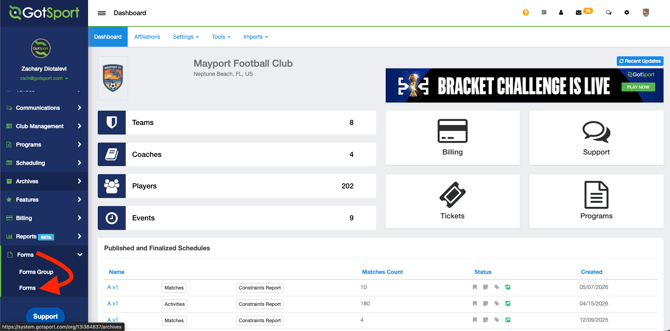
From your Admin Dashboard, click Forms > Forms
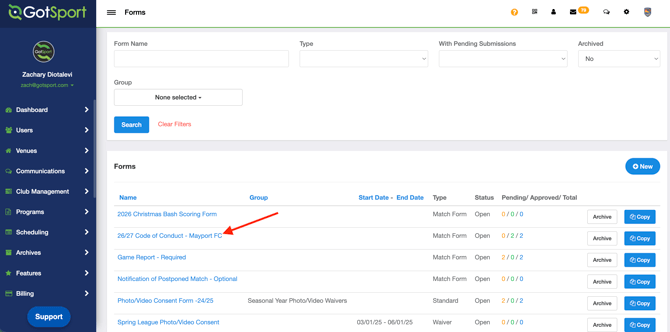
- Select the Form you want to update.
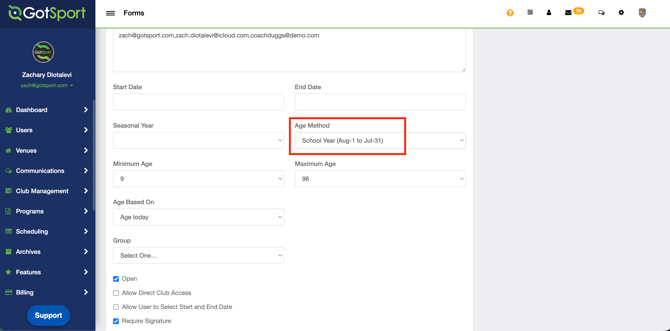
- Locate the Seasonal Year field and change the value from Calendar Year to School Year
- Scroll to the bottom and Save your changes.
Updating the Seasonal Year for Teams
Follow these steps to update the age group calculation method on a Team in GotSport.
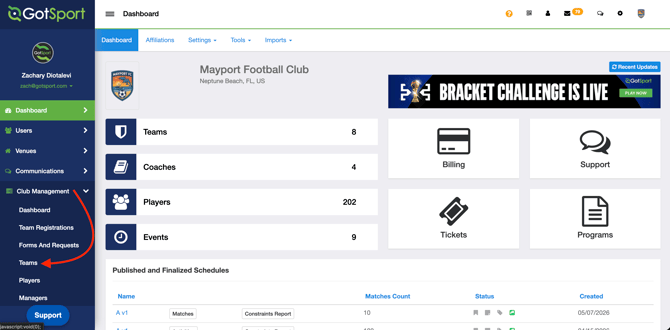
- From your Club Administrator dashboard, navigate to Club Management > Teams.
- Select the Team you want to update.
- Open the Team's Settings or Edit view.[Screenshot: Team edit/settings view]
- Find the Seasonal Year field and click "Switch to School Year" If you see "Switch to Calendar Year" that means the team is already set to the school Year age method.
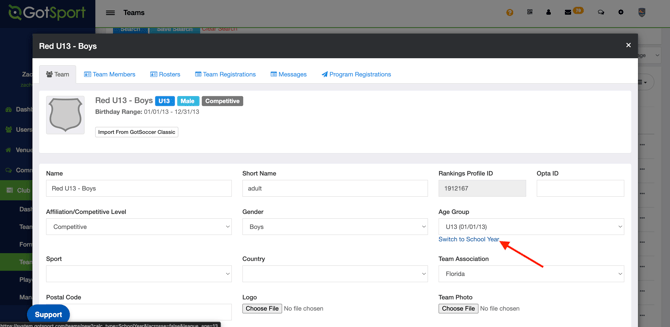
The screenshot above shows a team set to "Calendar Year"
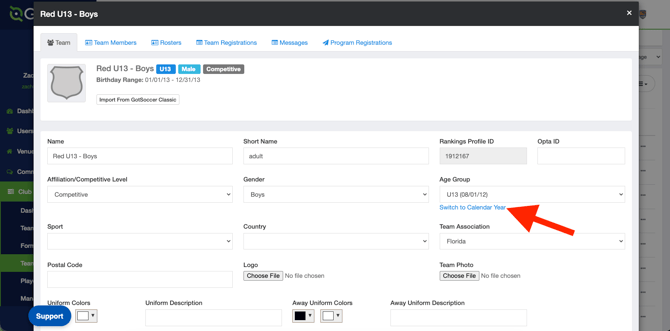 The screenshot above shows a team set to "School Year"
 - Save your changes.
Updating the Seasonal Year for Programs
Follow these steps to update the age group calculation method on a Program in GotSport.
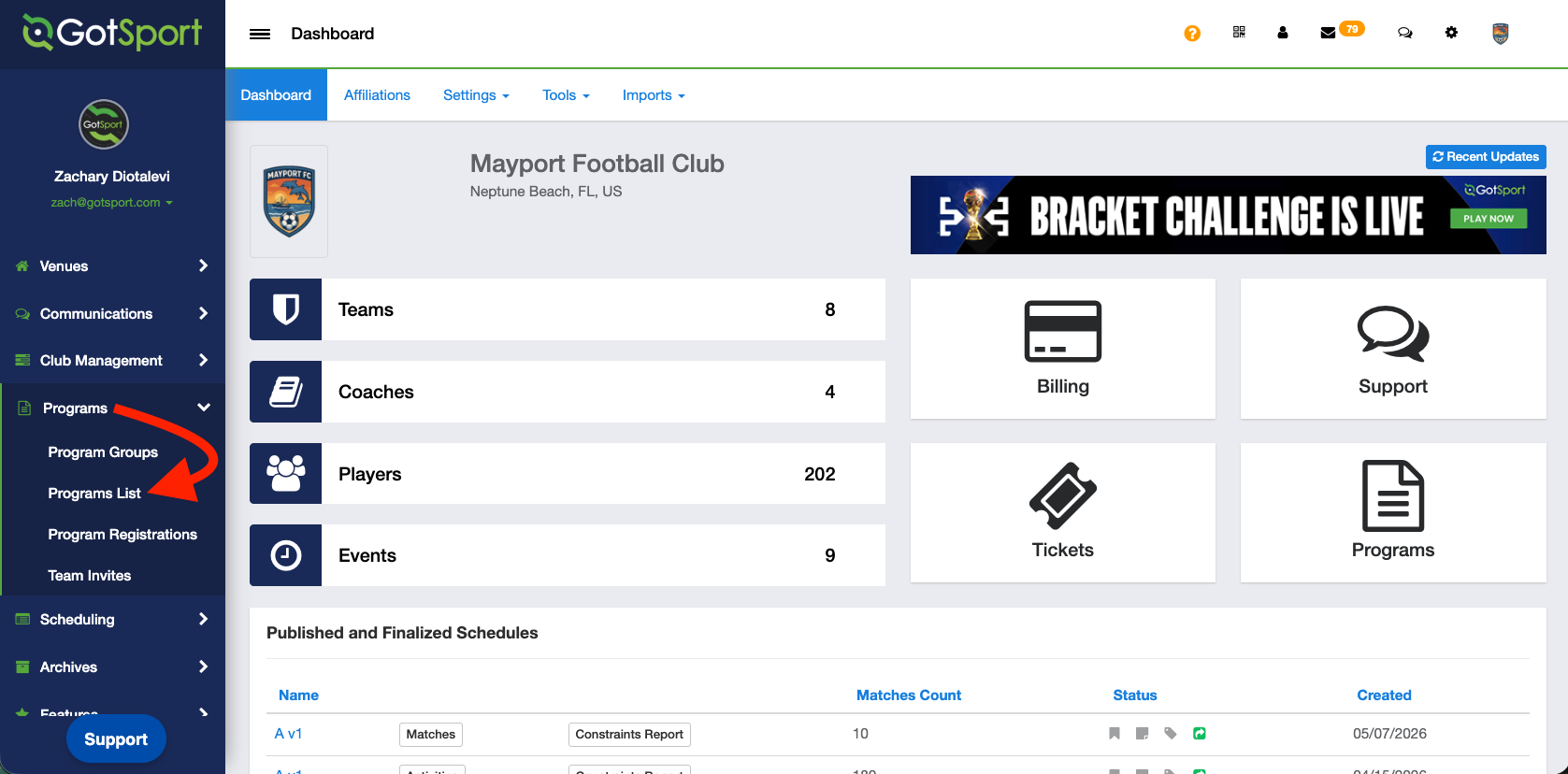
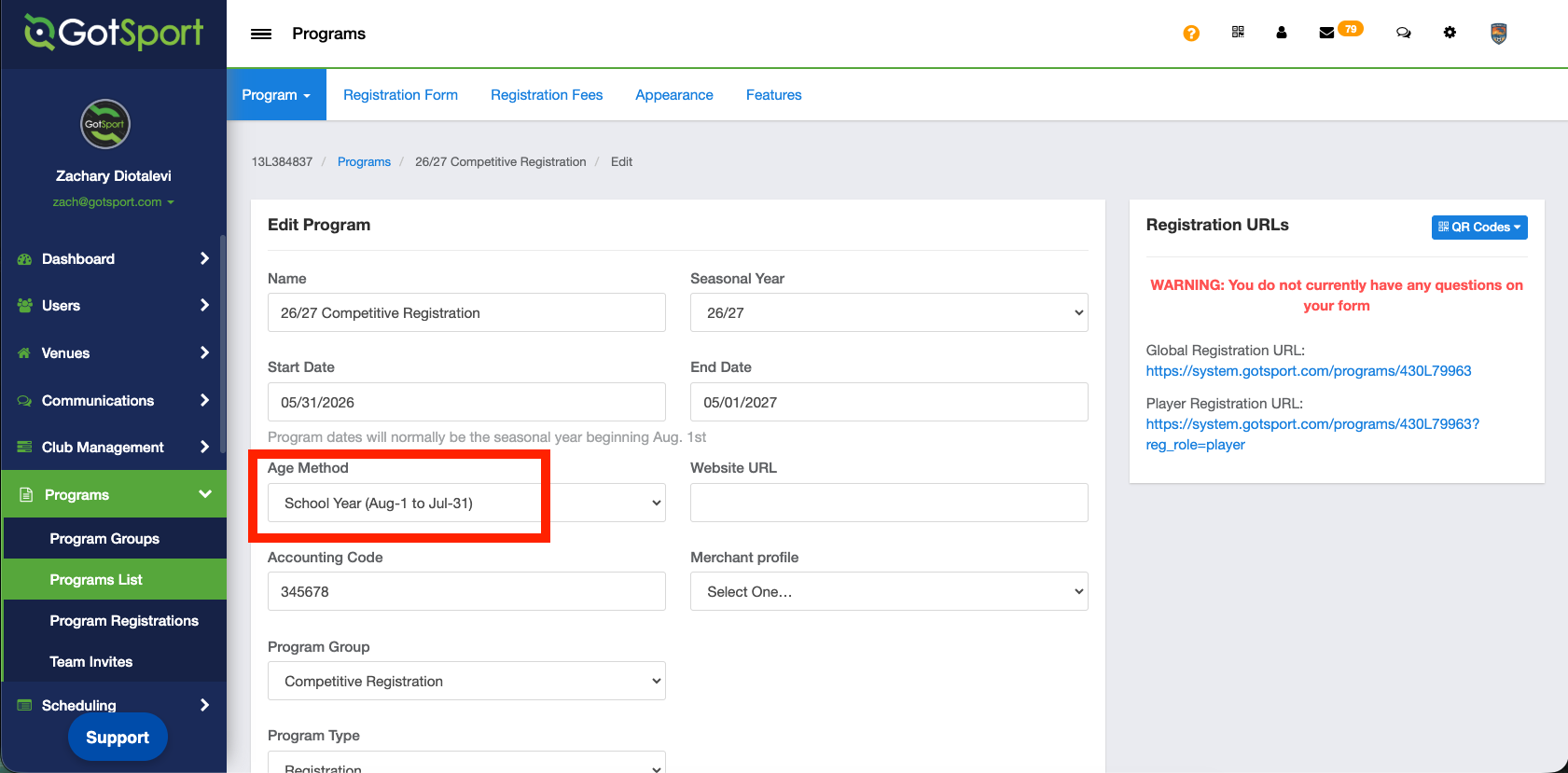
- From your Admin Dashboard, click Programs > Programs List.
- Select the Program you want to update.
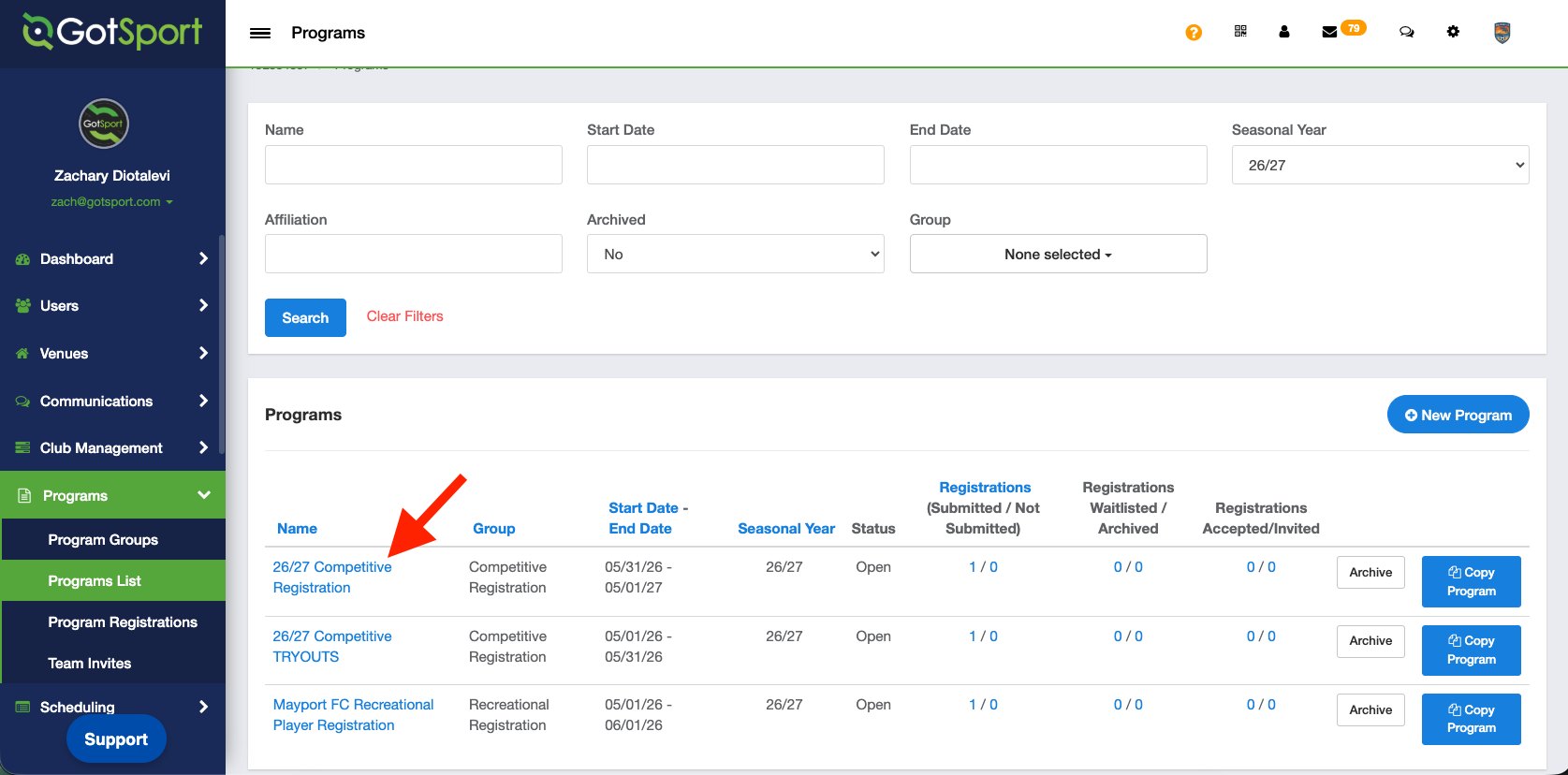
- Locate the Seasonal Year field and update it from Calendar Year to School Year.
- Save your changes.
Updating the Seasonal Year on Internal Rostering Events
Follow these steps to update the age group calculation method on an Internal Rostering Event in GotSport.
- From your Admin Dashboard, click Scheduling > Events
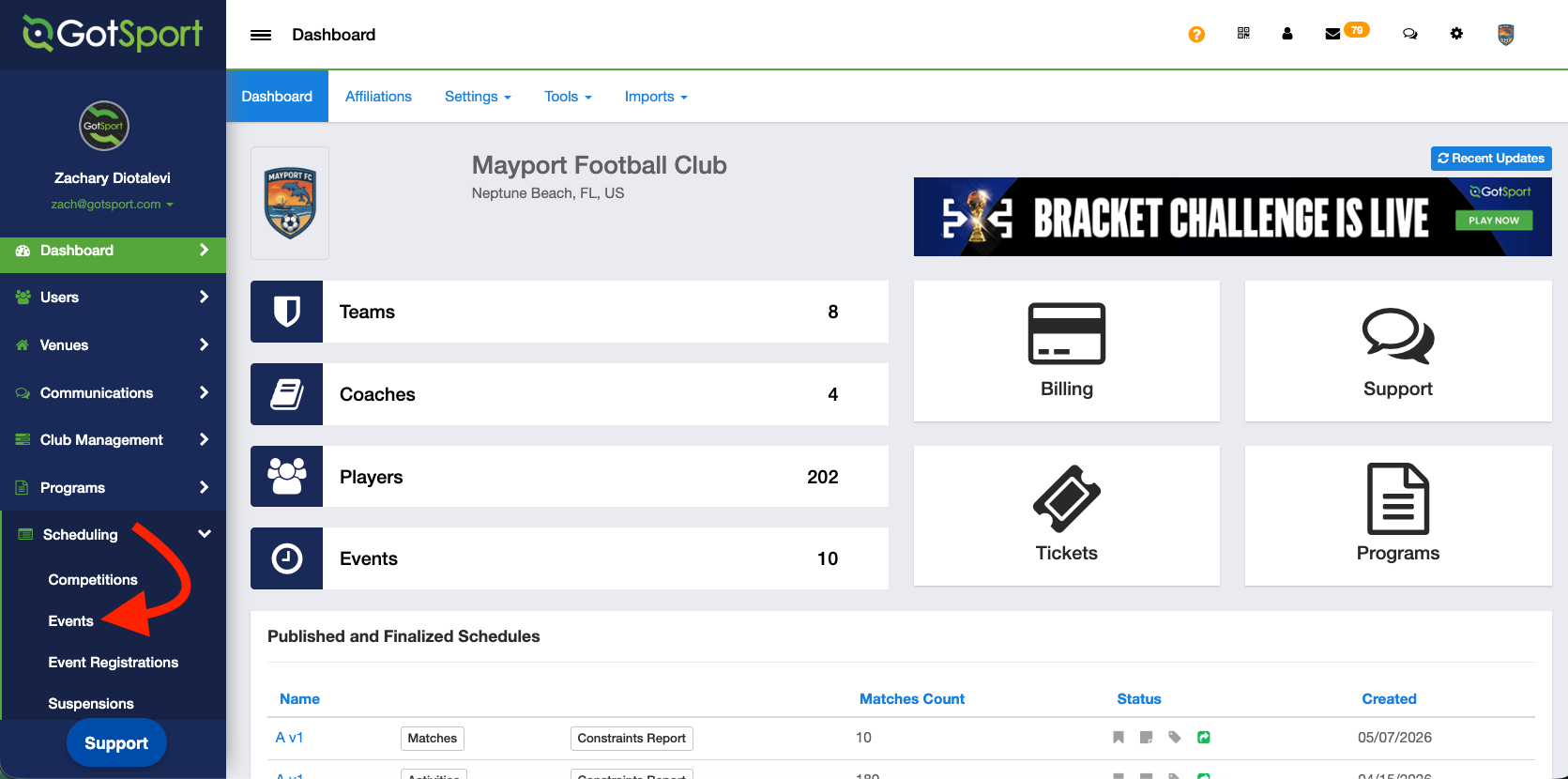
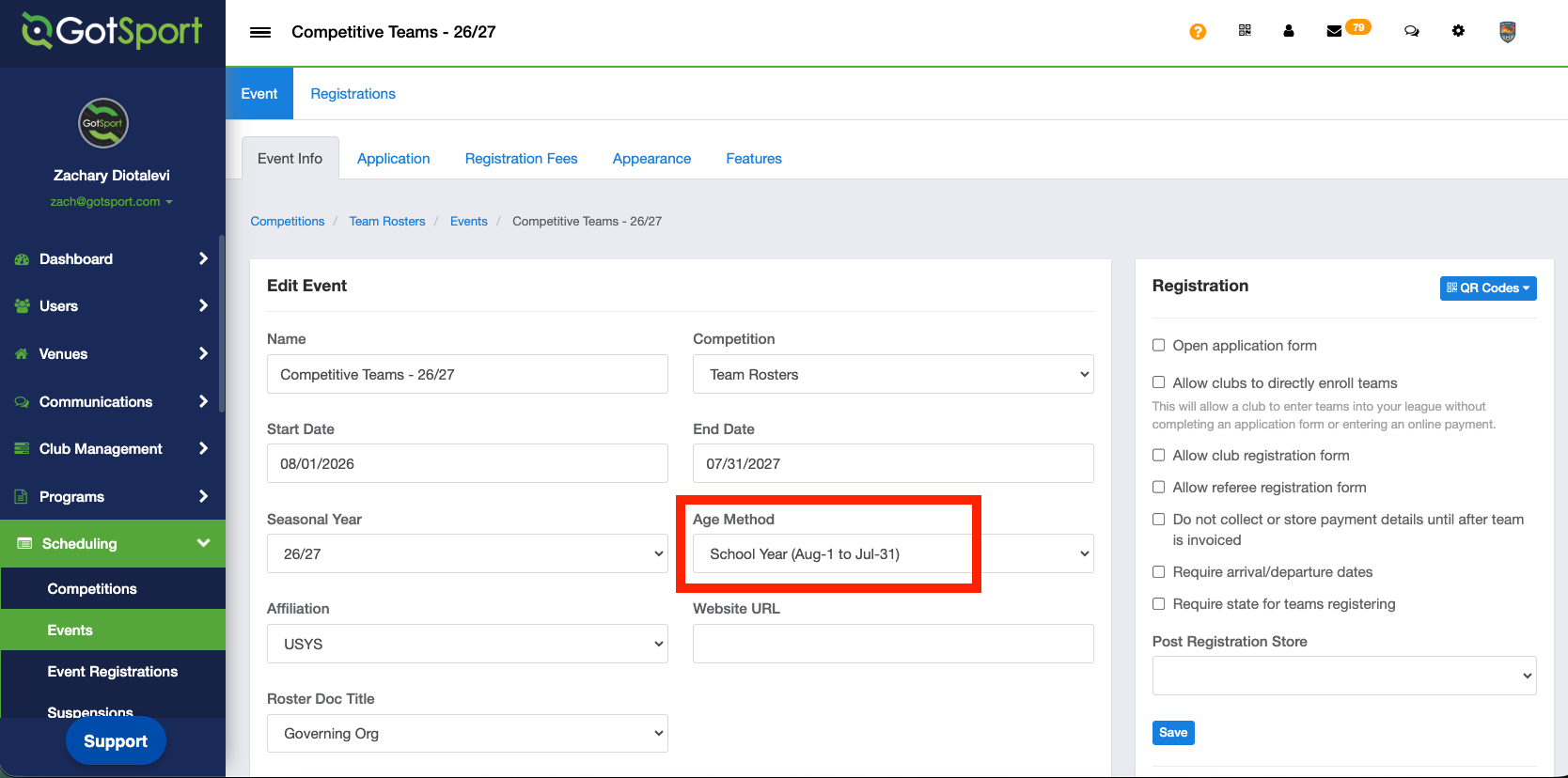
- Select the Event you want to update.
- Find the Seasonal Year field and change it from Calendar Year to School Year.
- Save your changes.
Additional Resources
Additional Resources: