
Step 1:
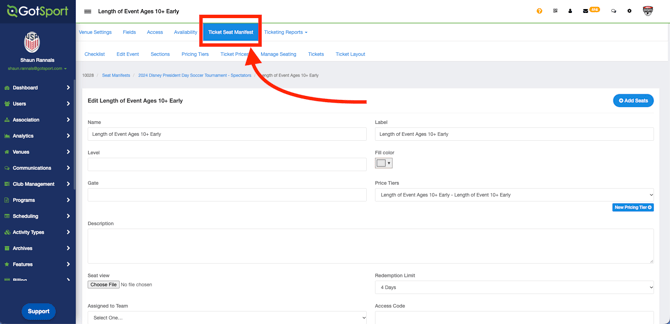
- Within your ticketing event/store, navigate to the Ticket Seat Manifest tab.
Step 2:
- Next, scroll down to the Activate Date/Deactivate Date option boxes. When clicking on this box, a calendar will pop up to select your dates.
There is a Hidden From Public for your to select should you want to hide these dates.
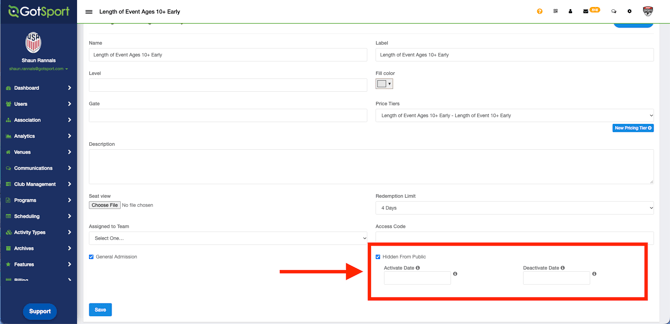
The tool tip next to Activate Date says “The section will be activated at the start of the date chosen.”
Add tool tip next to Deactivate Date that says “The section will be deactivated as soon as the deactivate date begins.”
Add tool tip next to Deactivate Date that says “The section will be deactivated as soon as the deactivate date begins.”