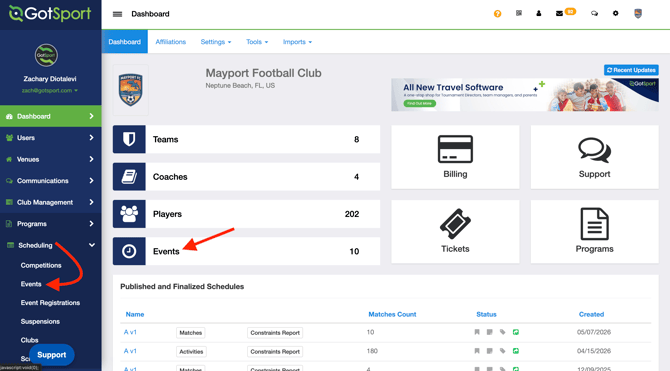
Step 1: Navigate to Events
- From the Admin Dashboard, click Scheduling in the left-hand navigation, then select Events.
- You can also click the Events tile on the Dashboard.
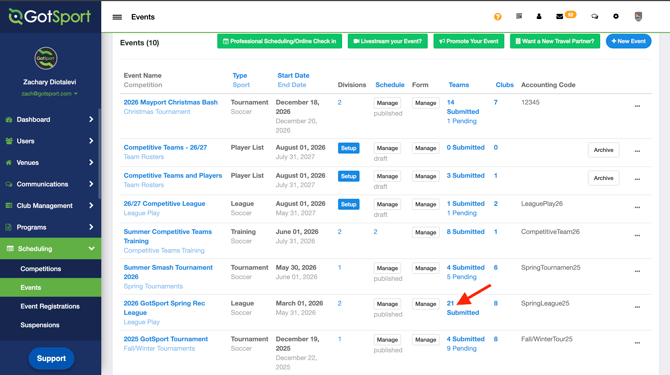
Step 2: Open Your Event
- Click the name of your event
- You can also click the number of teams listed under the Teams column to open the Team Registrations view.
Step 3: Select Teams to Update
- Use the checkbox column on the left to select the teams whose names you want to update. Check individual boxes, or use the header checkbox to select all.
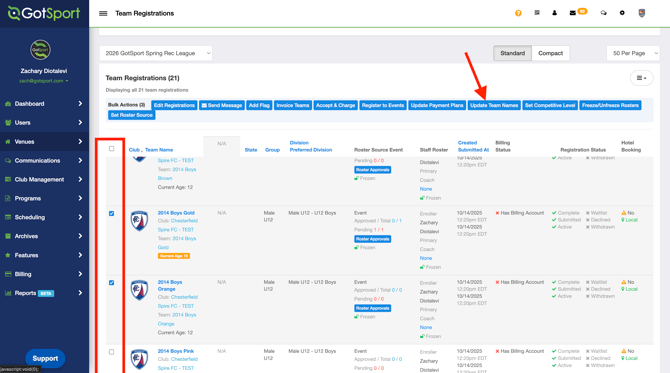
Step 4: Click Update Team Names
- In the Bulk Actions bar that appears, click Update Team Names.
- A green confirmation banner will appear indicating the team names have been saved. The names shown in the event will now reflect what the club currently has on file.
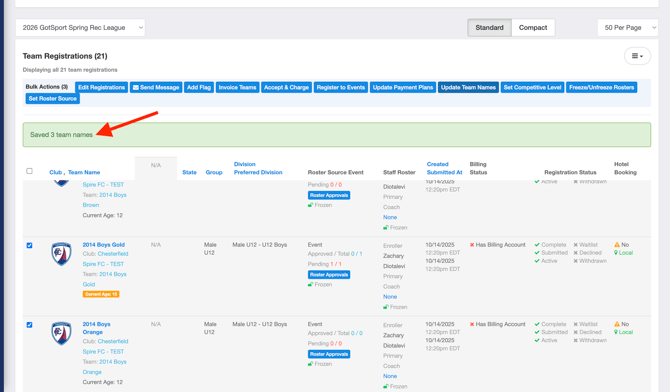
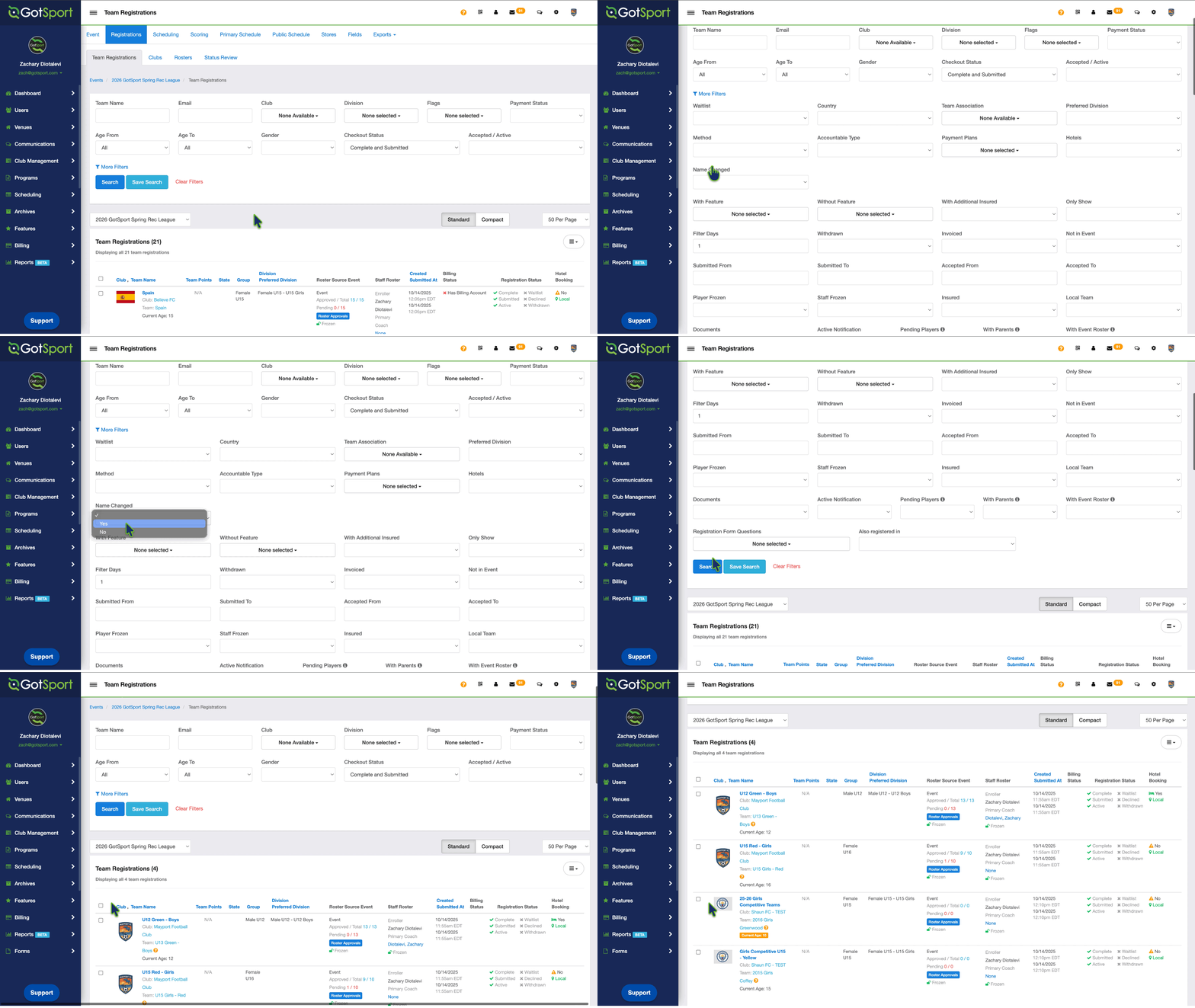
NOTE*** Event Directors can use the filters at the top of the Team Registrations page to find a locate event team names that are different than the Team Name in GotSport