Instructions:
Step 1:
-
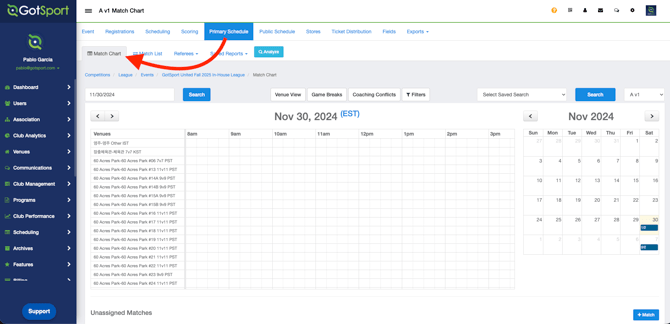
Go to your Event and then click on Primary Schedule > Match Chart
Step 2:
-
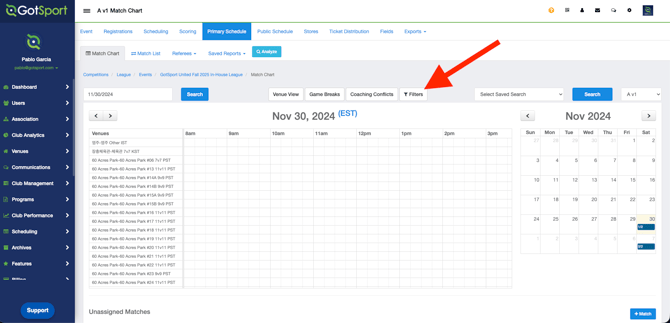
Click "Filters" to view all available filter options.
Step 3:
-
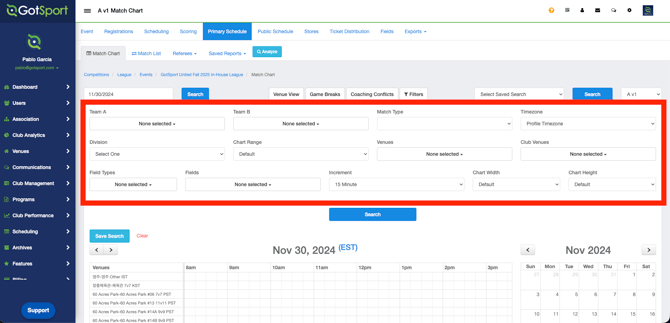
Here, you can choose the filters you want to use and then click "Search.
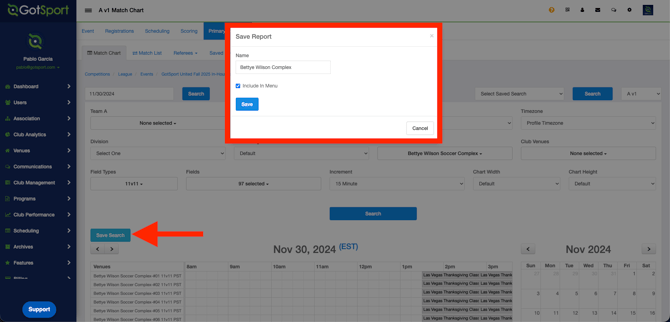
- To save the search, click Save Search, enter a name, choose whether to include it in the menu, and then click Save.
Step 4:
-
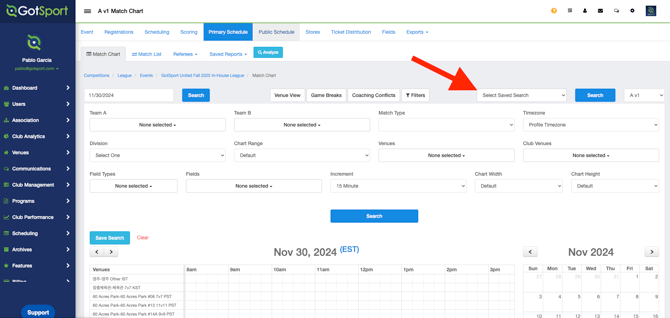
Click on "Select Saved Search" and then select your search.
-
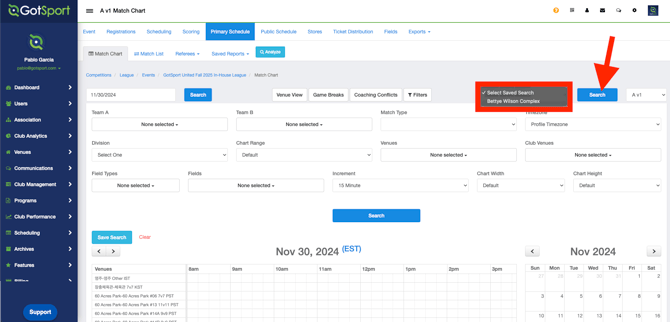
Once you have selected your saved search, click on "Search".
How to View your Saved Reports:
-
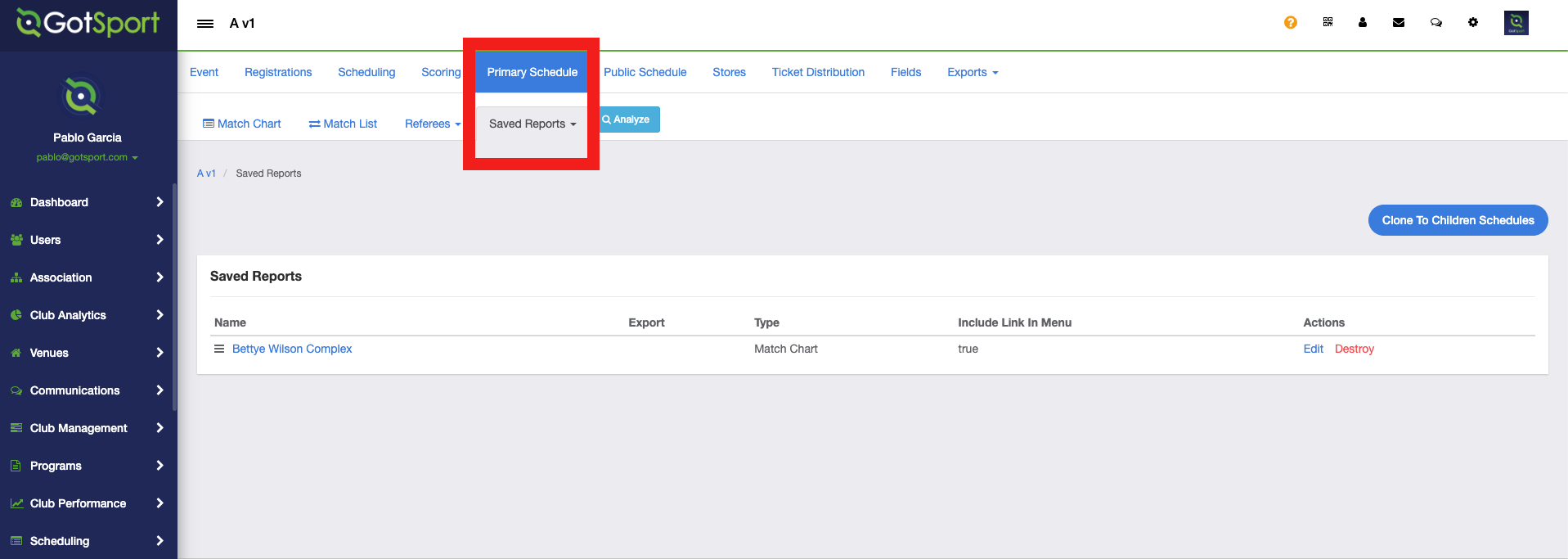
Go to Primary Schedule > Saved Reports, then click the report name. This will take you to your saved search.
- To remove/delete the saved search, click on "Destroy".