Instructions
Step 1:
-
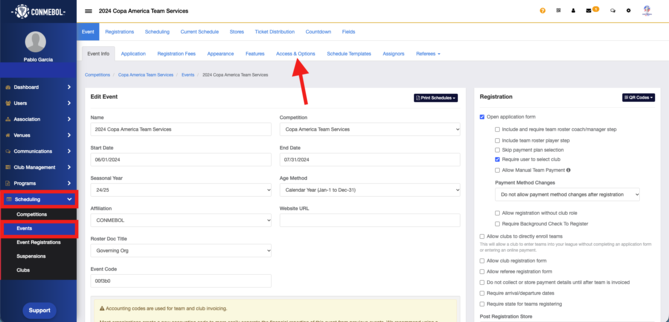
From your organization account, go to Scheduling > Events and select your Team Services event. Then open the Access and Options tab.
Step 2:
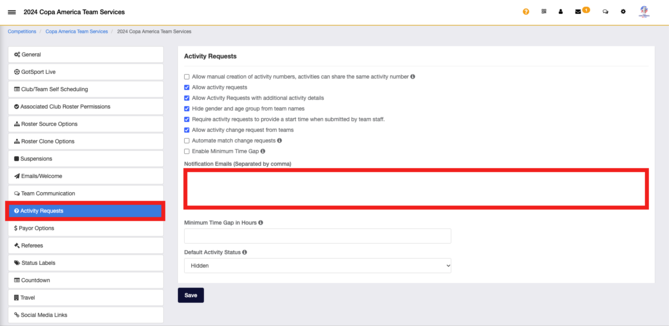
- Scroll down to the Activity Requests section.
-
Turn on the settings that let users submit activity requests, then enter the email addresses of the people in your organization who should be notified in the Notification Emails box, separated by commas.
Step 3:
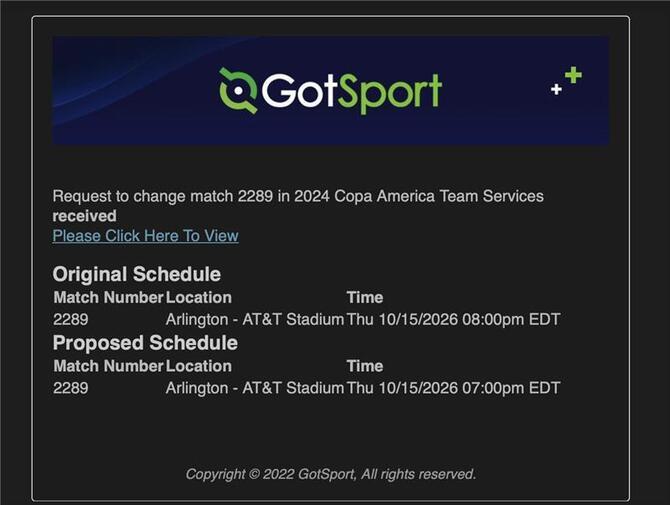
- When a user submits an activity change request, everyone listed in the Notification Emails box will receive an email like the one below.
Step 4:
-
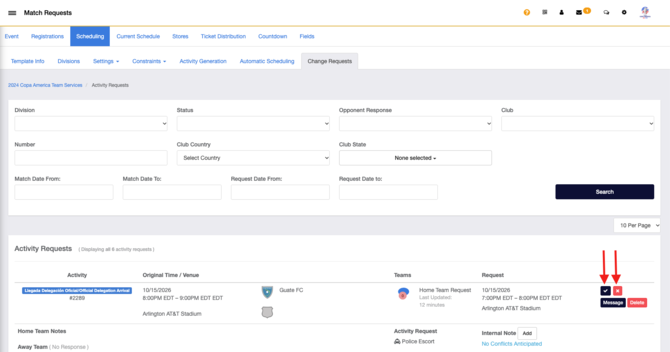
To approve or deny a request, open your event and go to Scheduling > Change Requests.
- Click the green check mark to approve the request or the red X to deny it.
-
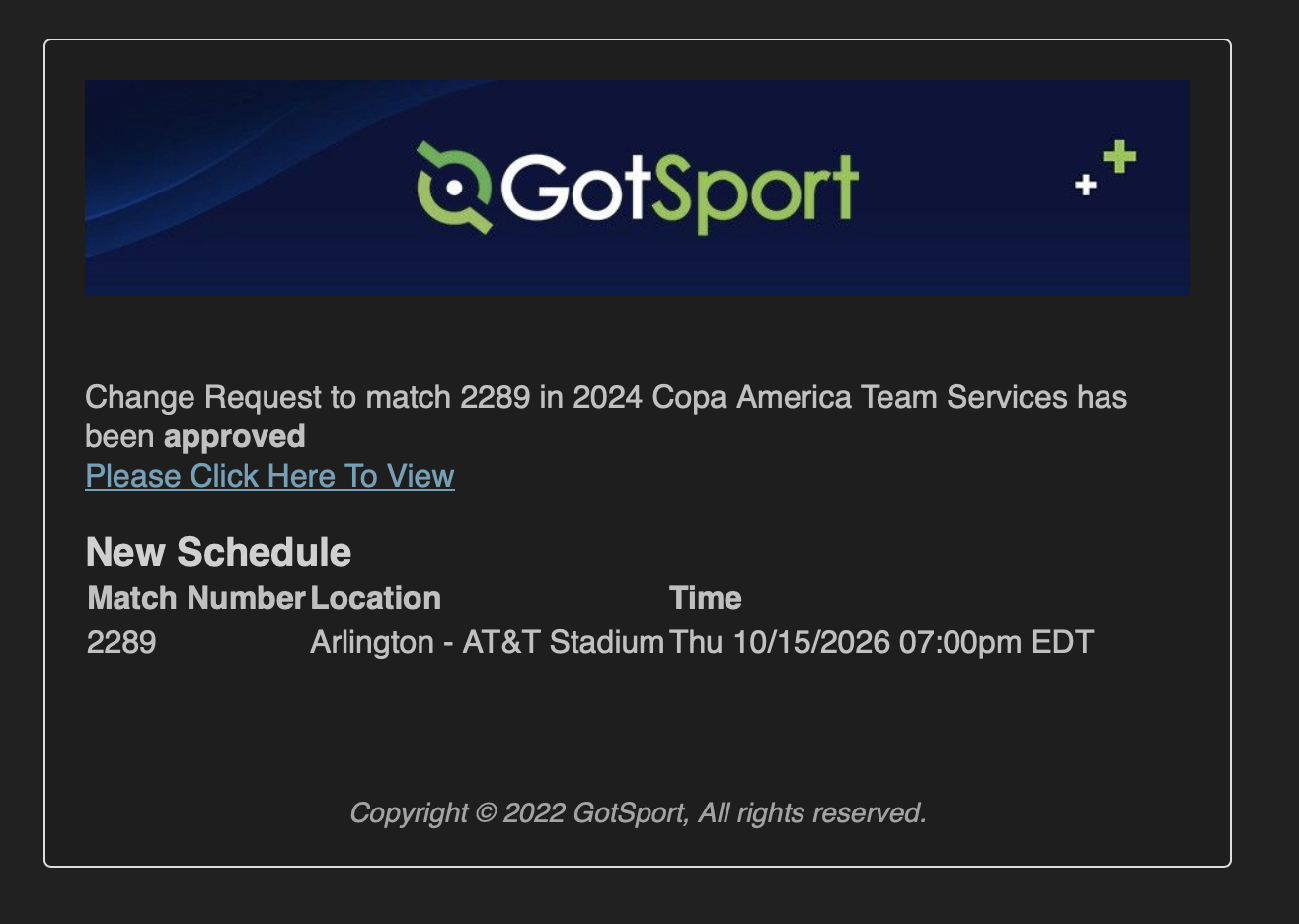
Once a request is approved or denied, the requester will receive an email like the one below.