
Step 1: Click the green "+" button in the bottom right-hand corner of the game feed screen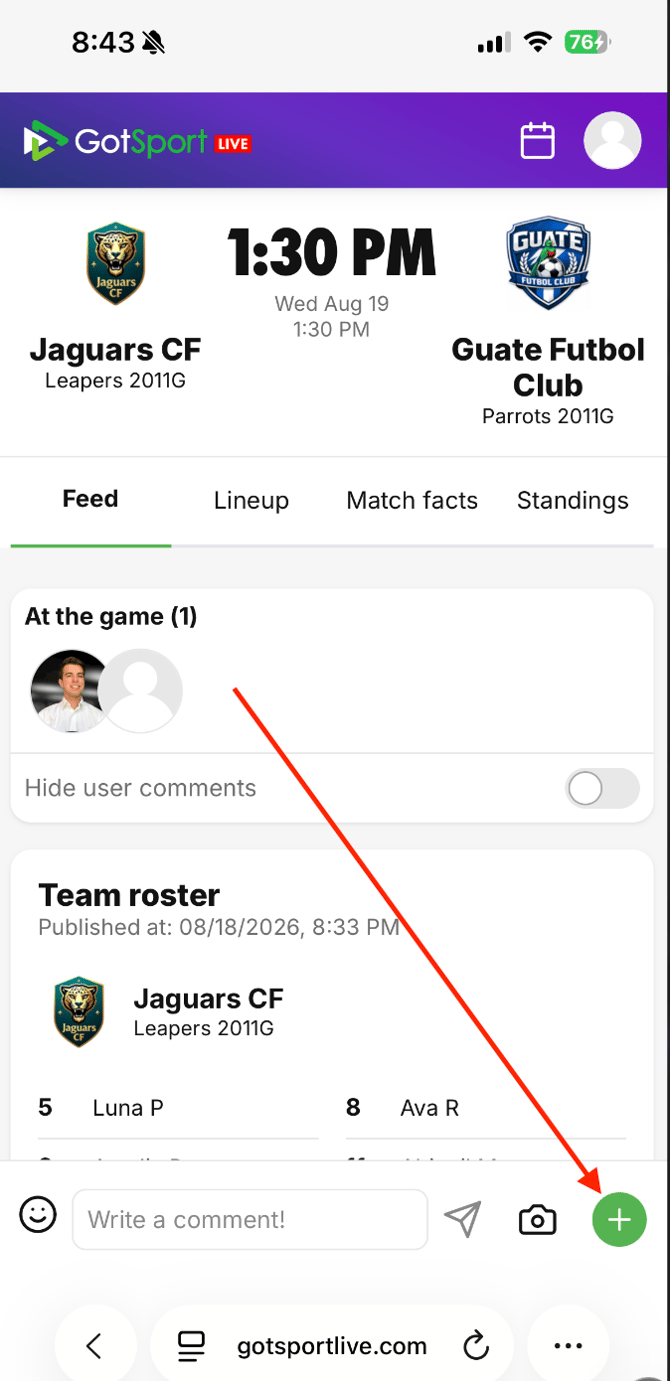
Step 2: Click on Digital ID Check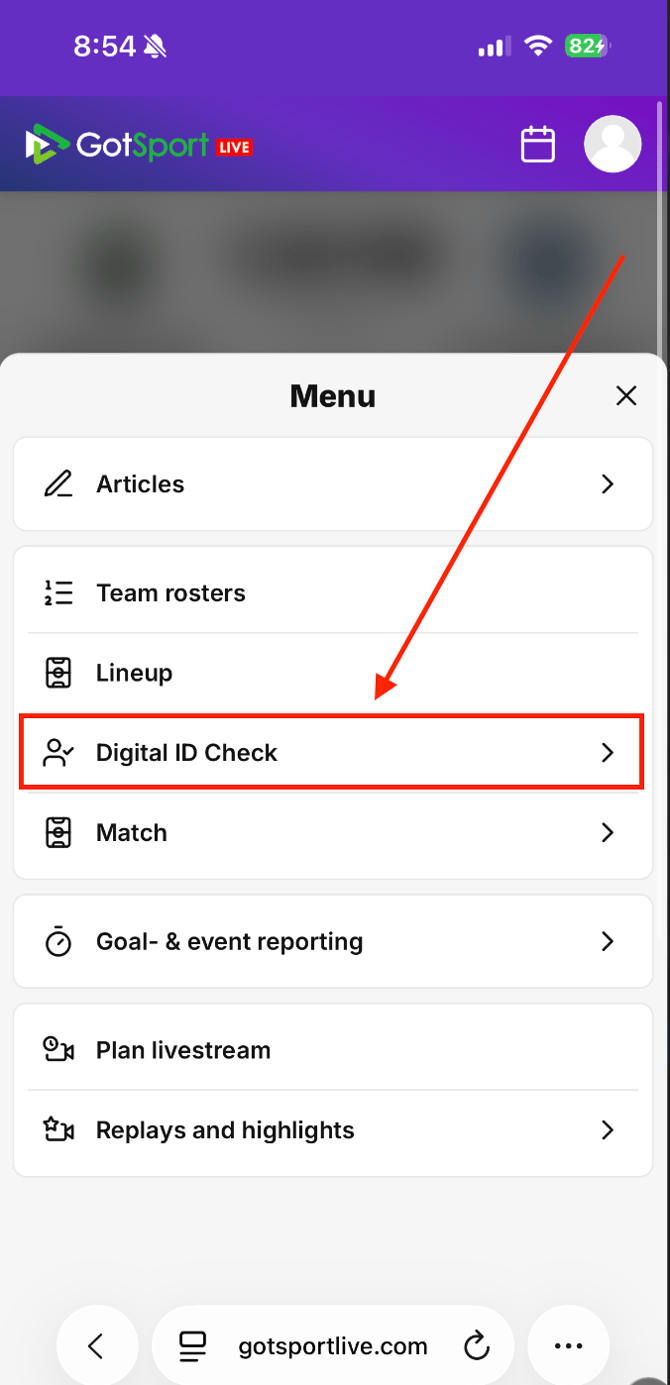
Step 3: Click on a specific team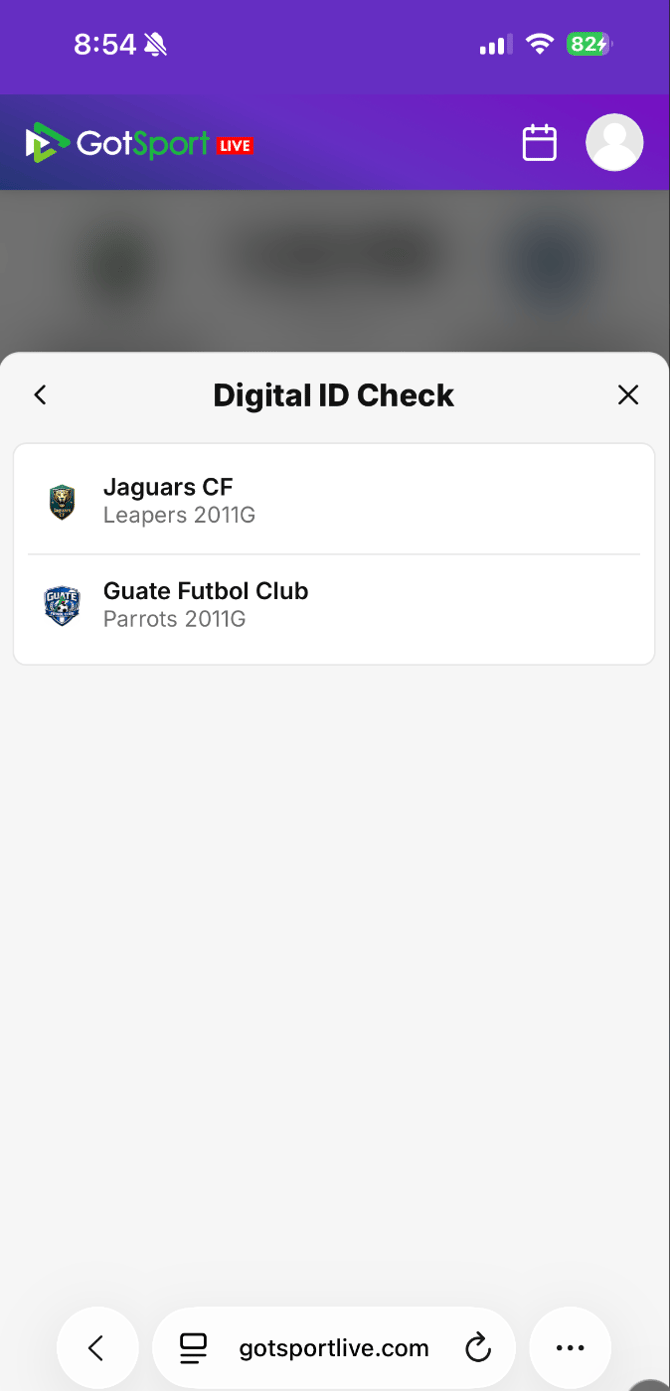
Step 4: Click on a team member to access ID card
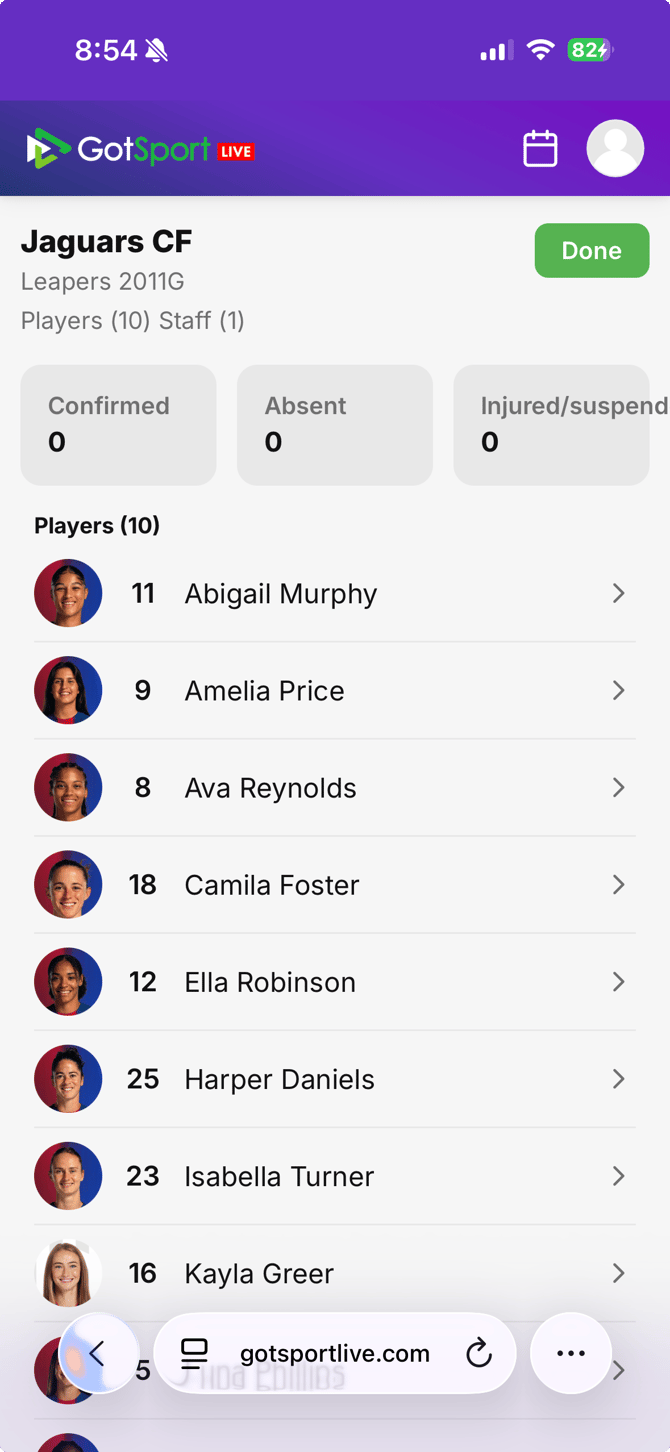
- You will see a list of players and team staff who are on the gameday roster
- Click on the first player to access their ID card
Step 5: Mark team member as "Confirmed", "Absent" or "Unchecked"
To confirm a player or team staff, simply click the green "Confirm player" button at the bottom of their Digital ID card
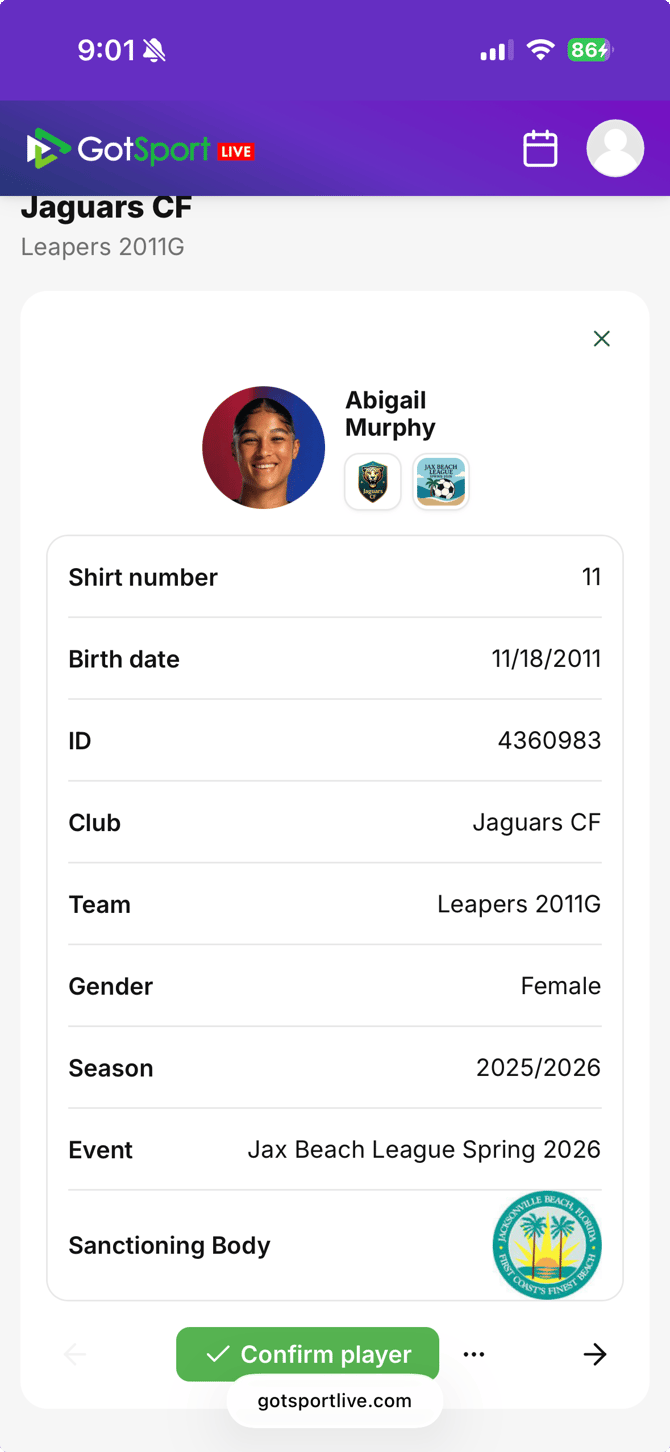
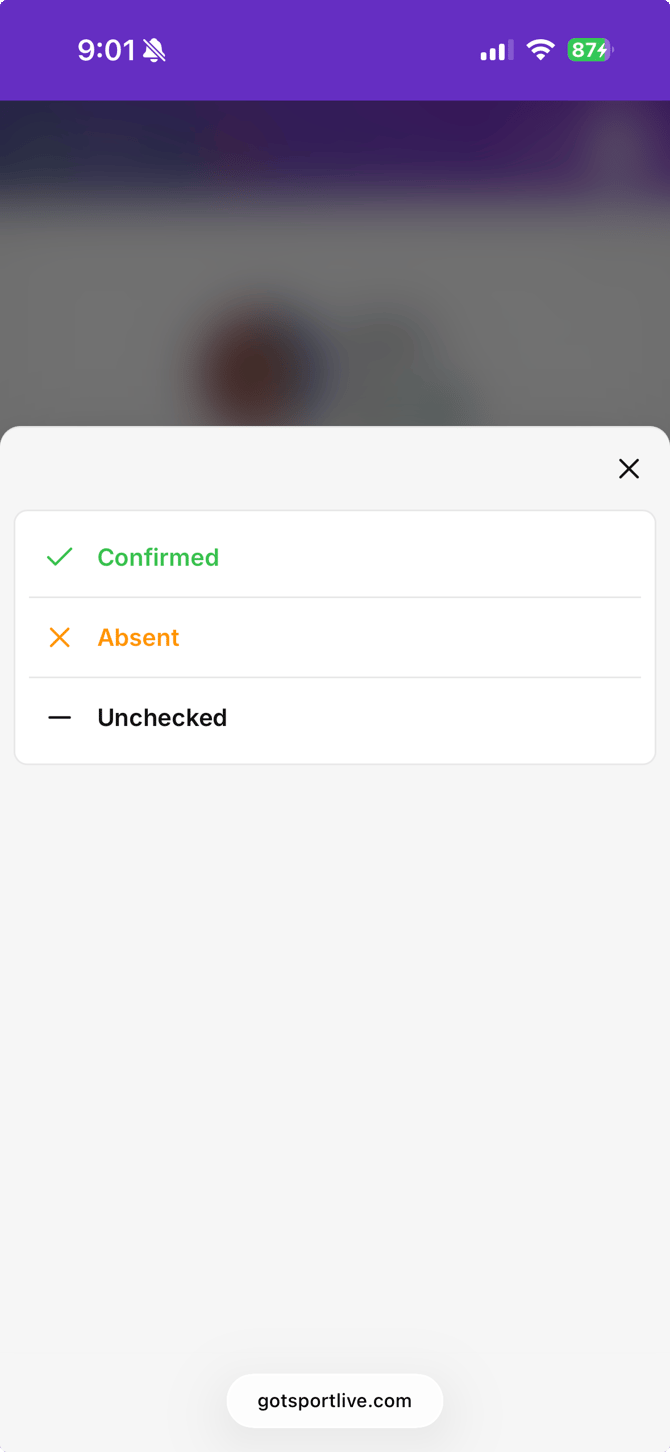
To mark a player or team staff as "Absent" or "Unchecked", click the three dots next to the "Confirm player" button and select the appropriate status
Repeat this process for all team members. Once the ID check is complete, click the "X" icon in the top-right of the final ID card
Step 6: Review ID check
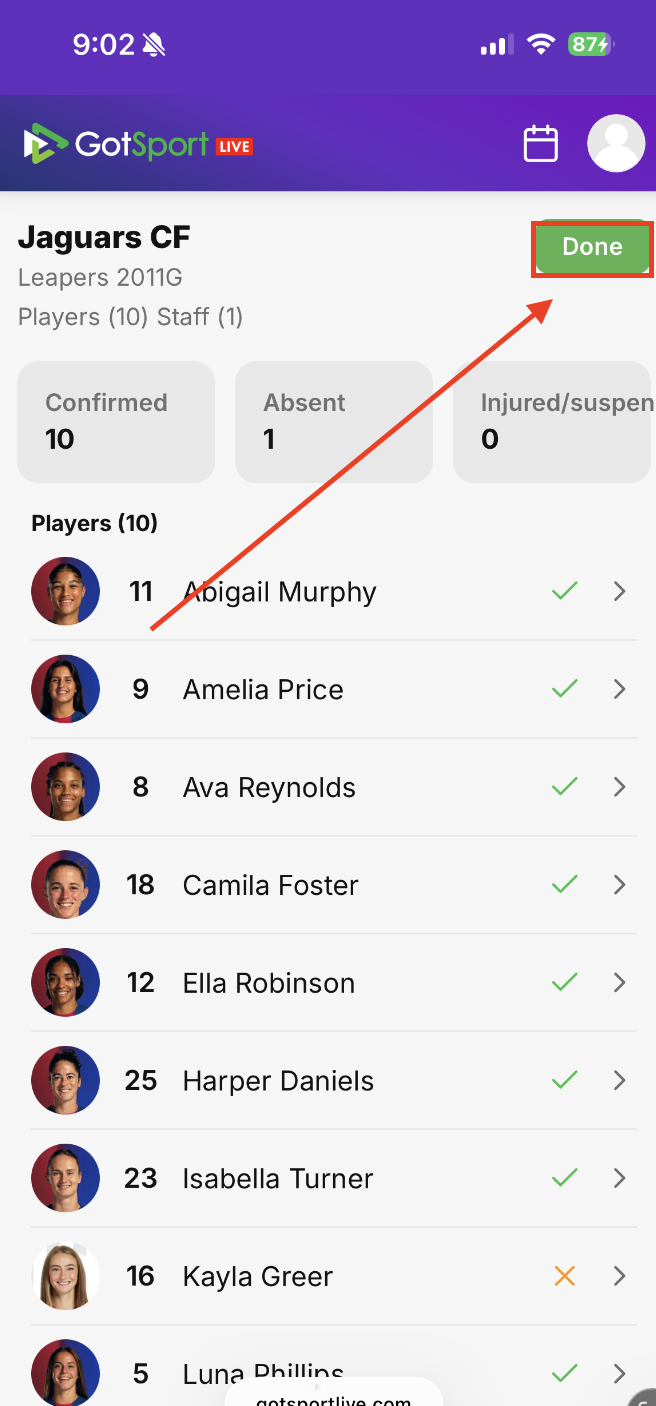
- Once the ID check is completed, you can review the information you entered to ensure it is accurate.
- If everything is accurate, click the green "Done" button and the top-right corner of the screen
- If changes need to be made, click on the specific team member whose ID check status you need to change, and then make the appropriate changes
Repeat all of these steps for the next team