
Note: Required forms are assigned by your governing body, league, or club. The form name and content will vary. If you are unsure which form applies to your player, check with your club admin.
Step 1: Navigate to Your Player's Profile
As a parent, you log in under your own account. You'll need to navigate to your child's profile through the Family section before you can access their forms.
- Sign into your account and click Account in the top menu bar.
- In the left navigation bar, click Family.
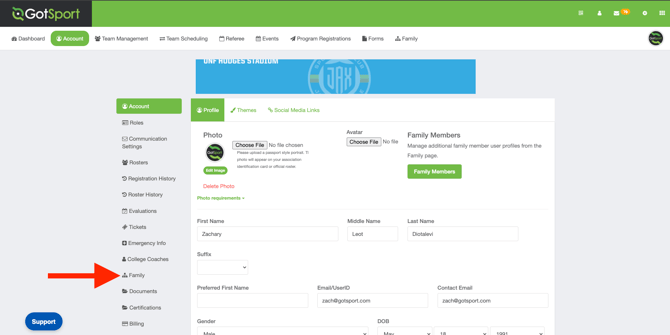
- Click the name of the player whose form you need to complete.
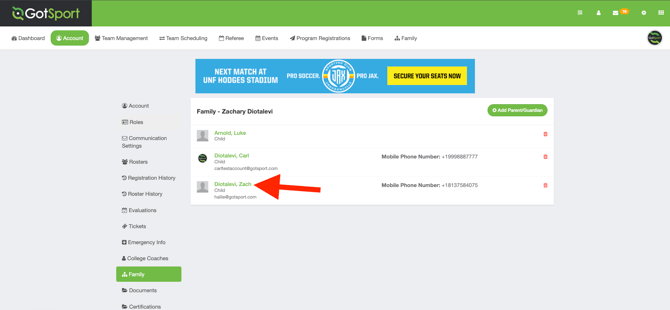
Step 2: Find the Required Form
Required forms from your governing body will appear in the Risk Management section of your player's Dashboard. This is the primary place to check for any forms that must be completed before your player can be rostered.
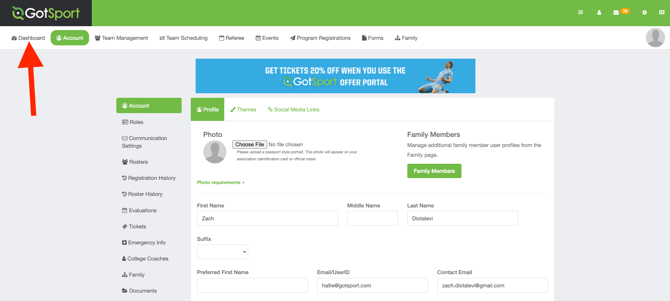
- From the player's profile, click Dashboard in the top navigation bar.
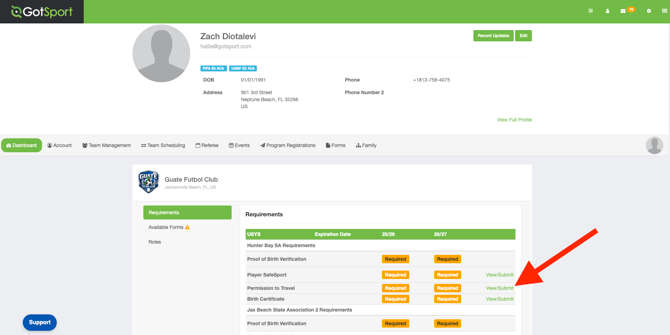
- Scroll down to the Risk Management section. Any required forms will be listed here.
- Click Details next to the form you need to complete. The form will open and you can fill it out.
Step 3: Complete and Submit the Form
- When prompted to select whose form this is, make sure you select the player's name — not your own parent account name.
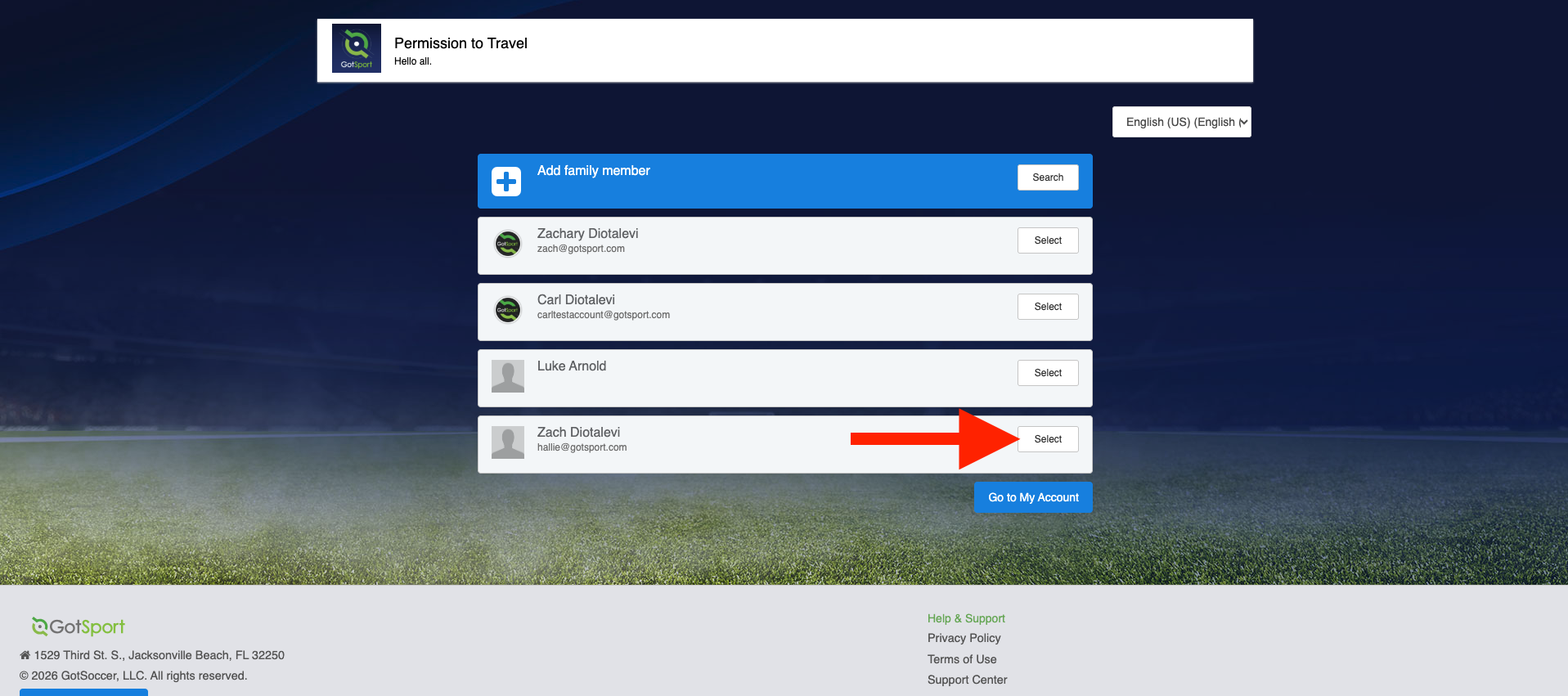
- Fill out all required fields in the form.
- Submit the form. The Risk Management requirement will update to reflect the completed status.
⚠️ Warning: Make sure you select the player's name when completing the form, not your own. Submitting under the parent account will not satisfy the player's Risk Management requirement.