
Coach and manager reporting permissions are determined by the specific event.
Please check with the specific league or tournament regarding reporting permissions.
Before you can report a yellow or red card, you must first start a post-game report in GotSport Live.
Please refer to THIS ARTICLE for instructions on how to do so.
Step 1: Click "Add game event"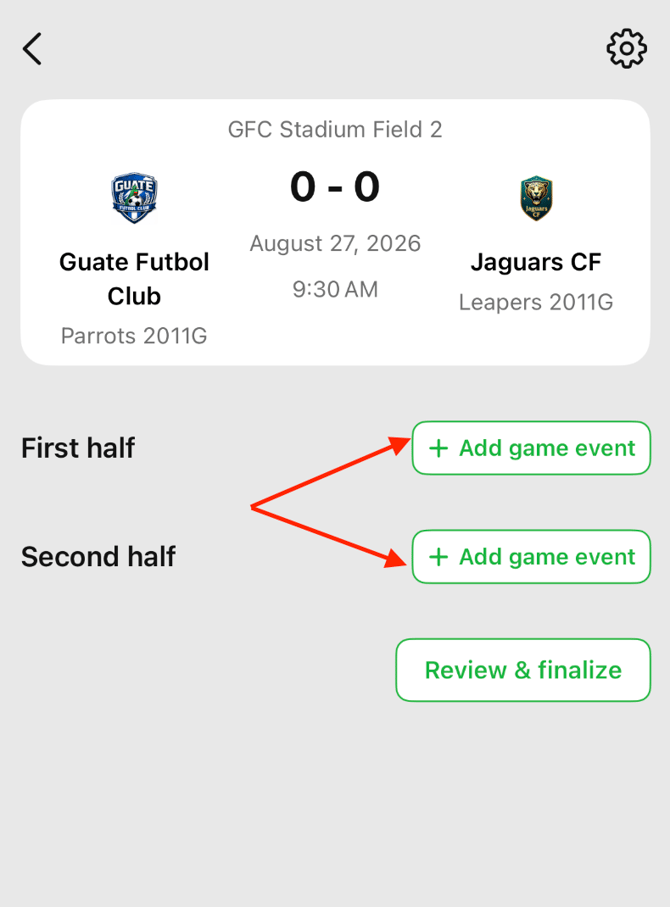
Step 2: Select "Card"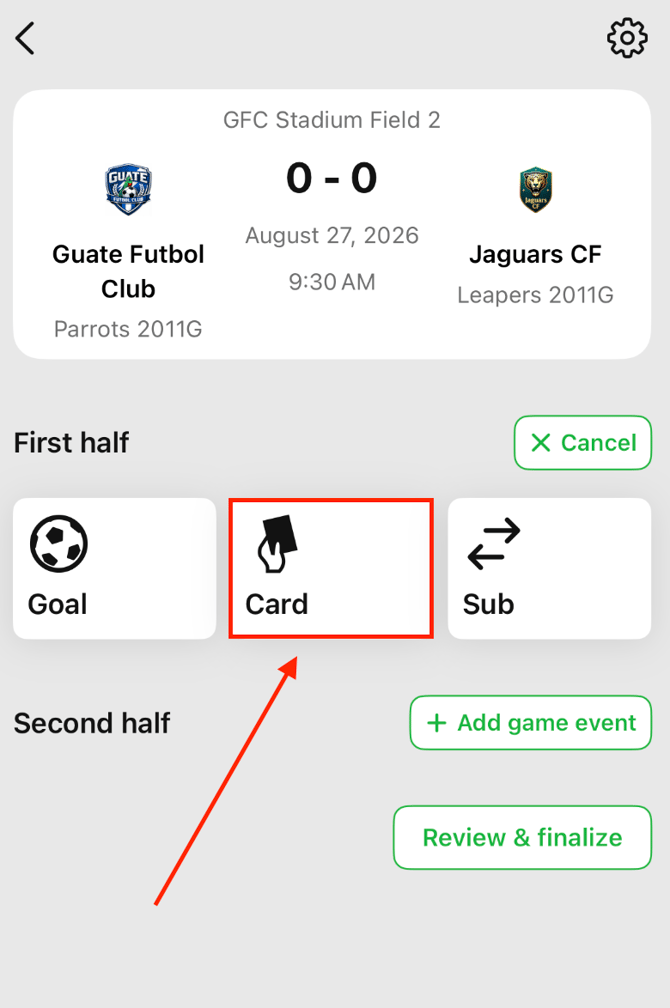
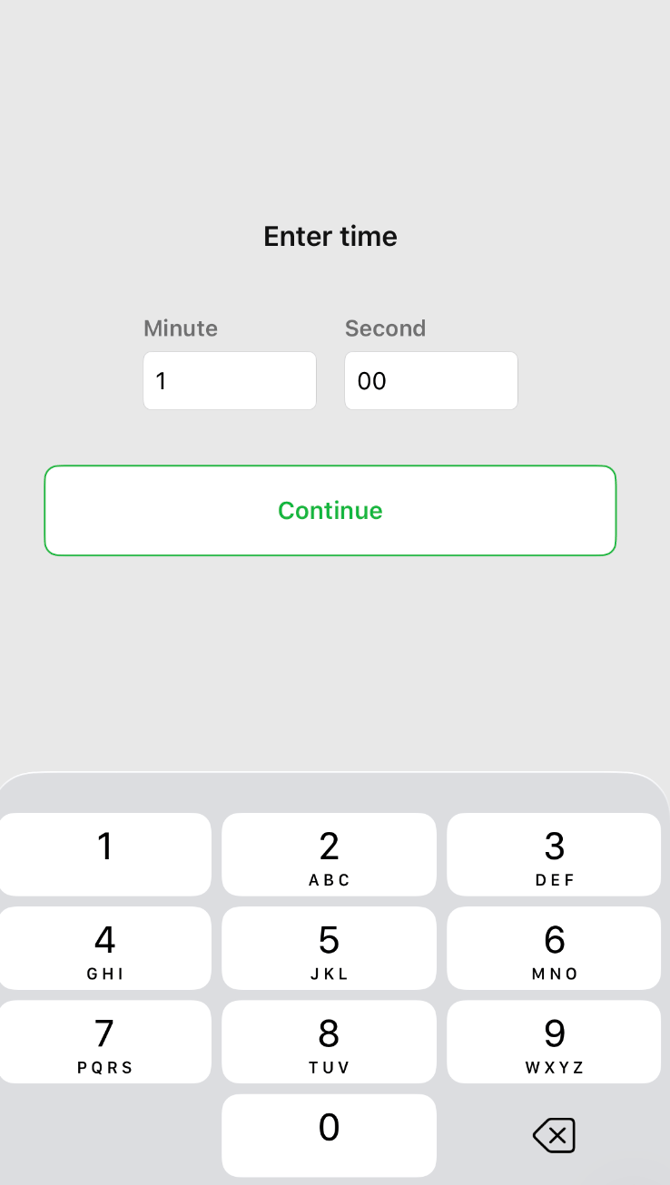
Step 3: Enter the occurance time, then click "Continue"
If you do not know the specific time that the card was shown, simply input any minute within the specific half.
Step 4: Select the team of the team member who was shown the card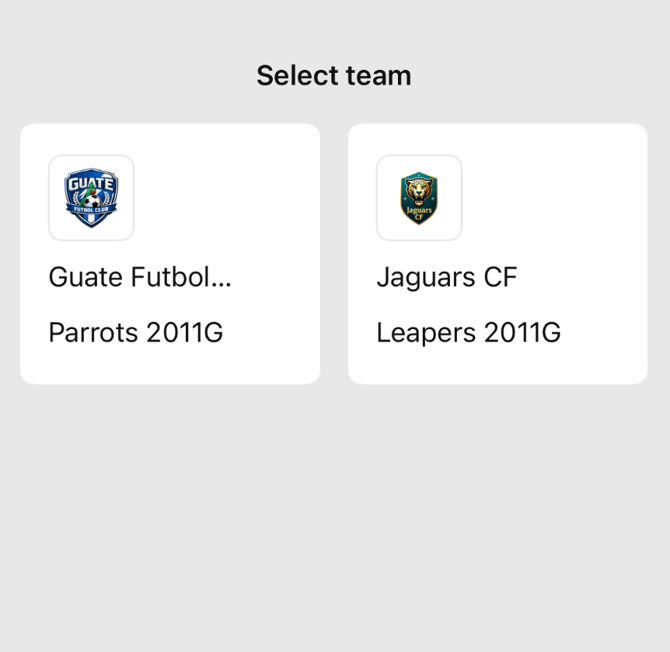
Step 5: Select card type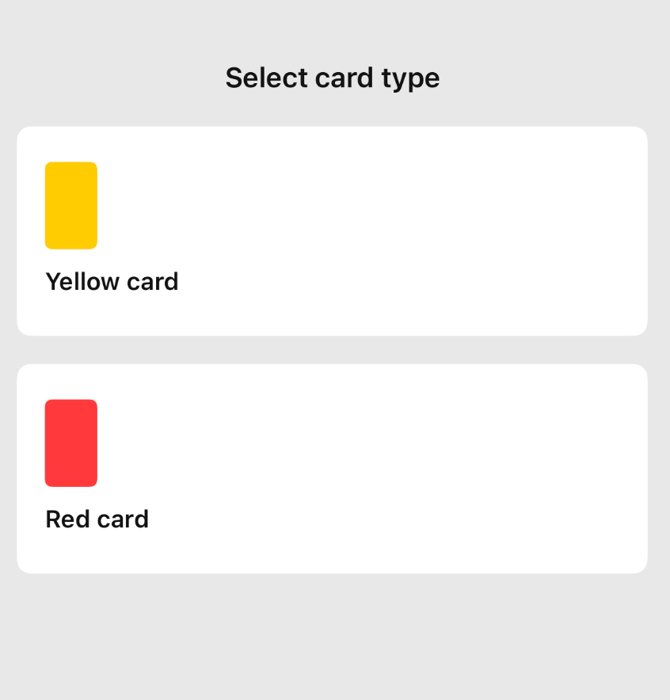
Step 6: Select the player or team staff member who was shown the card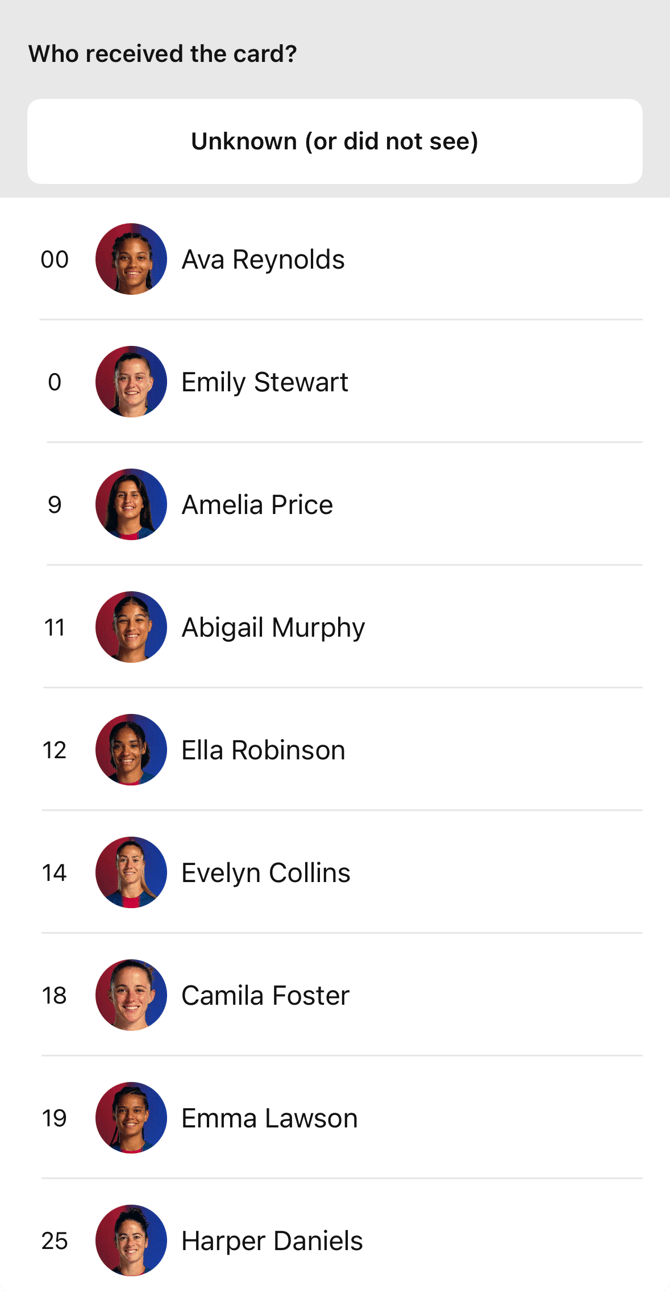
Step 7: Select the appropriate disciplinary code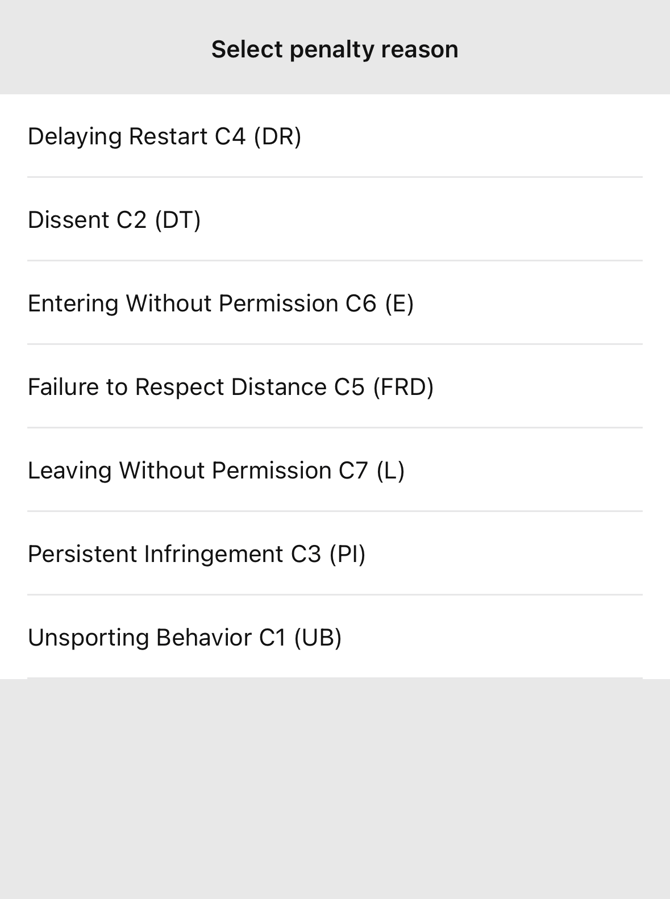
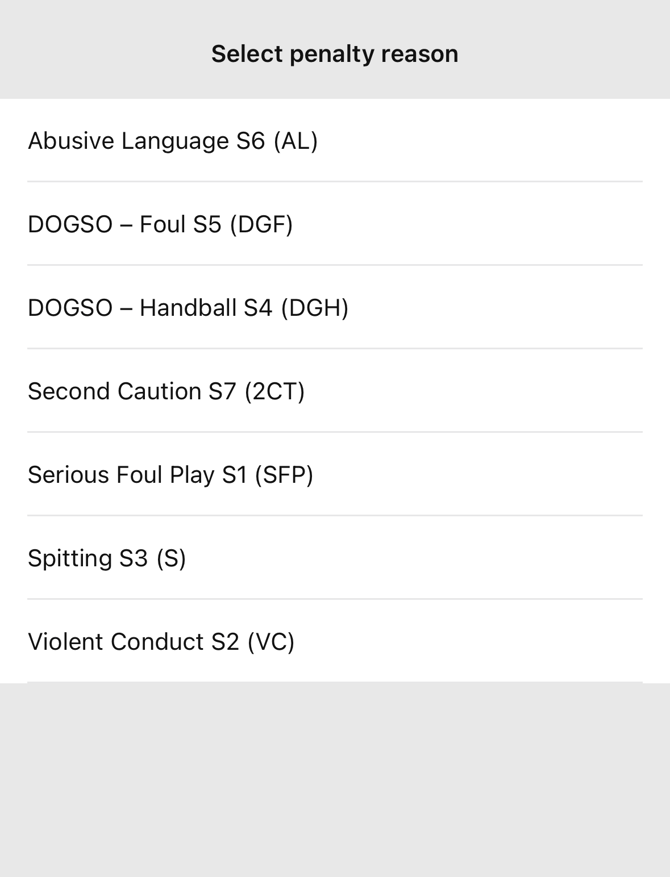
Step 8: Enter comment outlining why the card was shown, then click "Save"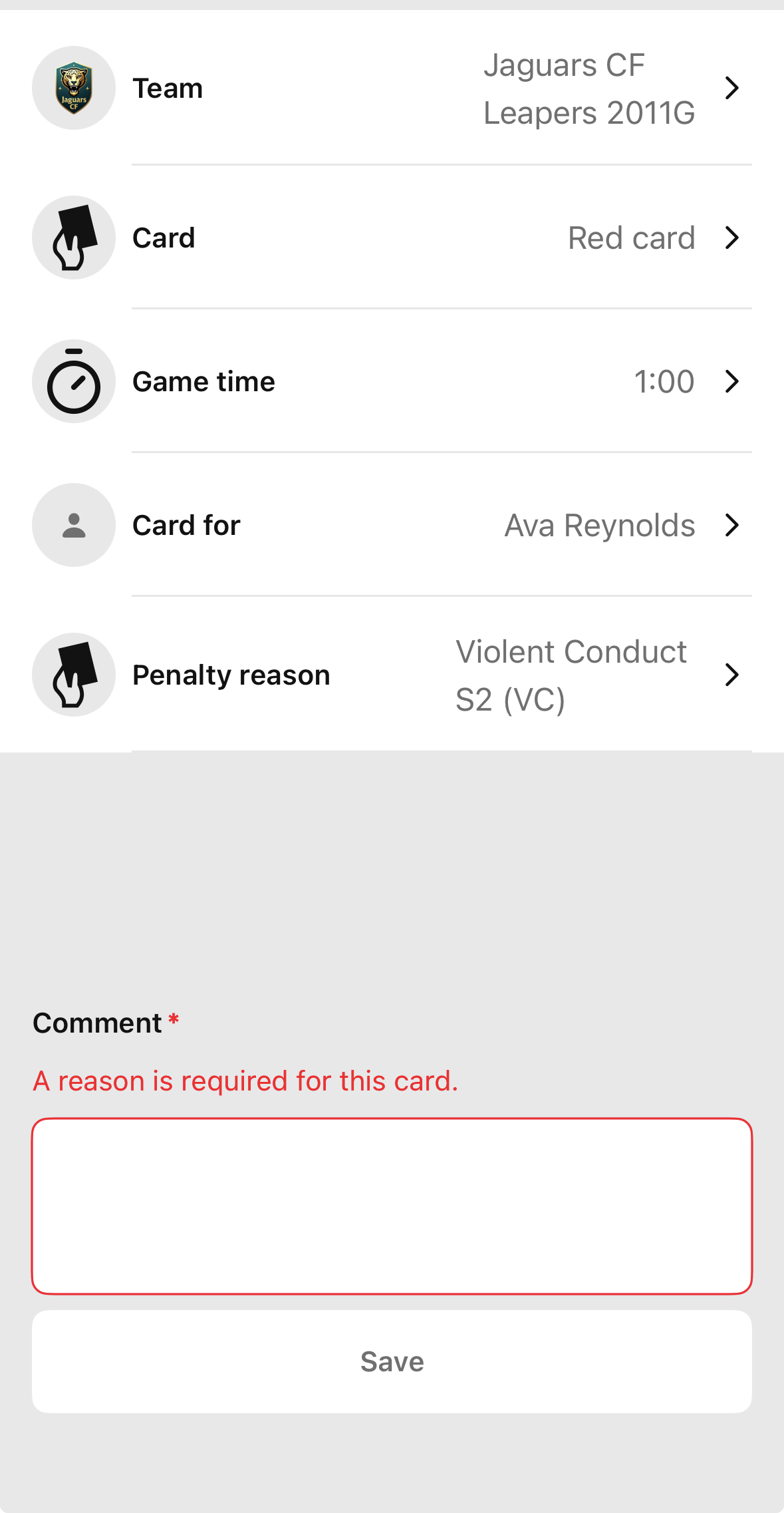
Once you enter a comment and click "Save", the card has been reported.
Please refer to THIS ARTICLE for instructions on how to finalize and submit your post-game report.