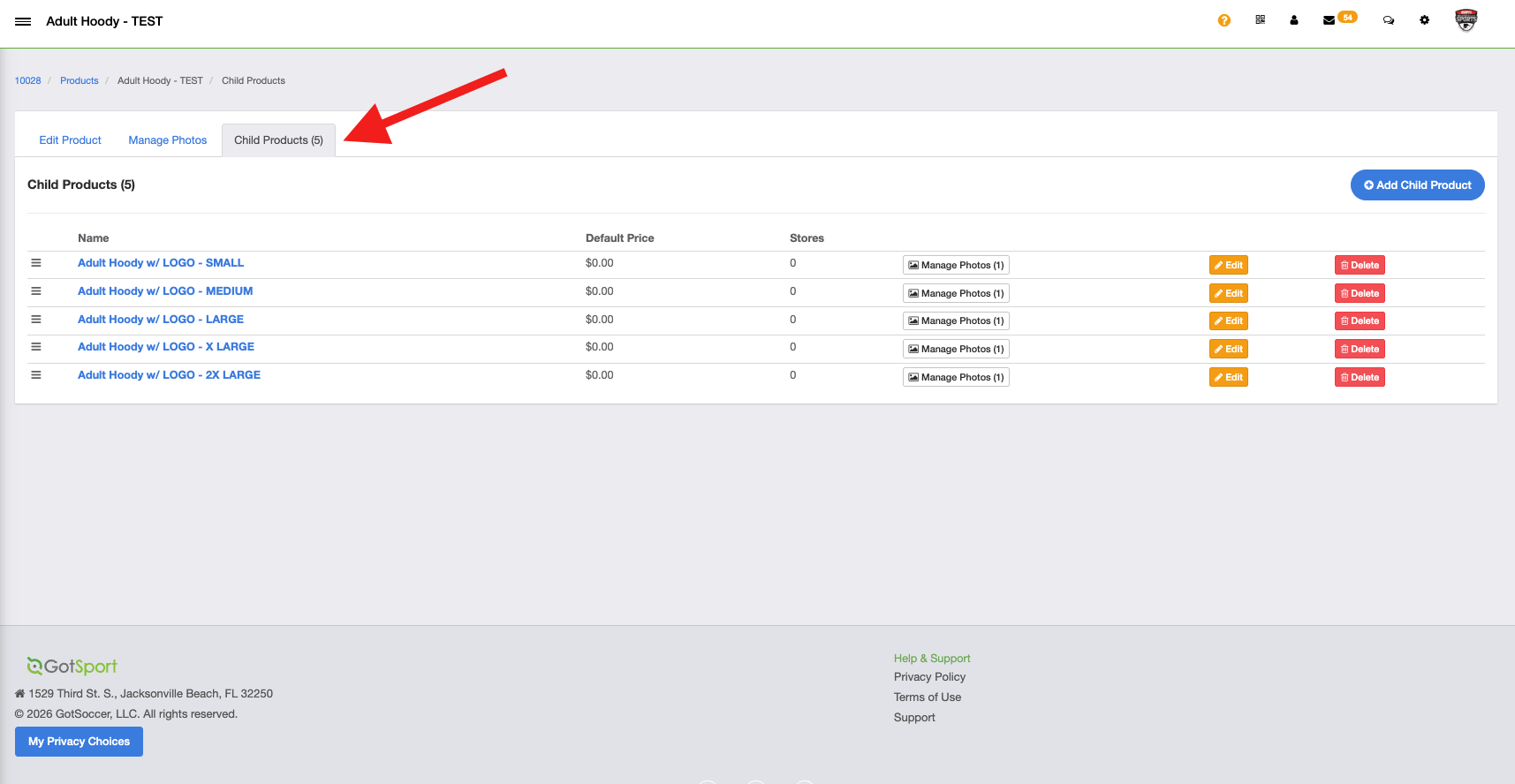
Instructions:
Step 1:
-
Log in to your GotSport dashboard at https://home.gotsport.com/login/
Step 2:
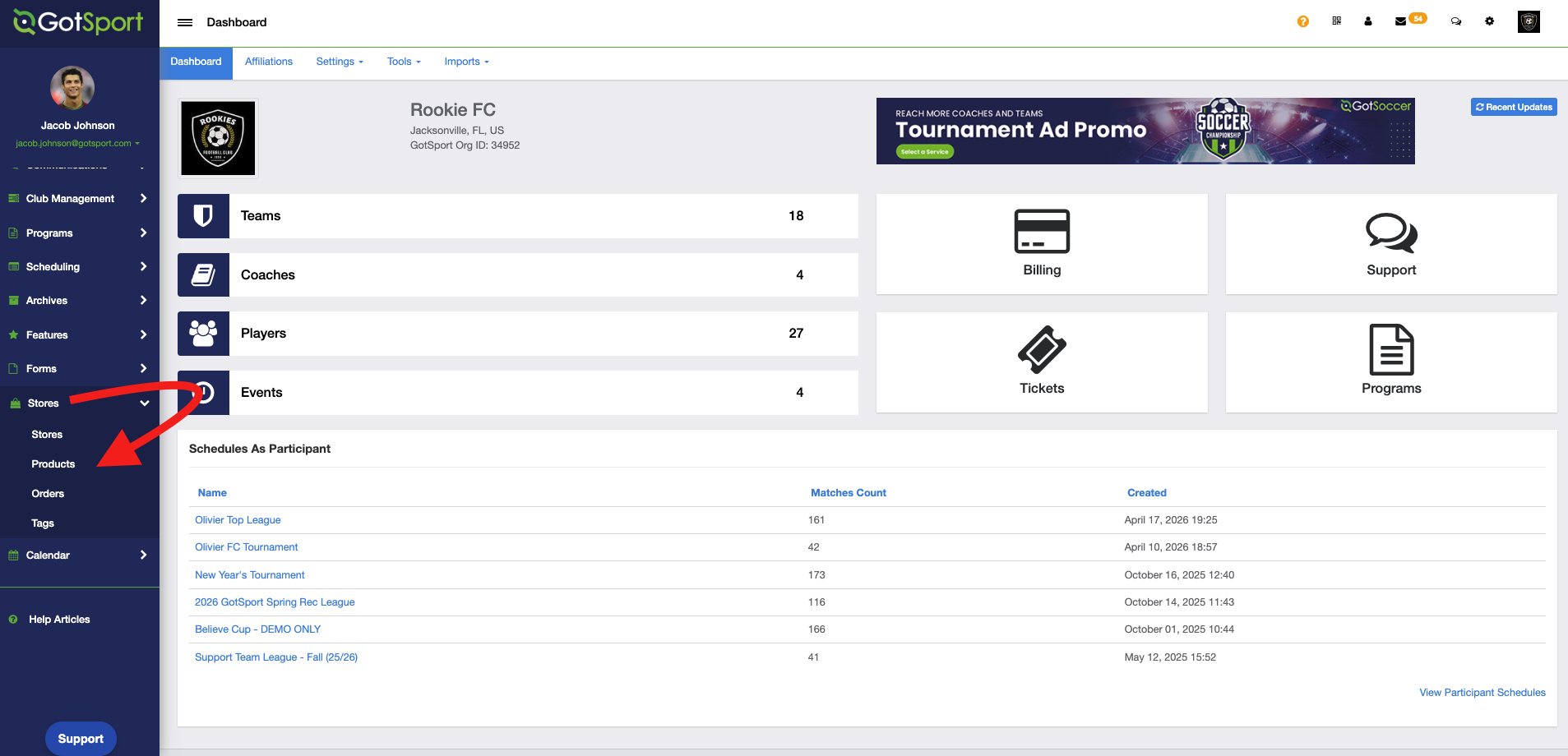
- From your Dashboard click on "Stores" > "Products"
Step 3:
-
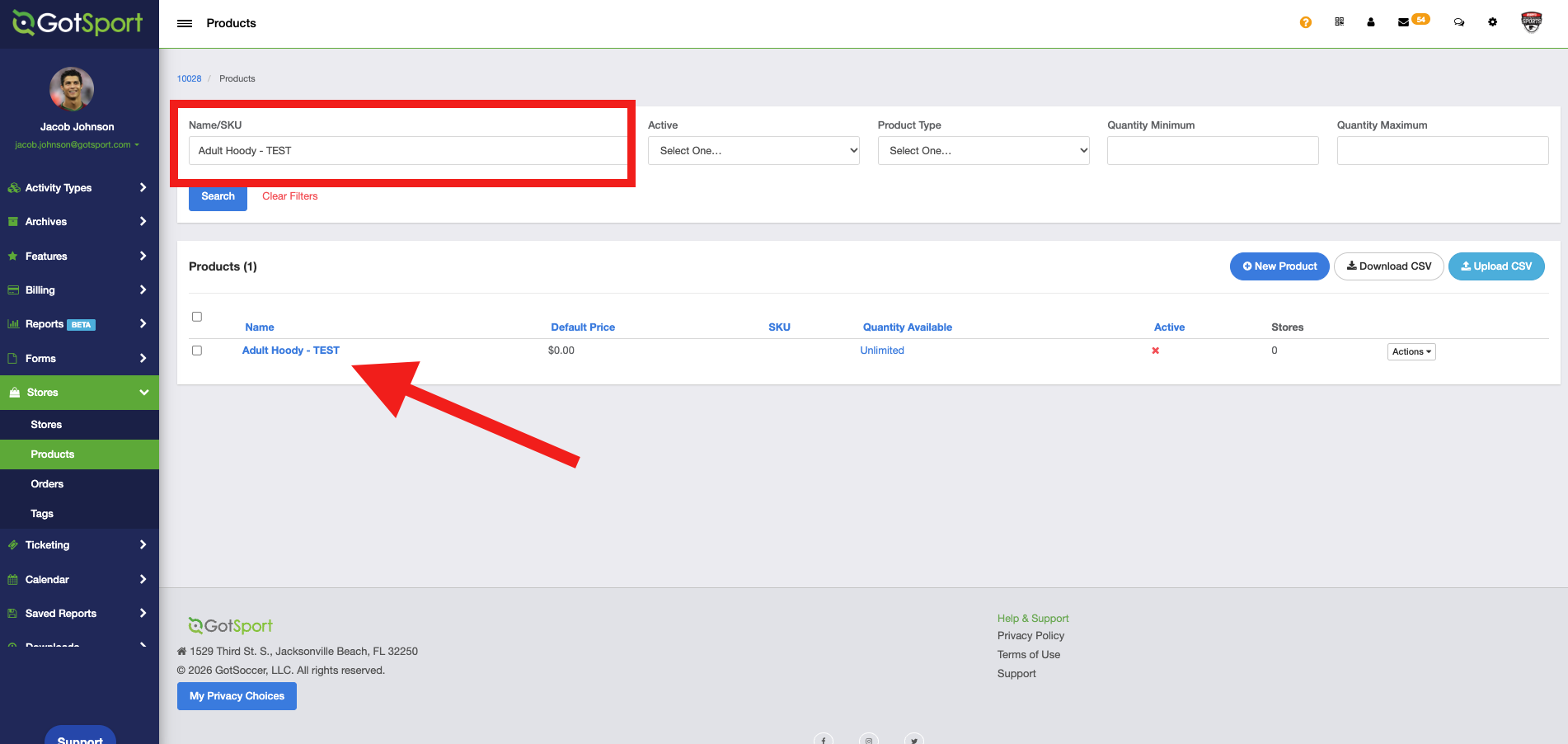
Use the Search bar to find your product, then click on its name to open it.
Step 4:
-
Scroll down and click on "Add Price Component", then fill in the required information.
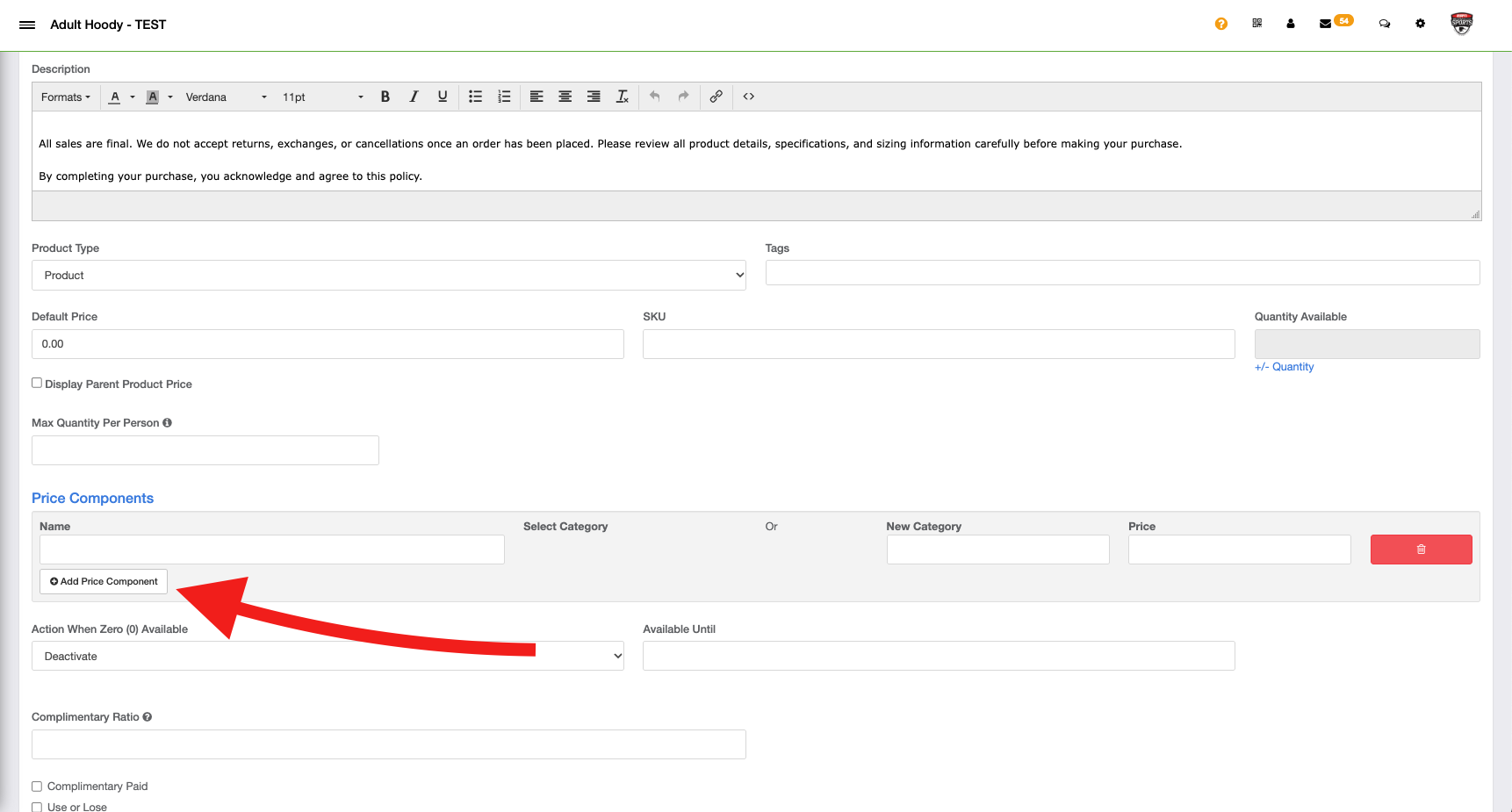
Note: After adding the price component, be sure to click Save so your changes are applied.
Additionally: To add a price component to a child product, click on "Child Products" in the top menu bar, select the product’s name, and add the price component the same way.”