---
title: Waiver FAQs
description: Waivers
---
[Skip to content](https://support.gotsport.com/waiver-faqs#main-content)
English - United States
Show submenu for translations

Open main navigation
Close main navigation
- English - United States
Show submenu for translations
- Contact us
Contact us
How can we help you?
- There are no suggestions because the search field is empty.
1. [GotSport](https://support.gotsport.com/?hsLang=en-us)
2. [Parents/Players](https://support.gotsport.com/parents-players?hsLang=en-us)
# Waiver FAQs
## Here are some common issues that are encountered when completing waivers within GotSport.
**\*\*Under no circumstances should you be creating a new profile for a child \*\***
**Scenario 1:**
The player is set up as the parent account. In this case, the help article below can resolve this.
[As a Player/Parent - UserID Issue - Child/Player is Using Parent Email and/or Set as a Parent](https://support.gotsport.com/userid-issue-child/player-is-using-parent-email-and/or-set-as-a-parent?hsLang=en-us)
**Scenario 2:**
The account says “you must be 18 or older to complete” – in this case, the ***PARENT*** needs to go into their own account and change their date of birth so that GotSport knows the parent is older than 18.
**Scenario 3:**
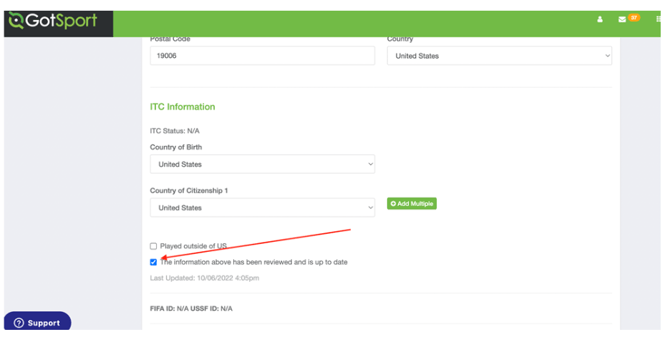
It says you must complete the ITC form.
From the player's "Account" tab, scroll towards the bottom and check the box next to "The information above has been approved and is up to date" then click the Save button.
**Scenario 4:**
*“Error Saving: The enroller’s name must match”*
Parents make it through the waiver but cannot hit submit - parents need to use the same exact name that the parent is registered under when signing the waiver.
Often solved by copying and pasting the name from the error message.
For example - the GotSport name is Malissa so even though the player goes by Missy – the parent needs to sign it under Malissa. Parents also need to use the same email address that is linked to their account. The signature must also be legible, not just a squiggly.
**Scenario 5:**
*Player and Parent have the same email*
Parents may also change the email address that is associated to the player’s account to an email that is different than the email on the Parent account, and that should allow the waiver to be completed.
Keep in mind, the Parent profile should use the email address in the ***Email/UserID*** field and place email address in Player's ***Contact Email*** field.
**Scenario 6:**
If you have completed the waiver and received email confirmation with the player’s name on it but it is not showing up as a green check on the event roster it is most likely because the parent account is not linked to the player account.
The club admin can link the accounts or parents can submit a support ticket and ask GotSport to link them.
If you reach out to GotSport Support asking to have the parent account linked to the player account you will also need to provide the following:
Parent Email address used for their account
Player Legal Name
Player email address
Full Team name
**If you need to submit a support ticket to GotSport please use the link below:**
[GotSport Support Ticket](https://45990513.hs-sites.com/gotsport-support-tickets?hsLang=en-us)
**How to check the status of waivers:**
Coaches/Managers can monitor the waiver status by viewing the event roster and under the “forms” column you will see either a red X or a green check mark.
Red X means it still needs to be completed. Or that the waiver did not go through correctly.
If there is a pending yellow circle then the waiver itself was complete however the parent did not fully complete the check-out process.
For Access to GotSport’s other help articles please use the link below:
[https://support.gotsport.com/](https://support.gotsport.com/?hsLang=en-us)
**Step By Step How to Complete the Waiver with images:**
If the Parent doesn’t have an account:
They can click the link to the waiver and it will bring them to the page below. 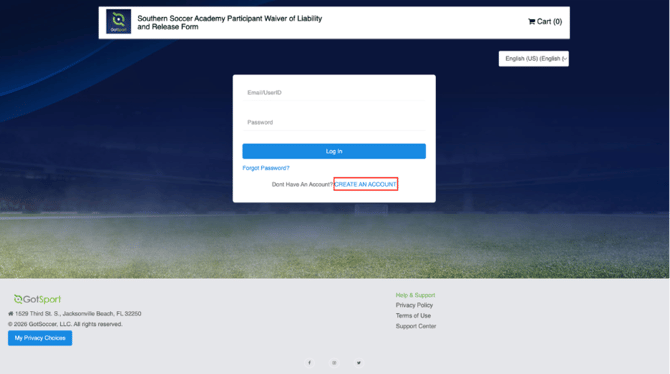
They will see on the bottom it says 'Create an Account". This is where they will create a new account.
Once they create the PARENT account they will click the link to the waiver again and then login to their account.
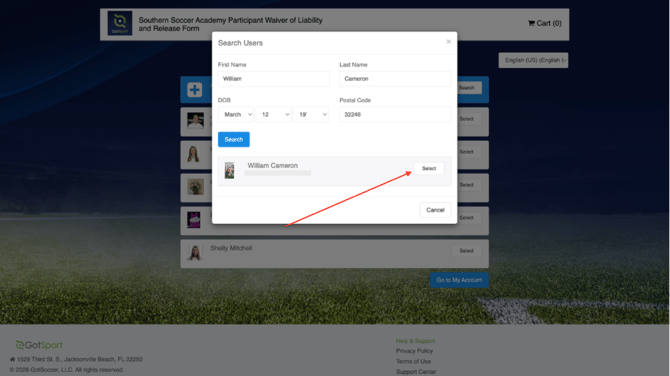
Once they do that it will ask them to either select their own account orthey can hit "Search" on the right hand side of the screen to search for their child. Shown Below.
Once they enter the necessary information - the child’s FULL LEGAL Name, their date of birth and a zip code, then hit "select" next to the profile of the child and follow the steps to complete the waiver.
- [Recent Updates/Additions](https://support.gotsport.com/recent-updates-additions?hsLang=en-us#main-content)
- [Recent Updates](https://support.gotsport.com/recent-updates-additions?hsLang=en-us#recent-updates)
- [New Functionality](https://support.gotsport.com/recent-updates-additions?hsLang=en-us#new-functionality)
- [Club Administrators](https://support.gotsport.com/club-administrators?hsLang=en-us#main-content)
- [Dashboard & Users](https://support.gotsport.com/club-administrators?hsLang=en-us#dashboard-users)
- [Preparing For Upcoming Season](https://support.gotsport.com/club-administrators?hsLang=en-us#preparing-for-upcoming-season)
- [Risk Management and Governing Body Forms](https://support.gotsport.com/club-administrators?hsLang=en-us#risk-management-and-governing-body-forms)
- [Communications](https://support.gotsport.com/club-administrators?hsLang=en-us#communications)
- [Club Management](https://support.gotsport.com/club-administrators?hsLang=en-us#club-management)
- [Programs](https://support.gotsport.com/club-administrators?hsLang=en-us#programs)
- [Billing](https://support.gotsport.com/club-administrators?hsLang=en-us#billing)
- [Forms](https://support.gotsport.com/club-administrators?hsLang=en-us#forms)
- [Events and Rosters](https://support.gotsport.com/club-administrators?hsLang=en-us#events-and-rosters)
- [Features (Discounts and Add-Ons)](https://support.gotsport.com/club-administrators?hsLang=en-us#features-discounts-and-add-ons)
- [Managers/Coaches](https://support.gotsport.com/managers-coaches?hsLang=en-us#main-content)
- [Team and Player Management](https://support.gotsport.com/managers-coaches?hsLang=en-us#team-and-player-management)
- [GotTravel - Hotels](https://support.gotsport.com/managers-coaches?hsLang=en-us#gottravel-hotels)
- [Risk Management](https://support.gotsport.com/managers-coaches?hsLang=en-us#risk-management)
- [Event Management](https://support.gotsport.com/managers-coaches?hsLang=en-us#event-management)
- [Registering Teams to Leagues & Tournaments](https://support.gotsport.com/managers-coaches?hsLang=en-us#registering-teams-to-leagues-tournaments)
- [Parents/Players](https://support.gotsport.com/parents-players?hsLang=en-us#main-content)
- [Parent/Player Account Management](https://support.gotsport.com/parents-players?hsLang=en-us#parent-player-account-management)
- [Risk Management and Required Forms](https://support.gotsport.com/parents-players?hsLang=en-us#risk-management-and-required-forms)
- [GotTravel - Hotels](https://support.gotsport.com/parents-players?hsLang=en-us#gottravel-hotels)
- [Registering for a Program](https://support.gotsport.com/parents-players?hsLang=en-us#registering-for-a-program)
- [Billing](https://support.gotsport.com/parents-players?hsLang=en-us#billing)
- [Governing Bodies](https://support.gotsport.com/governing-bodies?hsLang=en-us#main-content)
- [General Instructions For Governing Bodies](https://support.gotsport.com/governing-bodies?hsLang=en-us#general-instructions-for-governing-bodies)
- [US Club Soccer](https://support.gotsport.com/governing-bodies?hsLang=en-us#us-club-soccer)
- [USSSA SOCCER](https://support.gotsport.com/governing-bodies?hsLang=en-us#usssa-soccer)
- [Girls Academy](https://support.gotsport.com/governing-bodies?hsLang=en-us#girls-academy)
- [U.S. Futsal](https://support.gotsport.com/governing-bodies?hsLang=en-us#u-s-futsal)
- [Governing Body Forms/Risk Management](https://support.gotsport.com/governing-bodies?hsLang=en-us#governing-body-forms-risk-management)
- [State Specific Processes](https://support.gotsport.com/governing-bodies?hsLang=en-us#state-specific-processes)
- [Managing Child Organizations](https://support.gotsport.com/governing-bodies?hsLang=en-us#managing-child-organizations)
- [Preparing for an Upcoming Season](https://support.gotsport.com/governing-bodies?hsLang=en-us#preparing-for-an-upcoming-season)
- [Billing](https://support.gotsport.com/governing-bodies?hsLang=en-us#billing)
- [Event Directors](https://support.gotsport.com/event-directors?hsLang=en-us#main-content)
- [Competition & Event Setup](https://support.gotsport.com/event-directors?hsLang=en-us#competition-event-setup)
- [Managing Event Registrations](https://support.gotsport.com/event-directors?hsLang=en-us#managing-event-registrations)
- [Billing](https://support.gotsport.com/event-directors?hsLang=en-us#billing)
- [Scheduling](https://support.gotsport.com/event-directors?hsLang=en-us#scheduling)
- [Rosters, Match Cards, and Game Day Procedures](https://support.gotsport.com/event-directors?hsLang=en-us#rosters-match-cards-and-game-day-procedures)
- [Officials Management](https://support.gotsport.com/event-directors?hsLang=en-us#officials-management)
- [Scoring](https://support.gotsport.com/event-directors?hsLang=en-us#scoring)
- [Suspensions](https://support.gotsport.com/event-directors?hsLang=en-us#suspensions)
- [Got Travel - Hotels](https://support.gotsport.com/event-directors?hsLang=en-us#got-travel-hotels)
- [College Coaches](https://support.gotsport.com/event-directors?hsLang=en-us#college-coaches)
- [Rankings](https://support.gotsport.com/rankings?hsLang=en-us#main-content)
- [FAQ](https://support.gotsport.com/rankings?hsLang=en-us#faq)
- [Rankings Overview](https://support.gotsport.com/rankings?hsLang=en-us#rankings-overview)
- [Team Merge / Team ID's](https://support.gotsport.com/rankings?hsLang=en-us#team-merge-team-ids)
- [GotSport Pay](https://support.gotsport.com/gotsport-pay?hsLang=en-us#main-content)
- [GotSport Pay](https://support.gotsport.com/gotsport-pay?hsLang=en-us#gotsport-pay)
- [Ticketing and Store](https://support.gotsport.com/ticketing-and-store?hsLang=en-us#main-content)
- [Ticket/Store Purchasers Help](https://support.gotsport.com/ticketing-and-store?hsLang=en-us#ticket-store-purchasers-help)
- [Ticketing/Store Admin - Store Setup](https://support.gotsport.com/ticketing-and-store?hsLang=en-us#ticketing-store-admin-store-setup)
- [Ticketing/Store Admin - Managing Tickets and Orders](https://support.gotsport.com/ticketing-and-store?hsLang=en-us#ticketing-store-admin-managing-tickets-and-orders)
- [Scanner App](https://support.gotsport.com/ticketing-and-store?hsLang=en-us#scanner-app)
- [GotSport Live](https://support.gotsport.com/gotsport-live?hsLang=en-us#main-content)
- [How to Get Started](https://support.gotsport.com/gotsport-live?hsLang=en-us#how-to-get-started)
- [Digital Gameday](https://support.gotsport.com/gotsport-live?hsLang=en-us#digital-gameday)
- [GotSport Live FAQ](https://support.gotsport.com/gotsport-live?hsLang=en-us#gotsport-live-faq)
- [GotSport Live - Manage the Team](https://support.gotsport.com/gotsport-live?hsLang=en-us#gotsport-live-manage-the-team)
- [GotSport Live Livestreaming](https://support.gotsport.com/gotsport-live?hsLang=en-us#gotsport-live-livestreaming)
- [GotSport Live Create Game Content](https://support.gotsport.com/gotsport-live?hsLang=en-us#gotsport-live-create-game-content)
- [GotSport Live Team Rosters and Lineups](https://support.gotsport.com/gotsport-live?hsLang=en-us#gotsport-live-team-rosters-and-lineups)
- [GotSport Connect](https://support.gotsport.com/gotsport-connect?hsLang=en-us#main-content)
- [Newsfeed](https://support.gotsport.com/gotsport-connect?hsLang=en-us#newsfeed)
- [Schedule](https://support.gotsport.com/gotsport-connect?hsLang=en-us#schedule)
- [Chat](https://support.gotsport.com/gotsport-connect?hsLang=en-us#chat)
- [GotSport Team App](https://support.gotsport.com/gotsport-team-app?hsLang=en-us#main-content)
- [Parent/Athlete Mobile App](https://support.gotsport.com/gotsport-team-app?hsLang=en-us#parent-athlete-mobile-app)
- [GotSport Team App - General Support](https://support.gotsport.com/gotsport-team-app?hsLang=en-us#gotsport-team-app-general-support)
- [Coach/Manager - Mobile App](https://support.gotsport.com/gotsport-team-app?hsLang=en-us#coach-manager-mobile-app)
- [Club Administrator](https://support.gotsport.com/gotsport-team-app?hsLang=en-us#club-administrator)
- [Parent/Athlete Desktop](https://support.gotsport.com/gotsport-team-app?hsLang=en-us#parent-athlete-desktop)
- [Commonly Asked Questions](https://support.gotsport.com/gotsport-team-app?hsLang=en-us#commonly-asked-questions)
- [Coach/Manager - Desktop](https://support.gotsport.com/gotsport-team-app?hsLang=en-us#coach-manager-desktop)
- [US Club Soccer Articles](https://support.gotsport.com/us-club-soccer-articles?hsLang=en-us#main-content)
- [Club Administrators - Preparing for the Upcoming Season](https://support.gotsport.com/us-club-soccer-articles?hsLang=en-us#club-administrators-preparing-for-the-upcoming-season)
- [Club Administrators - Events](https://support.gotsport.com/us-club-soccer-articles?hsLang=en-us#club-administrators-events)
- [US Club Soccer - Parents and Players](https://support.gotsport.com/us-club-soccer-articles?hsLang=en-us#us-club-soccer-parents-and-players)
- [Club Admin - General](https://support.gotsport.com/us-club-soccer-articles?hsLang=en-us#club-admin-general)
- [Referees and Assigning](https://support.gotsport.com/referees-and-assigning?hsLang=en-us#main-content)
- [Referees](https://support.gotsport.com/referees-and-assigning?hsLang=en-us#referees)
- [Assignors](https://support.gotsport.com/referees-and-assigning?hsLang=en-us#assignors)
- [College Coaches](https://support.gotsport.com/college-coaches?hsLang=en-us#main-content)
- [College Coach Articles](https://support.gotsport.com/college-coaches?hsLang=en-us#college-coach-articles)
- [Pro Schedules](https://support.gotsport.com/pro-schedules?hsLang=en-us#main-content)
- [Dashboard](https://support.gotsport.com/pro-schedules?hsLang=en-us#dashboard)
- [Club Information](https://support.gotsport.com/pro-schedules?hsLang=en-us#club-information)
- [Venues](https://support.gotsport.com/pro-schedules?hsLang=en-us#venues)
- [Constraints](https://support.gotsport.com/pro-schedules?hsLang=en-us#constraints)
- [Scheduling](https://support.gotsport.com/pro-schedules?hsLang=en-us#scheduling)
- [Reports and Exports](https://support.gotsport.com/pro-schedules?hsLang=en-us#reports-and-exports)
- [Pro Services](https://support.gotsport.com/pro-services?hsLang=en-us#main-content)
- [Team Services](https://support.gotsport.com/pro-services?hsLang=en-us#team-services)
- [Match Countdown](https://support.gotsport.com/pro-services?hsLang=en-us#match-countdown)
- [USYS NL](https://support.gotsport.com/usys-nl?hsLang=en-us#main-content)
- [Coach/Manager Roles](https://support.gotsport.com/usys-nl?hsLang=en-us#coach-manager-roles)
- [Players](https://support.gotsport.com/usys-nl?hsLang=en-us#players)
- [CAF](https://support.gotsport.com/caf?hsLang=en-us)
[](https://home.gotsport.com)
[mailto:email@email.com](mailto:email@email.com)
Copyright © 2026, GotSport