---
title: As a Parent/Player - How to Upload or Update a Player Photo
description: This article demonstrates how to upload a photo to a player's profile.
---
[Skip to content](https://support.gotsport.com/uploading-photo-to-player-profile#main-content)
English - United States
Show submenu for translations

Open main navigation
Close main navigation
- English - United States
Show submenu for translations
- Contact us
Contact us
How can we help you?
- There are no suggestions because the search field is empty.
1. [GotSport](https://support.gotsport.com/?hsLang=en-us)
2. [US Club Soccer Articles](https://support.gotsport.com/us-club-soccer-articles?hsLang=en-us)
3. [US Club Soccer - Parents and Players](https://support.gotsport.com/us-club-soccer-articles?hsLang=en-us#us-club-soccer-parents-and-players)
# As a Parent/Player - How to Upload or Update a Player Photo
***⚠️ Warning:** Photos must be added to your child's player profile — not your own parent account. Ensure that you are in the correct profile before uploading.*
### **Before You Begin: Photo Requirements**
- File size: Up to 20 MB
- Accepted formats: JPG or PNG only
- iPhone users: Live Photos will not upload. Disable Live Photo mode before taking the picture, or export the photo as an above file before uploading. You can also take a screenshot of the live photo
### **Step 1: Navigate to Your Player's Profile**
*As a parent, you log in under your own account — not your child's. You'll need to navigate to your child's profile through the Family section before making any changes.*
1. After signing in GotSport, locate the left navigation bar, click **Family**.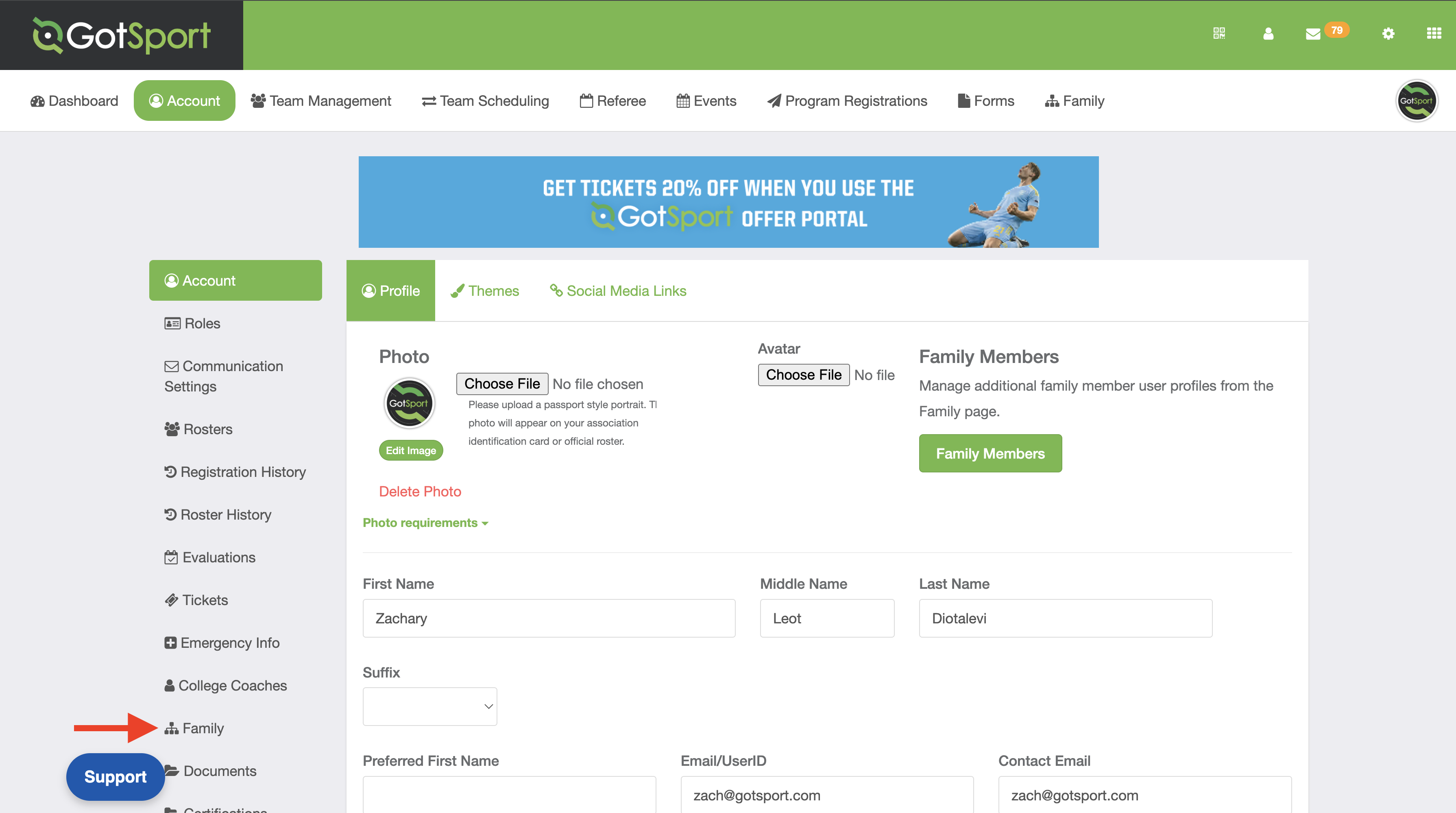
2. Click on your child's name to open their player profile.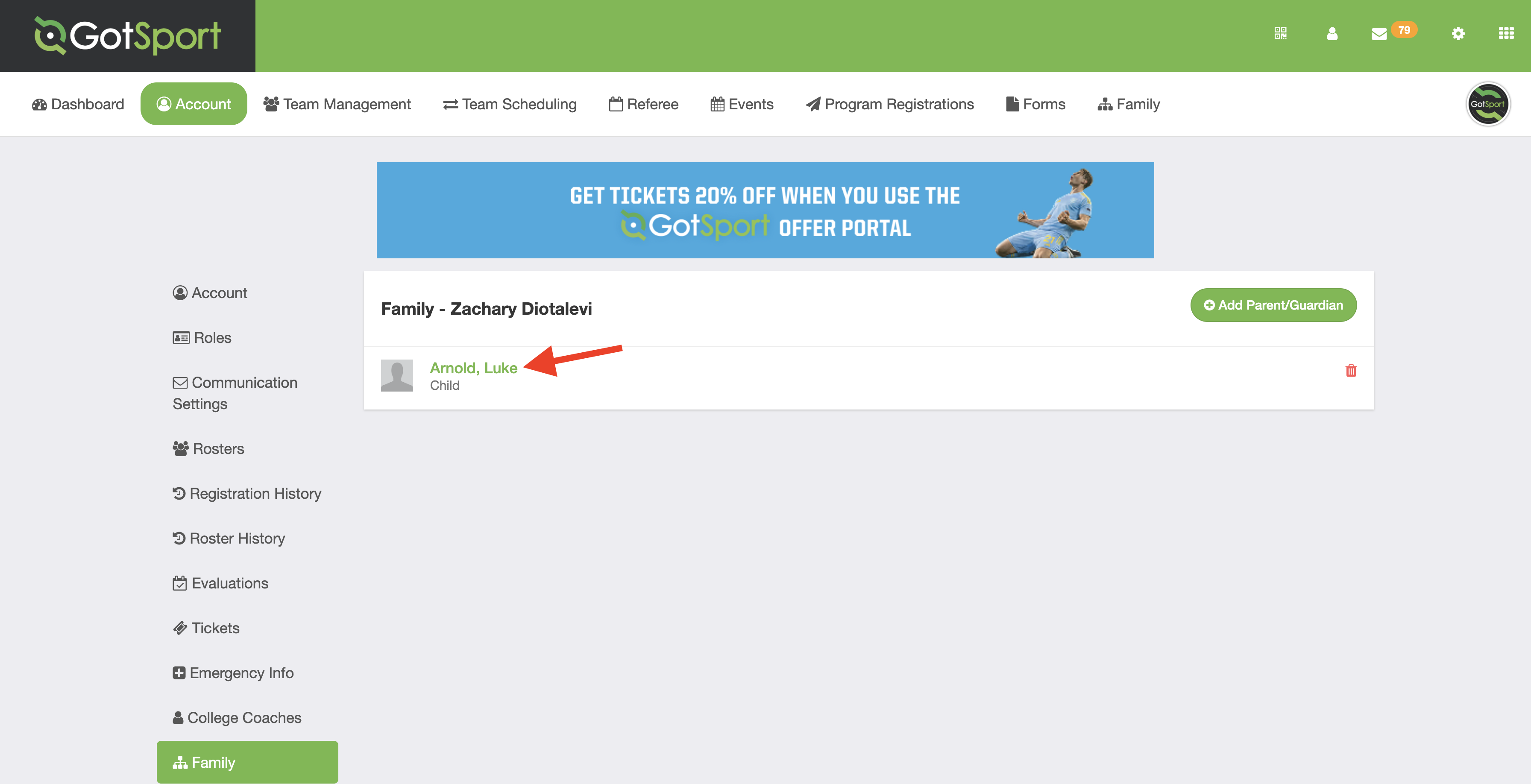
### **Step 2: Upload or Change the Photo**
1. In your child's profile, locate the photo section.
2. Click **Choose File** and select a JPG or PNG image from your device.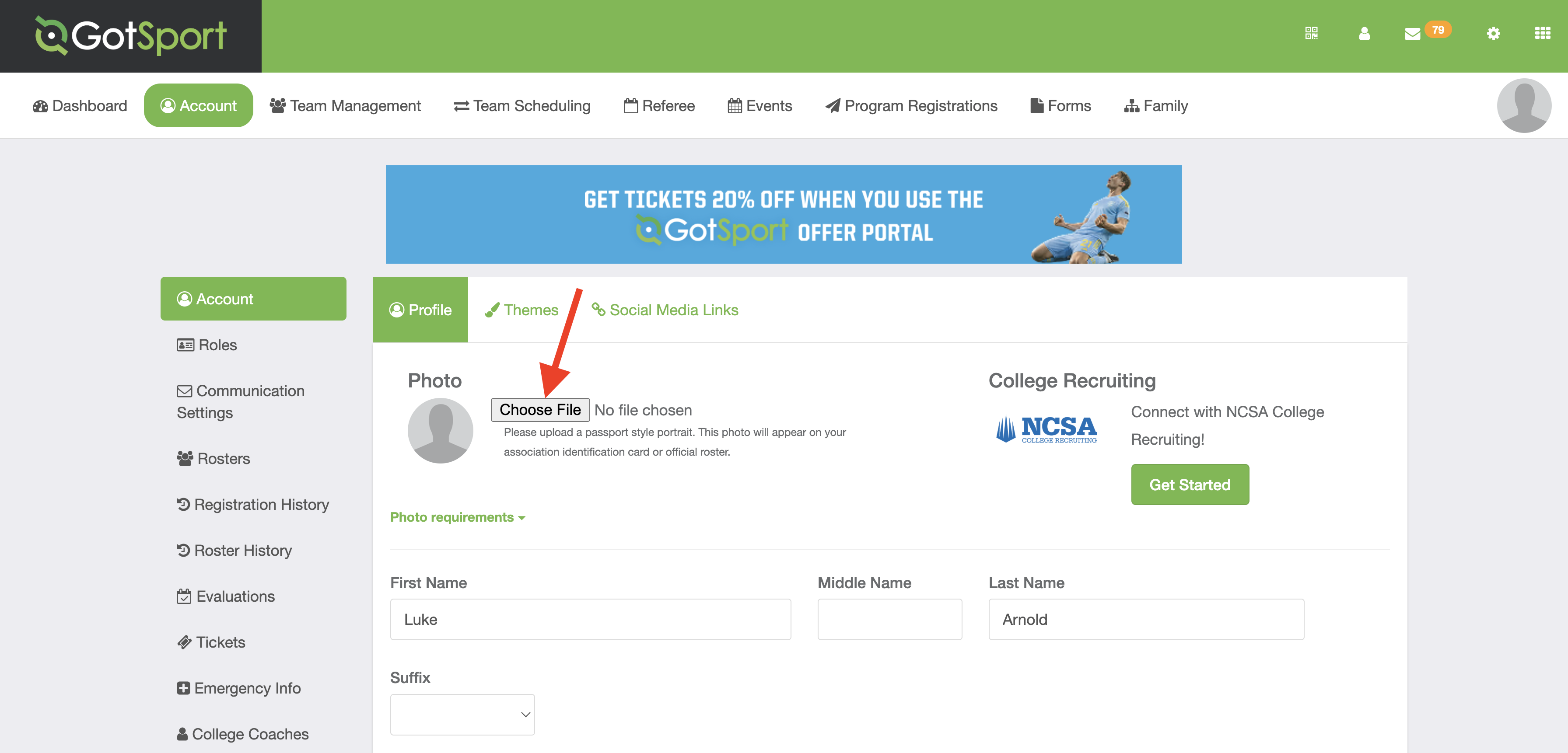
3. Once selected, confirm the upload. The photo will now appear on your child's profile and will be used on match cards and rosters.
***ℹ️ Note:** If you do not see an upload button, that means the photo has been verified and locked by your club's governing association. GotSport is not able to unlock photos, as we are not a governing body. To request an unlock, contact your club admin — they can reach out to the governing association on your behalf to get it resolved.*
- [Recent Updates/Additions](https://support.gotsport.com/recent-updates-additions?hsLang=en-us#main-content)
- [Recent Updates](https://support.gotsport.com/recent-updates-additions?hsLang=en-us#recent-updates)
- [New Functionality](https://support.gotsport.com/recent-updates-additions?hsLang=en-us#new-functionality)
- [Club Administrators](https://support.gotsport.com/club-administrators?hsLang=en-us#main-content)
- [Dashboard & Users](https://support.gotsport.com/club-administrators?hsLang=en-us#dashboard-users)
- [Preparing For Upcoming Season](https://support.gotsport.com/club-administrators?hsLang=en-us#preparing-for-upcoming-season)
- [Risk Management and Governing Body Forms](https://support.gotsport.com/club-administrators?hsLang=en-us#risk-management-and-governing-body-forms)
- [Communications](https://support.gotsport.com/club-administrators?hsLang=en-us#communications)
- [Club Management](https://support.gotsport.com/club-administrators?hsLang=en-us#club-management)
- [Programs](https://support.gotsport.com/club-administrators?hsLang=en-us#programs)
- [Billing](https://support.gotsport.com/club-administrators?hsLang=en-us#billing)
- [Forms](https://support.gotsport.com/club-administrators?hsLang=en-us#forms)
- [Events and Rosters](https://support.gotsport.com/club-administrators?hsLang=en-us#events-and-rosters)
- [Features (Discounts and Add-Ons)](https://support.gotsport.com/club-administrators?hsLang=en-us#features-discounts-and-add-ons)
- [Managers/Coaches](https://support.gotsport.com/managers-coaches?hsLang=en-us#main-content)
- [Team and Player Management](https://support.gotsport.com/managers-coaches?hsLang=en-us#team-and-player-management)
- [GotTravel - Hotels](https://support.gotsport.com/managers-coaches?hsLang=en-us#gottravel-hotels)
- [Risk Management](https://support.gotsport.com/managers-coaches?hsLang=en-us#risk-management)
- [Event Management](https://support.gotsport.com/managers-coaches?hsLang=en-us#event-management)
- [Registering Teams to Leagues & Tournaments](https://support.gotsport.com/managers-coaches?hsLang=en-us#registering-teams-to-leagues-tournaments)
- [Parents/Players](https://support.gotsport.com/parents-players?hsLang=en-us#main-content)
- [Parent/Player Account Management](https://support.gotsport.com/parents-players?hsLang=en-us#parent-player-account-management)
- [Risk Management and Required Forms](https://support.gotsport.com/parents-players?hsLang=en-us#risk-management-and-required-forms)
- [GotTravel - Hotels](https://support.gotsport.com/parents-players?hsLang=en-us#gottravel-hotels)
- [Registering for a Program](https://support.gotsport.com/parents-players?hsLang=en-us#registering-for-a-program)
- [Billing](https://support.gotsport.com/parents-players?hsLang=en-us#billing)
- [Governing Bodies](https://support.gotsport.com/governing-bodies?hsLang=en-us#main-content)
- [General Instructions For Governing Bodies](https://support.gotsport.com/governing-bodies?hsLang=en-us#general-instructions-for-governing-bodies)
- [US Club Soccer](https://support.gotsport.com/governing-bodies?hsLang=en-us#us-club-soccer)
- [USSSA SOCCER](https://support.gotsport.com/governing-bodies?hsLang=en-us#usssa-soccer)
- [Girls Academy](https://support.gotsport.com/governing-bodies?hsLang=en-us#girls-academy)
- [U.S. Futsal](https://support.gotsport.com/governing-bodies?hsLang=en-us#u-s-futsal)
- [Governing Body Forms/Risk Management](https://support.gotsport.com/governing-bodies?hsLang=en-us#governing-body-forms-risk-management)
- [State Specific Processes](https://support.gotsport.com/governing-bodies?hsLang=en-us#state-specific-processes)
- [Managing Child Organizations](https://support.gotsport.com/governing-bodies?hsLang=en-us#managing-child-organizations)
- [Preparing for an Upcoming Season](https://support.gotsport.com/governing-bodies?hsLang=en-us#preparing-for-an-upcoming-season)
- [Billing](https://support.gotsport.com/governing-bodies?hsLang=en-us#billing)
- [Event Directors](https://support.gotsport.com/event-directors?hsLang=en-us#main-content)
- [Competition & Event Setup](https://support.gotsport.com/event-directors?hsLang=en-us#competition-event-setup)
- [Managing Event Registrations](https://support.gotsport.com/event-directors?hsLang=en-us#managing-event-registrations)
- [Billing](https://support.gotsport.com/event-directors?hsLang=en-us#billing)
- [Scheduling](https://support.gotsport.com/event-directors?hsLang=en-us#scheduling)
- [Rosters, Match Cards, and Game Day Procedures](https://support.gotsport.com/event-directors?hsLang=en-us#rosters-match-cards-and-game-day-procedures)
- [Officials Management](https://support.gotsport.com/event-directors?hsLang=en-us#officials-management)
- [Scoring](https://support.gotsport.com/event-directors?hsLang=en-us#scoring)
- [Suspensions](https://support.gotsport.com/event-directors?hsLang=en-us#suspensions)
- [Got Travel - Hotels](https://support.gotsport.com/event-directors?hsLang=en-us#got-travel-hotels)
- [College Coaches](https://support.gotsport.com/event-directors?hsLang=en-us#college-coaches)
- [Rankings](https://support.gotsport.com/rankings?hsLang=en-us#main-content)
- [FAQ](https://support.gotsport.com/rankings?hsLang=en-us#faq)
- [Rankings Overview](https://support.gotsport.com/rankings?hsLang=en-us#rankings-overview)
- [Team Merge / Team ID's](https://support.gotsport.com/rankings?hsLang=en-us#team-merge-team-ids)
- [GotSport Pay](https://support.gotsport.com/gotsport-pay?hsLang=en-us#main-content)
- [GotSport Pay](https://support.gotsport.com/gotsport-pay?hsLang=en-us#gotsport-pay)
- [Ticketing and Store](https://support.gotsport.com/ticketing-and-store?hsLang=en-us#main-content)
- [Ticket/Store Purchasers Help](https://support.gotsport.com/ticketing-and-store?hsLang=en-us#ticket-store-purchasers-help)
- [Ticketing/Store Admin - Store Setup](https://support.gotsport.com/ticketing-and-store?hsLang=en-us#ticketing-store-admin-store-setup)
- [Ticketing/Store Admin - Managing Tickets and Orders](https://support.gotsport.com/ticketing-and-store?hsLang=en-us#ticketing-store-admin-managing-tickets-and-orders)
- [Scanner App](https://support.gotsport.com/ticketing-and-store?hsLang=en-us#scanner-app)
- [GotSport Live](https://support.gotsport.com/gotsport-live?hsLang=en-us#main-content)
- [How to Get Started](https://support.gotsport.com/gotsport-live?hsLang=en-us#how-to-get-started)
- [Digital Gameday](https://support.gotsport.com/gotsport-live?hsLang=en-us#digital-gameday)
- [GotSport Live FAQ](https://support.gotsport.com/gotsport-live?hsLang=en-us#gotsport-live-faq)
- [GotSport Live - Manage the Team](https://support.gotsport.com/gotsport-live?hsLang=en-us#gotsport-live-manage-the-team)
- [GotSport Live Livestreaming](https://support.gotsport.com/gotsport-live?hsLang=en-us#gotsport-live-livestreaming)
- [GotSport Live Create Game Content](https://support.gotsport.com/gotsport-live?hsLang=en-us#gotsport-live-create-game-content)
- [GotSport Live Team Rosters and Lineups](https://support.gotsport.com/gotsport-live?hsLang=en-us#gotsport-live-team-rosters-and-lineups)
- [GotSport Connect](https://support.gotsport.com/gotsport-connect?hsLang=en-us#main-content)
- [Newsfeed](https://support.gotsport.com/gotsport-connect?hsLang=en-us#newsfeed)
- [Schedule](https://support.gotsport.com/gotsport-connect?hsLang=en-us#schedule)
- [Chat](https://support.gotsport.com/gotsport-connect?hsLang=en-us#chat)
- [GotSport Team App](https://support.gotsport.com/gotsport-team-app?hsLang=en-us#main-content)
- [Parent/Athlete Mobile App](https://support.gotsport.com/gotsport-team-app?hsLang=en-us#parent-athlete-mobile-app)
- [GotSport Team App - General Support](https://support.gotsport.com/gotsport-team-app?hsLang=en-us#gotsport-team-app-general-support)
- [Coach/Manager - Mobile App](https://support.gotsport.com/gotsport-team-app?hsLang=en-us#coach-manager-mobile-app)
- [Club Administrator](https://support.gotsport.com/gotsport-team-app?hsLang=en-us#club-administrator)
- [Parent/Athlete Desktop](https://support.gotsport.com/gotsport-team-app?hsLang=en-us#parent-athlete-desktop)
- [Commonly Asked Questions](https://support.gotsport.com/gotsport-team-app?hsLang=en-us#commonly-asked-questions)
- [Coach/Manager - Desktop](https://support.gotsport.com/gotsport-team-app?hsLang=en-us#coach-manager-desktop)
- [US Club Soccer Articles](https://support.gotsport.com/us-club-soccer-articles?hsLang=en-us#main-content)
- [Club Administrators - Preparing for the Upcoming Season](https://support.gotsport.com/us-club-soccer-articles?hsLang=en-us#club-administrators-preparing-for-the-upcoming-season)
- [Club Administrators - Events](https://support.gotsport.com/us-club-soccer-articles?hsLang=en-us#club-administrators-events)
- [US Club Soccer - Parents and Players](https://support.gotsport.com/us-club-soccer-articles?hsLang=en-us#us-club-soccer-parents-and-players)
- [Club Admin - General](https://support.gotsport.com/us-club-soccer-articles?hsLang=en-us#club-admin-general)
- [Referees and Assigning](https://support.gotsport.com/referees-and-assigning?hsLang=en-us#main-content)
- [Referees](https://support.gotsport.com/referees-and-assigning?hsLang=en-us#referees)
- [Assignors](https://support.gotsport.com/referees-and-assigning?hsLang=en-us#assignors)
- [College Coaches](https://support.gotsport.com/college-coaches?hsLang=en-us#main-content)
- [College Coach Articles](https://support.gotsport.com/college-coaches?hsLang=en-us#college-coach-articles)
- [Pro Schedules](https://support.gotsport.com/pro-schedules?hsLang=en-us#main-content)
- [Dashboard](https://support.gotsport.com/pro-schedules?hsLang=en-us#dashboard)
- [Club Information](https://support.gotsport.com/pro-schedules?hsLang=en-us#club-information)
- [Venues](https://support.gotsport.com/pro-schedules?hsLang=en-us#venues)
- [Constraints](https://support.gotsport.com/pro-schedules?hsLang=en-us#constraints)
- [Scheduling](https://support.gotsport.com/pro-schedules?hsLang=en-us#scheduling)
- [Reports and Exports](https://support.gotsport.com/pro-schedules?hsLang=en-us#reports-and-exports)
- [Pro Services](https://support.gotsport.com/pro-services?hsLang=en-us#main-content)
- [Team Services](https://support.gotsport.com/pro-services?hsLang=en-us#team-services)
- [Match Countdown](https://support.gotsport.com/pro-services?hsLang=en-us#match-countdown)
- [USYS NL](https://support.gotsport.com/usys-nl?hsLang=en-us#main-content)
- [Coach/Manager Roles](https://support.gotsport.com/usys-nl?hsLang=en-us#coach-manager-roles)
- [Players](https://support.gotsport.com/usys-nl?hsLang=en-us#players)
- [CAF](https://support.gotsport.com/caf?hsLang=en-us)
[](https://home.gotsport.com)
[mailto:email@email.com](mailto:email@email.com)
Copyright © 2026, GotSport