
Open the Mileage Report
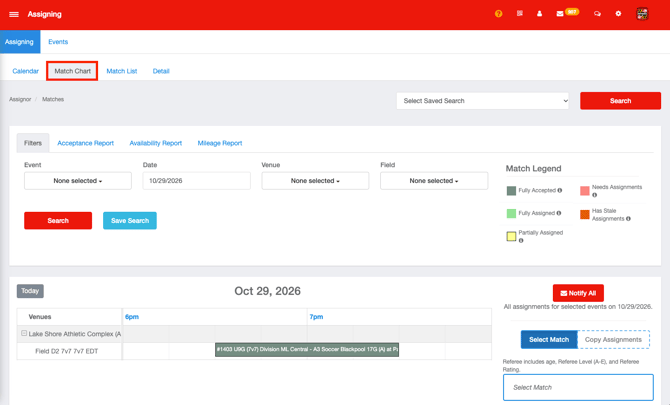
- Open the assigning Match Chart.
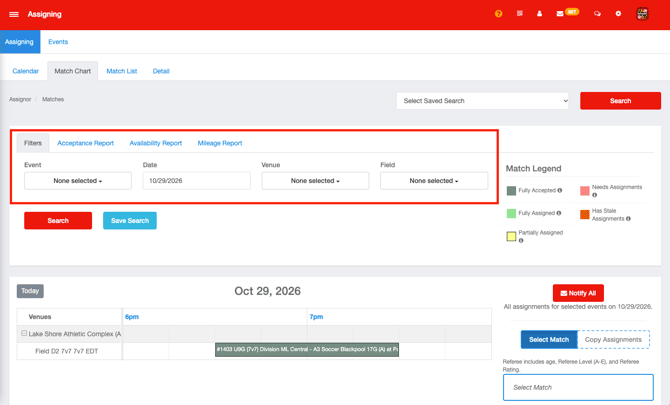
- Select the date and event(s) you want to review.
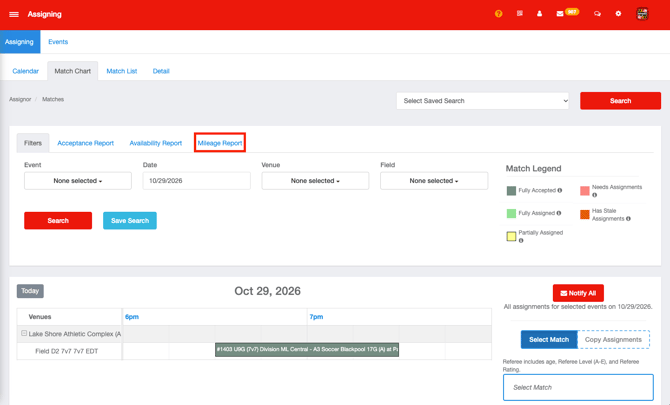
- Click Mileage Report.
Review Referee Mileage Limits
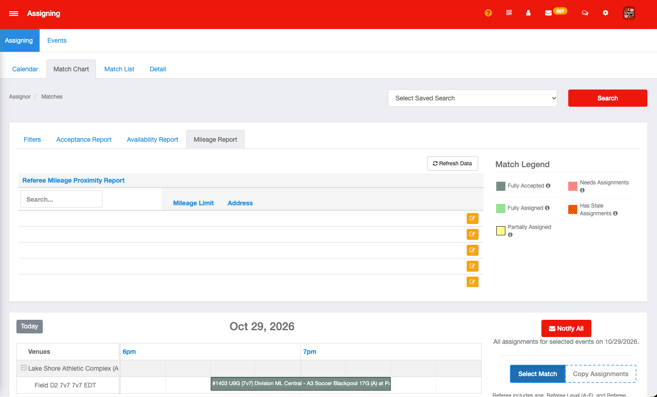
The report displays the mileage limits set by referees who are registered to your referee pool and the selected event(s). Each limit indicates how far a referee is willing to travel from the address listed in their profile.
Understand the Report Fields
Referee Name: Click a referee’s name to open their profile.
Mileage Limit: The maximum distance a referee is willing to travel from their listed address.
Address: The address used to calculate mileage, typically the referee’s home address.
Edit Icon: Click the orange edit icon to edit a referee’s mileage limit.
Find a Referee and Update Their Limit
- Enter the referee’s name in the search field or scroll through the referee list.
- Click the orange edit icon for the referee whose mileage limit you want to update.
- Edit the referee’s mileage limit.
Refresh and Sort the Report
Refresh Data: Click to refresh the report.
Sort Report Columns: Click a column heading to sort the report in ascending or descending order.
Summary
Use the Mileage Report to review referee travel limits for your selected event(s) and edit individual limits as needed. Search for a referee to find their entry, use the orange edit icon to update their limit, and refresh or sort the report to support your review.