---
title: As Club Admin - How to Use GotSport Staging Table
description: The staging table is used so that an organization can verify and import their Player Registration Data from previous systems into the GotSport System.
---
[Skip to content](https://support.gotsport.com/as-club-admin-how-to-use-gotsport-staging-table#main-content)
English - United States
Show submenu for translations

Open main navigation
Close main navigation
- English - United States
Show submenu for translations
- Contact us
Contact us
How can we help you?
- There are no suggestions because the search field is empty.
1. [GotSport](https://support.gotsport.com/?hsLang=en-us)
2. [Governing Bodies](https://support.gotsport.com/governing-bodies?hsLang=en-us)
3. [US Club Soccer](https://support.gotsport.com/governing-bodies?hsLang=en-us#us-club-soccer)
# As Club Admin - How to Use GotSport Staging Table
## The staging table is used so that an organization can verify and import their Player Registration Data from a previous system into the GotSport System.
**Instructions:**
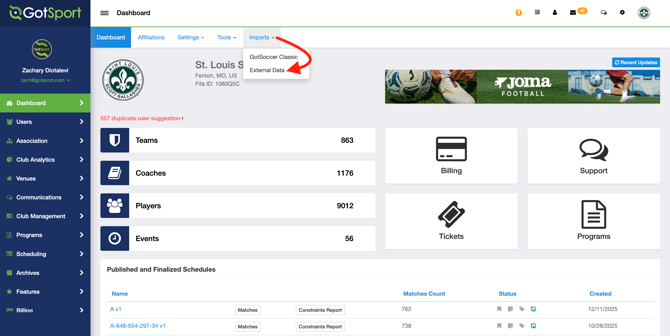
**Step 1:**
- From your Admin Dashboard, click **Imports \> External Data**
****
**Step 2:**
- The data shown in the Staging Table are all valid and approved players for the 2025/2026 seasonal year
- Click the bulk action box on the left side, then click "**Verify/Import Players**"
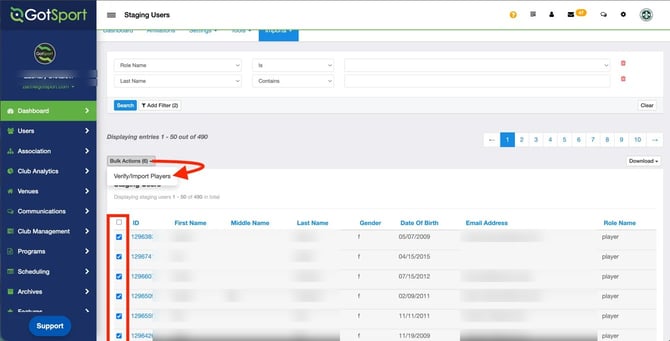
- Clicking **Verify/Import Players** players will look to match any existing accounts within Club Management \> Players and attempt to sync the players. The system will attempt to match players based off their first/last name, DOB, and gender.
- If the player does not exist based on first/last name, gender, and DOB, the system will automatically create an account for the player, automatically assign any appropriate memberships, payments, and requirements to the account.
- If it does find an existing player account within Club Management \> Players that matches the personal information, the system will automatically sync the memberships, payments, and requirements to the existing account.
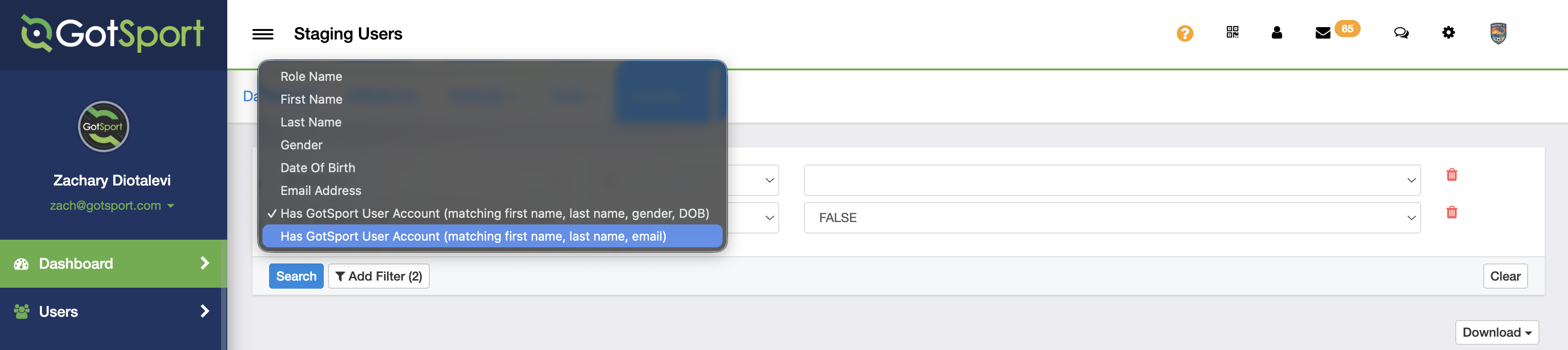
*NOTE\*\*\* If you would like to see the accounts that will be created based off no matching accounts, use the Filter for **Has GotSport User Account (matching first name, last name, gender, DOB** is **FALSE** and click Search. The returned accounts will be created in the GotSport system upon clicking "Verify/Import Players"*
**Step 3:**
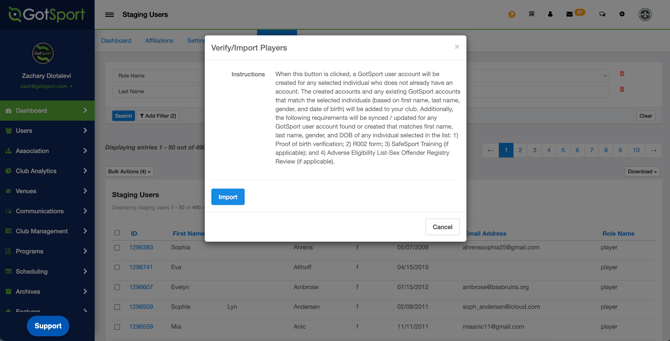
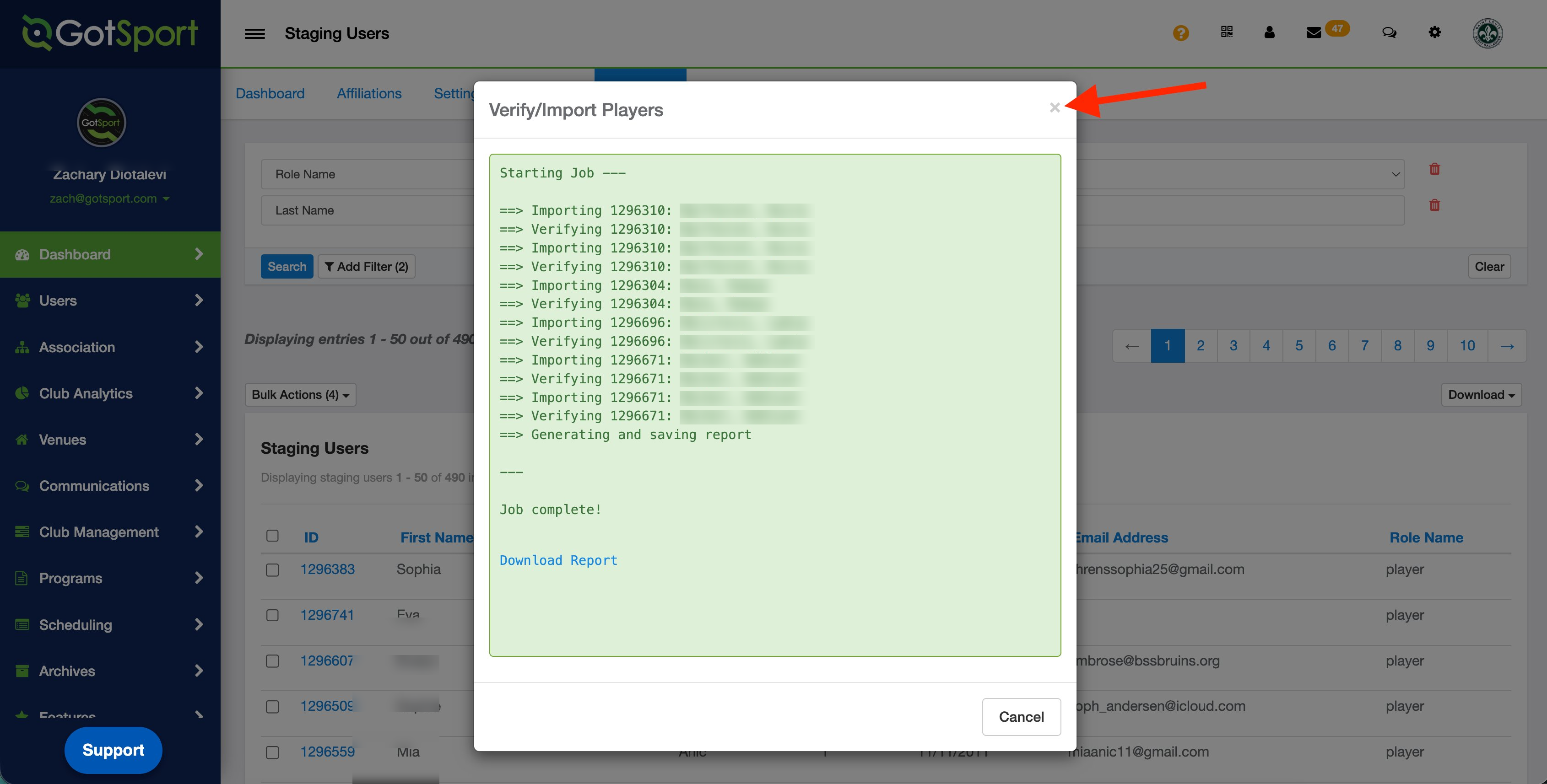
- After clicking "**Verify/Import Players**", click "**Import**"
- Upon completion, the modal will turn green upon success. Click the X at the top right corner to close the popup.
- [Recent Updates/Additions](https://support.gotsport.com/recent-updates-additions?hsLang=en-us#main-content)
- [Recent Updates](https://support.gotsport.com/recent-updates-additions?hsLang=en-us#recent-updates)
- [New Functionality](https://support.gotsport.com/recent-updates-additions?hsLang=en-us#new-functionality)
- [Club Administrators](https://support.gotsport.com/club-administrators?hsLang=en-us#main-content)
- [Dashboard & Users](https://support.gotsport.com/club-administrators?hsLang=en-us#dashboard-users)
- [Preparing For Upcoming Season](https://support.gotsport.com/club-administrators?hsLang=en-us#preparing-for-upcoming-season)
- [Risk Management and Governing Body Forms](https://support.gotsport.com/club-administrators?hsLang=en-us#risk-management-and-governing-body-forms)
- [Communications](https://support.gotsport.com/club-administrators?hsLang=en-us#communications)
- [Club Management](https://support.gotsport.com/club-administrators?hsLang=en-us#club-management)
- [Programs](https://support.gotsport.com/club-administrators?hsLang=en-us#programs)
- [Billing](https://support.gotsport.com/club-administrators?hsLang=en-us#billing)
- [Forms](https://support.gotsport.com/club-administrators?hsLang=en-us#forms)
- [Events and Rosters](https://support.gotsport.com/club-administrators?hsLang=en-us#events-and-rosters)
- [Features (Discounts and Add-Ons)](https://support.gotsport.com/club-administrators?hsLang=en-us#features-discounts-and-add-ons)
- [Managers/Coaches](https://support.gotsport.com/managers-coaches?hsLang=en-us#main-content)
- [Team and Player Management](https://support.gotsport.com/managers-coaches?hsLang=en-us#team-and-player-management)
- [GotTravel - Hotels](https://support.gotsport.com/managers-coaches?hsLang=en-us#gottravel-hotels)
- [Risk Management](https://support.gotsport.com/managers-coaches?hsLang=en-us#risk-management)
- [Event Management](https://support.gotsport.com/managers-coaches?hsLang=en-us#event-management)
- [Registering Teams to Leagues & Tournaments](https://support.gotsport.com/managers-coaches?hsLang=en-us#registering-teams-to-leagues-tournaments)
- [Parents/Players](https://support.gotsport.com/parents-players?hsLang=en-us#main-content)
- [Parent/Player Account Management](https://support.gotsport.com/parents-players?hsLang=en-us#parent-player-account-management)
- [Risk Management and Required Forms](https://support.gotsport.com/parents-players?hsLang=en-us#risk-management-and-required-forms)
- [GotTravel - Hotels](https://support.gotsport.com/parents-players?hsLang=en-us#gottravel-hotels)
- [Registering for a Program](https://support.gotsport.com/parents-players?hsLang=en-us#registering-for-a-program)
- [Billing](https://support.gotsport.com/parents-players?hsLang=en-us#billing)
- [Governing Bodies](https://support.gotsport.com/governing-bodies?hsLang=en-us#main-content)
- [General Instructions For Governing Bodies](https://support.gotsport.com/governing-bodies?hsLang=en-us#general-instructions-for-governing-bodies)
- [US Club Soccer](https://support.gotsport.com/governing-bodies?hsLang=en-us#us-club-soccer)
- [USSSA SOCCER](https://support.gotsport.com/governing-bodies?hsLang=en-us#usssa-soccer)
- [Girls Academy](https://support.gotsport.com/governing-bodies?hsLang=en-us#girls-academy)
- [U.S. Futsal](https://support.gotsport.com/governing-bodies?hsLang=en-us#u-s-futsal)
- [Governing Body Forms/Risk Management](https://support.gotsport.com/governing-bodies?hsLang=en-us#governing-body-forms-risk-management)
- [State Specific Processes](https://support.gotsport.com/governing-bodies?hsLang=en-us#state-specific-processes)
- [Managing Child Organizations](https://support.gotsport.com/governing-bodies?hsLang=en-us#managing-child-organizations)
- [Preparing for an Upcoming Season](https://support.gotsport.com/governing-bodies?hsLang=en-us#preparing-for-an-upcoming-season)
- [Billing](https://support.gotsport.com/governing-bodies?hsLang=en-us#billing)
- [Event Directors](https://support.gotsport.com/event-directors?hsLang=en-us#main-content)
- [Competition & Event Setup](https://support.gotsport.com/event-directors?hsLang=en-us#competition-event-setup)
- [Managing Event Registrations](https://support.gotsport.com/event-directors?hsLang=en-us#managing-event-registrations)
- [Billing](https://support.gotsport.com/event-directors?hsLang=en-us#billing)
- [Scheduling](https://support.gotsport.com/event-directors?hsLang=en-us#scheduling)
- [Rosters, Match Cards, and Game Day Procedures](https://support.gotsport.com/event-directors?hsLang=en-us#rosters-match-cards-and-game-day-procedures)
- [Officials Management](https://support.gotsport.com/event-directors?hsLang=en-us#officials-management)
- [Scoring](https://support.gotsport.com/event-directors?hsLang=en-us#scoring)
- [Suspensions](https://support.gotsport.com/event-directors?hsLang=en-us#suspensions)
- [Got Travel - Hotels](https://support.gotsport.com/event-directors?hsLang=en-us#got-travel-hotels)
- [College Coaches](https://support.gotsport.com/event-directors?hsLang=en-us#college-coaches)
- [Rankings](https://support.gotsport.com/rankings?hsLang=en-us#main-content)
- [FAQ](https://support.gotsport.com/rankings?hsLang=en-us#faq)
- [Rankings Overview](https://support.gotsport.com/rankings?hsLang=en-us#rankings-overview)
- [Team Merge / Team ID's](https://support.gotsport.com/rankings?hsLang=en-us#team-merge-team-ids)
- [GotSport Pay](https://support.gotsport.com/gotsport-pay?hsLang=en-us#main-content)
- [GotSport Pay](https://support.gotsport.com/gotsport-pay?hsLang=en-us#gotsport-pay)
- [Ticketing and Store](https://support.gotsport.com/ticketing-and-store?hsLang=en-us#main-content)
- [Ticket/Store Purchasers Help](https://support.gotsport.com/ticketing-and-store?hsLang=en-us#ticket-store-purchasers-help)
- [Ticketing/Store Admin - Store Setup](https://support.gotsport.com/ticketing-and-store?hsLang=en-us#ticketing-store-admin-store-setup)
- [Ticketing/Store Admin - Managing Tickets and Orders](https://support.gotsport.com/ticketing-and-store?hsLang=en-us#ticketing-store-admin-managing-tickets-and-orders)
- [Scanner App](https://support.gotsport.com/ticketing-and-store?hsLang=en-us#scanner-app)
- [GotSport Live](https://support.gotsport.com/gotsport-live?hsLang=en-us#main-content)
- [How to Get Started](https://support.gotsport.com/gotsport-live?hsLang=en-us#how-to-get-started)
- [Digital Gameday](https://support.gotsport.com/gotsport-live?hsLang=en-us#digital-gameday)
- [GotSport Live FAQ](https://support.gotsport.com/gotsport-live?hsLang=en-us#gotsport-live-faq)
- [GotSport Live - Manage the Team](https://support.gotsport.com/gotsport-live?hsLang=en-us#gotsport-live-manage-the-team)
- [GotSport Live Livestreaming](https://support.gotsport.com/gotsport-live?hsLang=en-us#gotsport-live-livestreaming)
- [GotSport Live Create Game Content](https://support.gotsport.com/gotsport-live?hsLang=en-us#gotsport-live-create-game-content)
- [GotSport Live Team Rosters and Lineups](https://support.gotsport.com/gotsport-live?hsLang=en-us#gotsport-live-team-rosters-and-lineups)
- [GotSport Connect](https://support.gotsport.com/gotsport-connect?hsLang=en-us#main-content)
- [Newsfeed](https://support.gotsport.com/gotsport-connect?hsLang=en-us#newsfeed)
- [Schedule](https://support.gotsport.com/gotsport-connect?hsLang=en-us#schedule)
- [Chat](https://support.gotsport.com/gotsport-connect?hsLang=en-us#chat)
- [GotSport Team App](https://support.gotsport.com/gotsport-team-app?hsLang=en-us#main-content)
- [Parent/Athlete Mobile App](https://support.gotsport.com/gotsport-team-app?hsLang=en-us#parent-athlete-mobile-app)
- [GotSport Team App - General Support](https://support.gotsport.com/gotsport-team-app?hsLang=en-us#gotsport-team-app-general-support)
- [Coach/Manager - Mobile App](https://support.gotsport.com/gotsport-team-app?hsLang=en-us#coach-manager-mobile-app)
- [Club Administrator](https://support.gotsport.com/gotsport-team-app?hsLang=en-us#club-administrator)
- [Parent/Athlete Desktop](https://support.gotsport.com/gotsport-team-app?hsLang=en-us#parent-athlete-desktop)
- [Commonly Asked Questions](https://support.gotsport.com/gotsport-team-app?hsLang=en-us#commonly-asked-questions)
- [Coach/Manager - Desktop](https://support.gotsport.com/gotsport-team-app?hsLang=en-us#coach-manager-desktop)
- [US Club Soccer Articles](https://support.gotsport.com/us-club-soccer-articles?hsLang=en-us#main-content)
- [Club Administrators - Preparing for the Upcoming Season](https://support.gotsport.com/us-club-soccer-articles?hsLang=en-us#club-administrators-preparing-for-the-upcoming-season)
- [Club Administrators - Events](https://support.gotsport.com/us-club-soccer-articles?hsLang=en-us#club-administrators-events)
- [US Club Soccer - Parents and Players](https://support.gotsport.com/us-club-soccer-articles?hsLang=en-us#us-club-soccer-parents-and-players)
- [Club Admin - General](https://support.gotsport.com/us-club-soccer-articles?hsLang=en-us#club-admin-general)
- [Referees and Assigning](https://support.gotsport.com/referees-and-assigning?hsLang=en-us#main-content)
- [Referees](https://support.gotsport.com/referees-and-assigning?hsLang=en-us#referees)
- [Assignors](https://support.gotsport.com/referees-and-assigning?hsLang=en-us#assignors)
- [College Coaches](https://support.gotsport.com/college-coaches?hsLang=en-us#main-content)
- [College Coach Articles](https://support.gotsport.com/college-coaches?hsLang=en-us#college-coach-articles)
- [Pro Schedules](https://support.gotsport.com/pro-schedules?hsLang=en-us#main-content)
- [Dashboard](https://support.gotsport.com/pro-schedules?hsLang=en-us#dashboard)
- [Club Information](https://support.gotsport.com/pro-schedules?hsLang=en-us#club-information)
- [Venues](https://support.gotsport.com/pro-schedules?hsLang=en-us#venues)
- [Constraints](https://support.gotsport.com/pro-schedules?hsLang=en-us#constraints)
- [Scheduling](https://support.gotsport.com/pro-schedules?hsLang=en-us#scheduling)
- [Reports and Exports](https://support.gotsport.com/pro-schedules?hsLang=en-us#reports-and-exports)
- [Pro Services](https://support.gotsport.com/pro-services?hsLang=en-us#main-content)
- [Team Services](https://support.gotsport.com/pro-services?hsLang=en-us#team-services)
- [Match Countdown](https://support.gotsport.com/pro-services?hsLang=en-us#match-countdown)
- [USYS NL](https://support.gotsport.com/usys-nl?hsLang=en-us#main-content)
- [Coach/Manager Roles](https://support.gotsport.com/usys-nl?hsLang=en-us#coach-manager-roles)
- [Players](https://support.gotsport.com/usys-nl?hsLang=en-us#players)
- [CAF](https://support.gotsport.com/caf?hsLang=en-us)
[](https://home.gotsport.com)
[mailto:email@email.com](mailto:email@email.com)
Copyright © 2026, GotSport