---
title: As a Parent/Player - How to Complete the R-002 Form from US Club Soccer
description: This article will demonstrate how a Parent can sign into their GotSport account to complete the US Club Soccer R-002 Form. This form must be completed in order for the Player to meet their Risk Management requirements.
---
[Skip to content](https://support.gotsport.com/as-a-parent/player-how-to-complete-the-r-002-form-from-us-club-soccer#main-content)
English - United States
Show submenu for translations

Open main navigation
Close main navigation
- English - United States
Show submenu for translations
- Contact us
Contact us
How can we help you?
- There are no suggestions because the search field is empty.
1. [GotSport](https://support.gotsport.com/?hsLang=en-us)
2. [US Club Soccer Articles](https://support.gotsport.com/us-club-soccer-articles?hsLang=en-us)
3. [US Club Soccer - Parents and Players](https://support.gotsport.com/us-club-soccer-articles?hsLang=en-us#us-club-soccer-parents-and-players)
# As a Parent/Player - How to Complete the R-002 Form from US Club Soccer
## This article will demonstrate how a Parent can sign into their GotSport account to complete the US Club Soccer R-002 Form. This form must be completed in order for the Player to meet their Risk Management requirements.
***ℹ️ Note:** The R-002 form is required by US Club Soccer as part of the player registration process. It must be completed by the parent or guardian for minor players, or by the player directly if they are 18 or older.*
### **Step 1: Navigate to Your Player's Profile**
*As a parent, you log in under your own account. You'll need to navigate to your child's profile through the Family section before you can access their forms.*
1. Sign into your account and click **Account** in the top menu bar.
2. In the left navigation bar, click **Family**.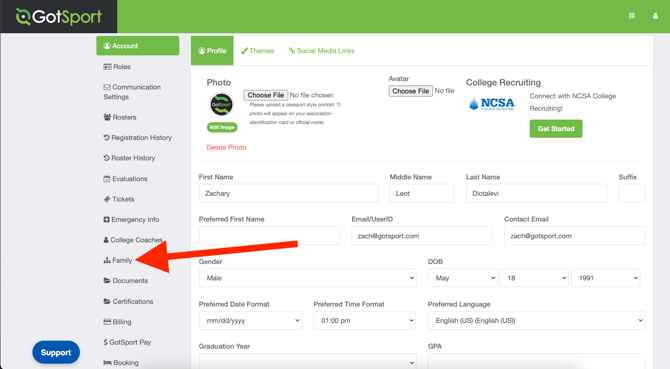
3. Click the name of the player whose form you need to complete.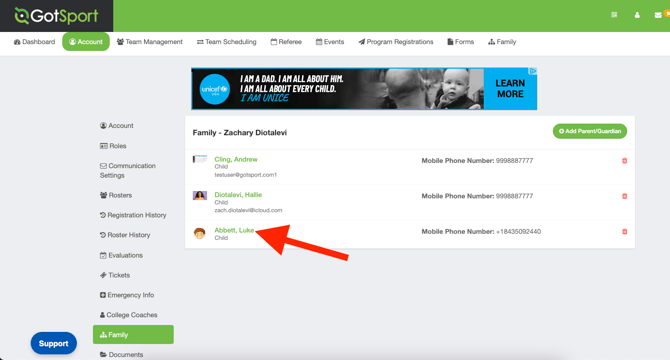
### **Step 2: Find the R-002 Form**
*Once you're in the player's profile, there are two ways to locate the R-002 form. The Dashboard path shows the requirement in context; the Forms tab is a quicker shortcut if you know what you're looking for.*
1. Click **Dashboard** at the top of the player profile.**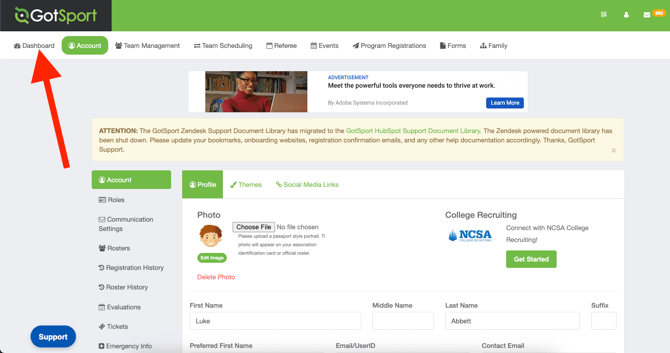**
2. Scroll down to the **Risk Management** section. Locate the R-002 Form and click **Details** next to it.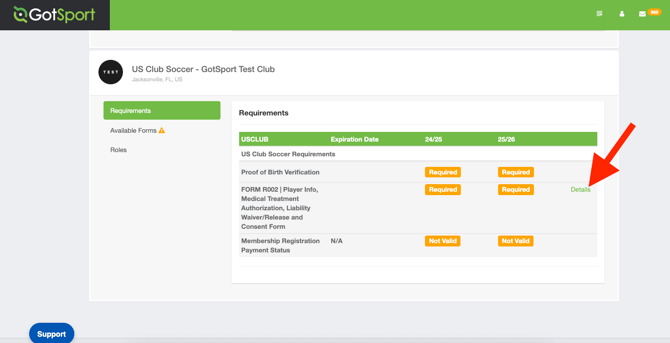
***💡 Tip:** You can also find the form by clicking the **Forms** tab at the top of the player profile. This takes you directly to all forms assigned to the player without going through the Dashboard.*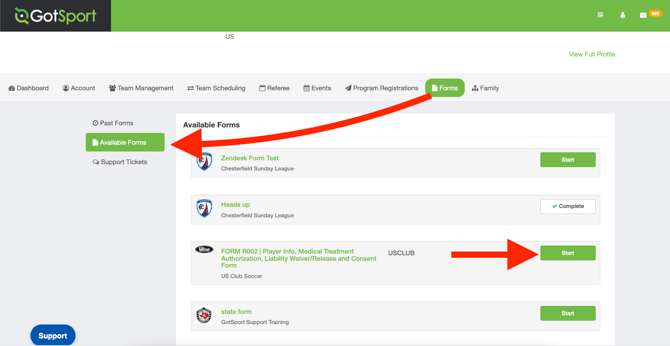
### **Step 3: Complete the Form**
1. Fill out all required fields in the R-002 form.
2. When prompted to select whose form this is, make sure you select the **player's** name — not your own parent account name.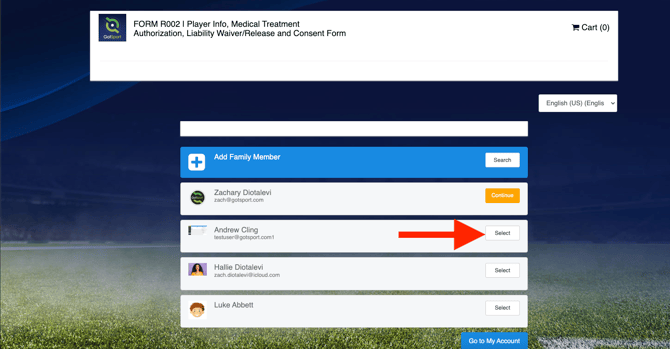
3. Submit the form. The Risk Management requirement will update to reflect the completed status.
***⚠️ Warning:** Make sure you select the player's name when completing the form, not your own. Submitting under the parent account will not satisfy the player's Risk Management requirement.*
- [Recent Updates/Additions](https://support.gotsport.com/recent-updates-additions?hsLang=en-us#main-content)
- [Recent Updates](https://support.gotsport.com/recent-updates-additions?hsLang=en-us#recent-updates)
- [New Functionality](https://support.gotsport.com/recent-updates-additions?hsLang=en-us#new-functionality)
- [Club Administrators](https://support.gotsport.com/club-administrators?hsLang=en-us#main-content)
- [Dashboard & Users](https://support.gotsport.com/club-administrators?hsLang=en-us#dashboard-users)
- [Preparing For Upcoming Season](https://support.gotsport.com/club-administrators?hsLang=en-us#preparing-for-upcoming-season)
- [Risk Management and Governing Body Forms](https://support.gotsport.com/club-administrators?hsLang=en-us#risk-management-and-governing-body-forms)
- [Communications](https://support.gotsport.com/club-administrators?hsLang=en-us#communications)
- [Club Management](https://support.gotsport.com/club-administrators?hsLang=en-us#club-management)
- [Programs](https://support.gotsport.com/club-administrators?hsLang=en-us#programs)
- [Billing](https://support.gotsport.com/club-administrators?hsLang=en-us#billing)
- [Forms](https://support.gotsport.com/club-administrators?hsLang=en-us#forms)
- [Events and Rosters](https://support.gotsport.com/club-administrators?hsLang=en-us#events-and-rosters)
- [Features (Discounts and Add-Ons)](https://support.gotsport.com/club-administrators?hsLang=en-us#features-discounts-and-add-ons)
- [Managers/Coaches](https://support.gotsport.com/managers-coaches?hsLang=en-us#main-content)
- [Team and Player Management](https://support.gotsport.com/managers-coaches?hsLang=en-us#team-and-player-management)
- [GotTravel - Hotels](https://support.gotsport.com/managers-coaches?hsLang=en-us#gottravel-hotels)
- [Risk Management](https://support.gotsport.com/managers-coaches?hsLang=en-us#risk-management)
- [Event Management](https://support.gotsport.com/managers-coaches?hsLang=en-us#event-management)
- [Registering Teams to Leagues & Tournaments](https://support.gotsport.com/managers-coaches?hsLang=en-us#registering-teams-to-leagues-tournaments)
- [Parents/Players](https://support.gotsport.com/parents-players?hsLang=en-us#main-content)
- [Parent/Player Account Management](https://support.gotsport.com/parents-players?hsLang=en-us#parent-player-account-management)
- [Risk Management and Required Forms](https://support.gotsport.com/parents-players?hsLang=en-us#risk-management-and-required-forms)
- [GotTravel - Hotels](https://support.gotsport.com/parents-players?hsLang=en-us#gottravel-hotels)
- [Registering for a Program](https://support.gotsport.com/parents-players?hsLang=en-us#registering-for-a-program)
- [Billing](https://support.gotsport.com/parents-players?hsLang=en-us#billing)
- [Governing Bodies](https://support.gotsport.com/governing-bodies?hsLang=en-us#main-content)
- [General Instructions For Governing Bodies](https://support.gotsport.com/governing-bodies?hsLang=en-us#general-instructions-for-governing-bodies)
- [US Club Soccer](https://support.gotsport.com/governing-bodies?hsLang=en-us#us-club-soccer)
- [USSSA SOCCER](https://support.gotsport.com/governing-bodies?hsLang=en-us#usssa-soccer)
- [Girls Academy](https://support.gotsport.com/governing-bodies?hsLang=en-us#girls-academy)
- [U.S. Futsal](https://support.gotsport.com/governing-bodies?hsLang=en-us#u-s-futsal)
- [Governing Body Forms/Risk Management](https://support.gotsport.com/governing-bodies?hsLang=en-us#governing-body-forms-risk-management)
- [State Specific Processes](https://support.gotsport.com/governing-bodies?hsLang=en-us#state-specific-processes)
- [Managing Child Organizations](https://support.gotsport.com/governing-bodies?hsLang=en-us#managing-child-organizations)
- [Preparing for an Upcoming Season](https://support.gotsport.com/governing-bodies?hsLang=en-us#preparing-for-an-upcoming-season)
- [Billing](https://support.gotsport.com/governing-bodies?hsLang=en-us#billing)
- [Event Directors](https://support.gotsport.com/event-directors?hsLang=en-us#main-content)
- [Competition & Event Setup](https://support.gotsport.com/event-directors?hsLang=en-us#competition-event-setup)
- [Managing Event Registrations](https://support.gotsport.com/event-directors?hsLang=en-us#managing-event-registrations)
- [Billing](https://support.gotsport.com/event-directors?hsLang=en-us#billing)
- [Scheduling](https://support.gotsport.com/event-directors?hsLang=en-us#scheduling)
- [Rosters, Match Cards, and Game Day Procedures](https://support.gotsport.com/event-directors?hsLang=en-us#rosters-match-cards-and-game-day-procedures)
- [Officials Management](https://support.gotsport.com/event-directors?hsLang=en-us#officials-management)
- [Scoring](https://support.gotsport.com/event-directors?hsLang=en-us#scoring)
- [Suspensions](https://support.gotsport.com/event-directors?hsLang=en-us#suspensions)
- [Got Travel - Hotels](https://support.gotsport.com/event-directors?hsLang=en-us#got-travel-hotels)
- [College Coaches](https://support.gotsport.com/event-directors?hsLang=en-us#college-coaches)
- [Rankings](https://support.gotsport.com/rankings?hsLang=en-us#main-content)
- [FAQ](https://support.gotsport.com/rankings?hsLang=en-us#faq)
- [Rankings Overview](https://support.gotsport.com/rankings?hsLang=en-us#rankings-overview)
- [Team Merge / Team ID's](https://support.gotsport.com/rankings?hsLang=en-us#team-merge-team-ids)
- [GotSport Pay](https://support.gotsport.com/gotsport-pay?hsLang=en-us#main-content)
- [GotSport Pay](https://support.gotsport.com/gotsport-pay?hsLang=en-us#gotsport-pay)
- [Ticketing and Store](https://support.gotsport.com/ticketing-and-store?hsLang=en-us#main-content)
- [Ticket/Store Purchasers Help](https://support.gotsport.com/ticketing-and-store?hsLang=en-us#ticket-store-purchasers-help)
- [Ticketing/Store Admin - Store Setup](https://support.gotsport.com/ticketing-and-store?hsLang=en-us#ticketing-store-admin-store-setup)
- [Ticketing/Store Admin - Managing Tickets and Orders](https://support.gotsport.com/ticketing-and-store?hsLang=en-us#ticketing-store-admin-managing-tickets-and-orders)
- [Scanner App](https://support.gotsport.com/ticketing-and-store?hsLang=en-us#scanner-app)
- [GotSport Live](https://support.gotsport.com/gotsport-live?hsLang=en-us#main-content)
- [How to Get Started](https://support.gotsport.com/gotsport-live?hsLang=en-us#how-to-get-started)
- [Digital Gameday](https://support.gotsport.com/gotsport-live?hsLang=en-us#digital-gameday)
- [GotSport Live FAQ](https://support.gotsport.com/gotsport-live?hsLang=en-us#gotsport-live-faq)
- [GotSport Live - Manage the Team](https://support.gotsport.com/gotsport-live?hsLang=en-us#gotsport-live-manage-the-team)
- [GotSport Live Livestreaming](https://support.gotsport.com/gotsport-live?hsLang=en-us#gotsport-live-livestreaming)
- [GotSport Live Create Game Content](https://support.gotsport.com/gotsport-live?hsLang=en-us#gotsport-live-create-game-content)
- [GotSport Live Team Rosters and Lineups](https://support.gotsport.com/gotsport-live?hsLang=en-us#gotsport-live-team-rosters-and-lineups)
- [GotSport Connect](https://support.gotsport.com/gotsport-connect?hsLang=en-us#main-content)
- [Newsfeed](https://support.gotsport.com/gotsport-connect?hsLang=en-us#newsfeed)
- [Schedule](https://support.gotsport.com/gotsport-connect?hsLang=en-us#schedule)
- [Chat](https://support.gotsport.com/gotsport-connect?hsLang=en-us#chat)
- [GotSport Team App](https://support.gotsport.com/gotsport-team-app?hsLang=en-us#main-content)
- [Parent/Athlete Mobile App](https://support.gotsport.com/gotsport-team-app?hsLang=en-us#parent-athlete-mobile-app)
- [GotSport Team App - General Support](https://support.gotsport.com/gotsport-team-app?hsLang=en-us#gotsport-team-app-general-support)
- [Coach/Manager - Mobile App](https://support.gotsport.com/gotsport-team-app?hsLang=en-us#coach-manager-mobile-app)
- [Club Administrator](https://support.gotsport.com/gotsport-team-app?hsLang=en-us#club-administrator)
- [Parent/Athlete Desktop](https://support.gotsport.com/gotsport-team-app?hsLang=en-us#parent-athlete-desktop)
- [Commonly Asked Questions](https://support.gotsport.com/gotsport-team-app?hsLang=en-us#commonly-asked-questions)
- [Coach/Manager - Desktop](https://support.gotsport.com/gotsport-team-app?hsLang=en-us#coach-manager-desktop)
- [US Club Soccer Articles](https://support.gotsport.com/us-club-soccer-articles?hsLang=en-us#main-content)
- [Club Administrators - Preparing for the Upcoming Season](https://support.gotsport.com/us-club-soccer-articles?hsLang=en-us#club-administrators-preparing-for-the-upcoming-season)
- [Club Administrators - Events](https://support.gotsport.com/us-club-soccer-articles?hsLang=en-us#club-administrators-events)
- [US Club Soccer - Parents and Players](https://support.gotsport.com/us-club-soccer-articles?hsLang=en-us#us-club-soccer-parents-and-players)
- [Club Admin - General](https://support.gotsport.com/us-club-soccer-articles?hsLang=en-us#club-admin-general)
- [Referees and Assigning](https://support.gotsport.com/referees-and-assigning?hsLang=en-us#main-content)
- [Referees](https://support.gotsport.com/referees-and-assigning?hsLang=en-us#referees)
- [Assignors](https://support.gotsport.com/referees-and-assigning?hsLang=en-us#assignors)
- [College Coaches](https://support.gotsport.com/college-coaches?hsLang=en-us#main-content)
- [College Coach Articles](https://support.gotsport.com/college-coaches?hsLang=en-us#college-coach-articles)
- [Pro Schedules](https://support.gotsport.com/pro-schedules?hsLang=en-us#main-content)
- [Dashboard](https://support.gotsport.com/pro-schedules?hsLang=en-us#dashboard)
- [Club Information](https://support.gotsport.com/pro-schedules?hsLang=en-us#club-information)
- [Venues](https://support.gotsport.com/pro-schedules?hsLang=en-us#venues)
- [Constraints](https://support.gotsport.com/pro-schedules?hsLang=en-us#constraints)
- [Scheduling](https://support.gotsport.com/pro-schedules?hsLang=en-us#scheduling)
- [Reports and Exports](https://support.gotsport.com/pro-schedules?hsLang=en-us#reports-and-exports)
- [Pro Services](https://support.gotsport.com/pro-services?hsLang=en-us#main-content)
- [Team Services](https://support.gotsport.com/pro-services?hsLang=en-us#team-services)
- [Match Countdown](https://support.gotsport.com/pro-services?hsLang=en-us#match-countdown)
- [USYS NL](https://support.gotsport.com/usys-nl?hsLang=en-us#main-content)
- [Coach/Manager Roles](https://support.gotsport.com/usys-nl?hsLang=en-us#coach-manager-roles)
- [Players](https://support.gotsport.com/usys-nl?hsLang=en-us#players)
- [CAF](https://support.gotsport.com/caf?hsLang=en-us)
[](https://home.gotsport.com)
[mailto:email@email.com](mailto:email@email.com)
Copyright © 2026, GotSport