---
title: As a Coach/Manager - Creating a Gameday Roster in GotSport Live
description: How to create a gameday roster through GotSport Live as a coach or manager
---
[Skip to content](https://support.gotsport.com/as-a-coach/manager-creating-game-roster-in-gotsport-live#main-content)
English - United States
Show submenu for translations

Open main navigation
Close main navigation
- English - United States
Show submenu for translations
- Contact us
Contact us
How can we help you?
- There are no suggestions because the search field is empty.
1. [GotSport](https://support.gotsport.com/?hsLang=en-us)
2. [GotSport Live](https://support.gotsport.com/gotsport-live?hsLang=en-us)
# As a Coach/Manager - Creating a Gameday Roster in GotSport Live
## Coaches and managers can create their gameday roster through GotSport Live
Before you can create your gameday roster, you must first access the specific game in GotSport Live.
Please refer to [THIS ARTICLE](https://support.gotsport.com/as-a-coach/manager-accessing-a-match-on-gotsport-live?hsLang=en-us) for instructions on how to do so.
### Step 1: From the game feed, click the green "+" button in the bottom right corner of the screen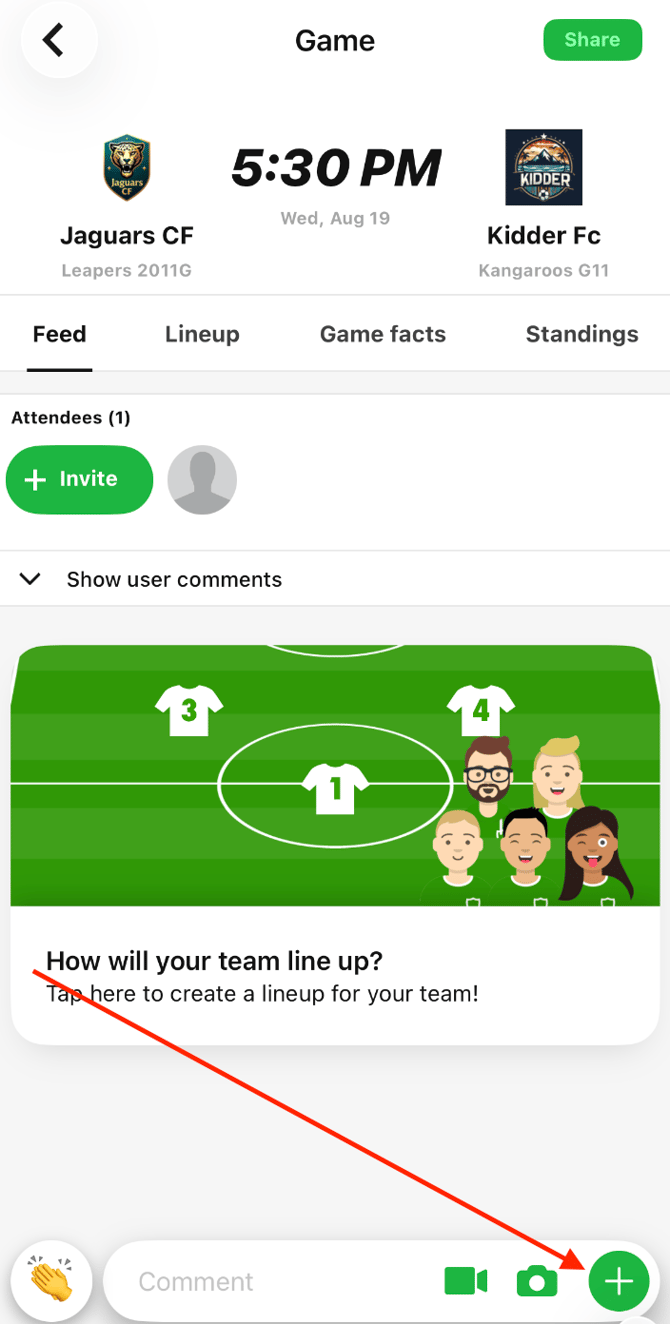
### Step 2: Click on "Team rosters"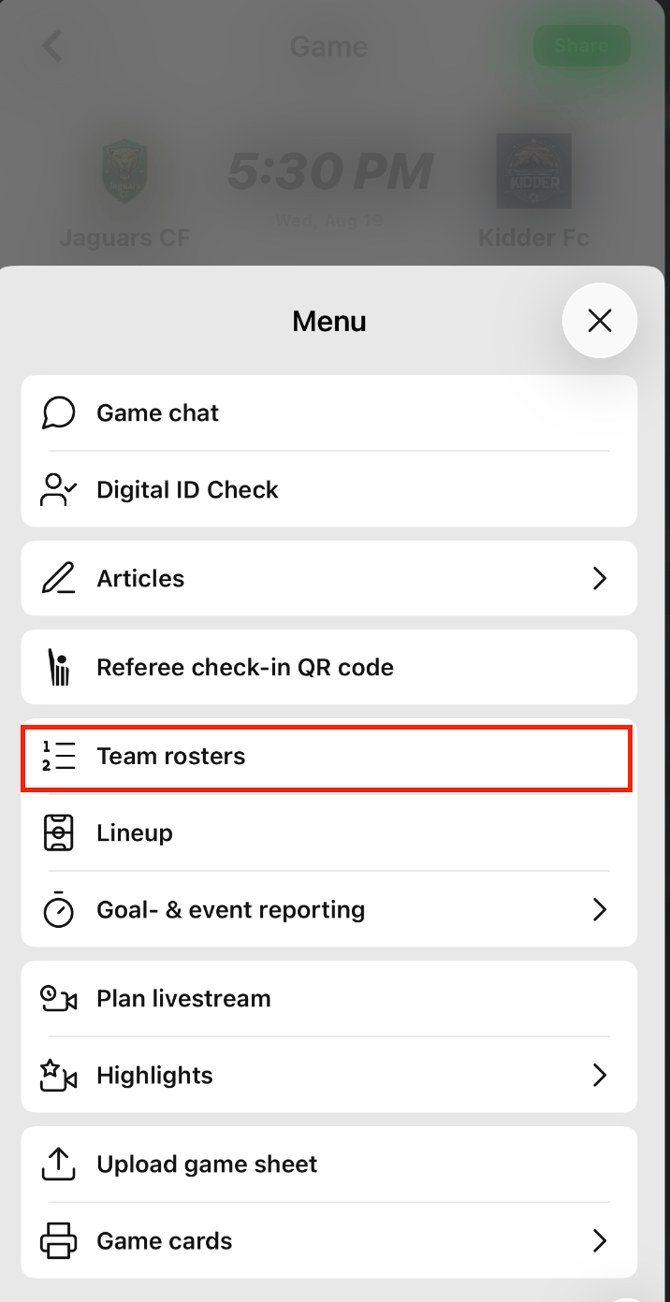
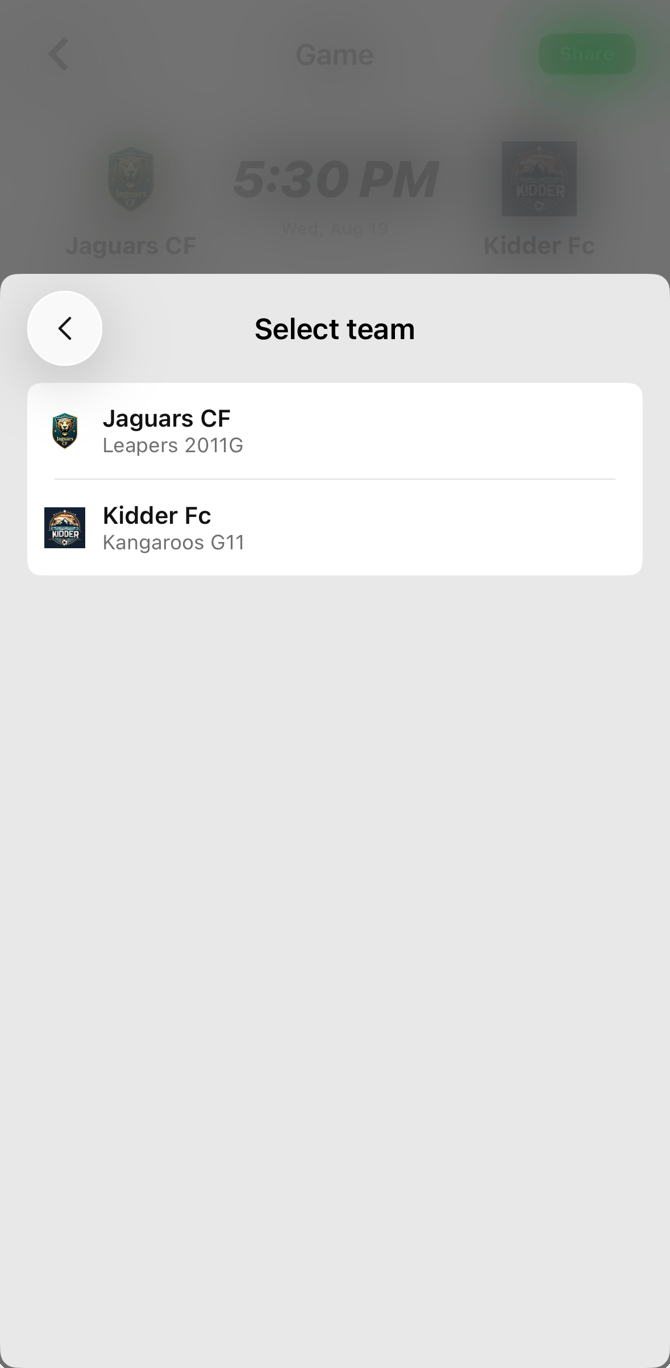
### Step 3: Select your team
You can only access rosters for teams that you are listed as a team member on
### Step 4: Click the "Add players" button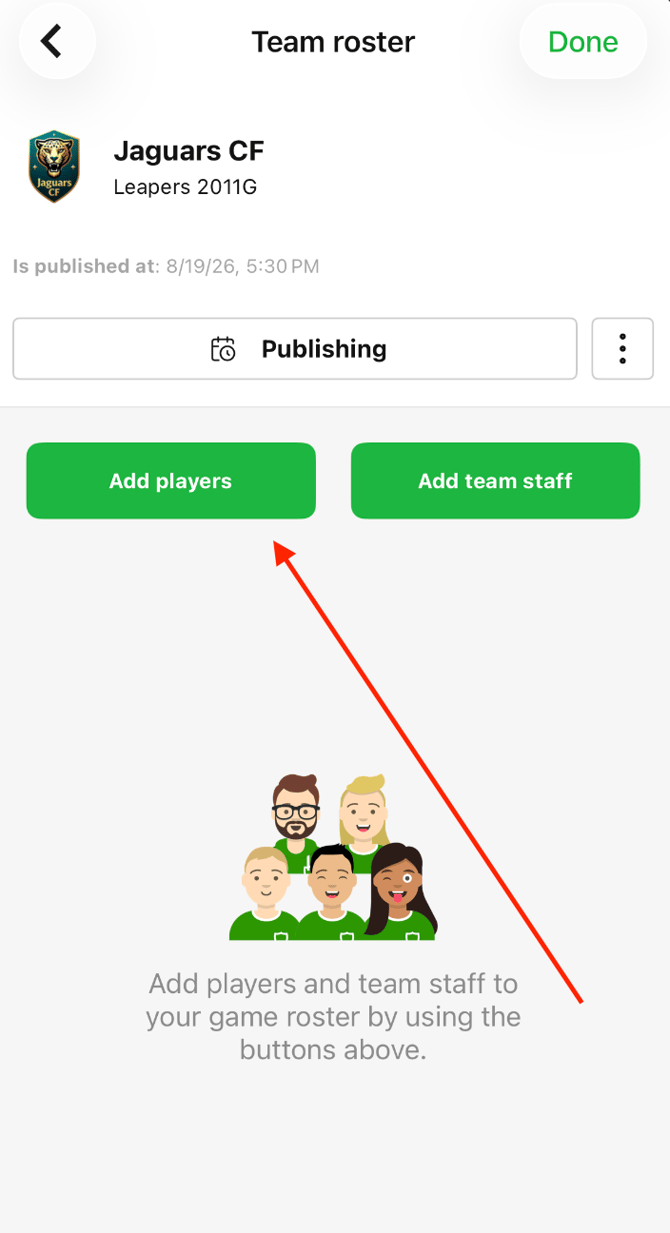
### Step 5: From the player list, select the players for the gameday roster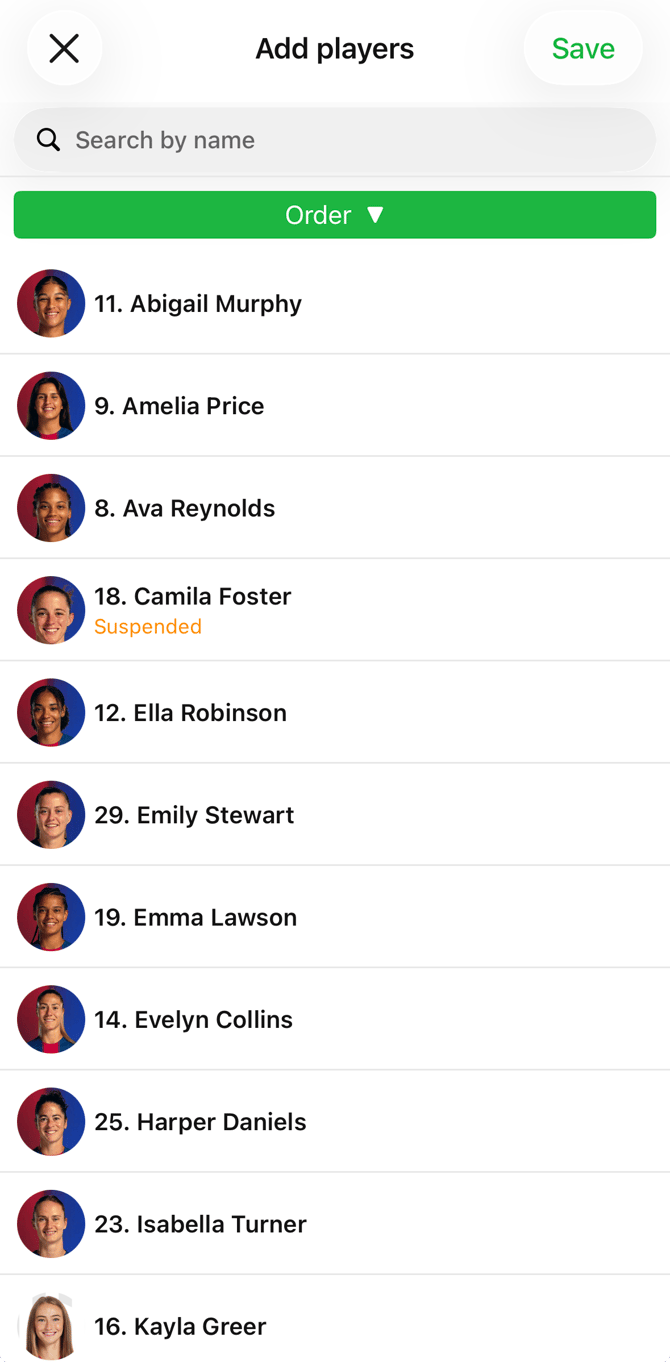
The list of available players pulls directly from the roster used for the event in GotSport
### Step 6: Once the players have been selected, click the "Save" button in the top right corner of the screen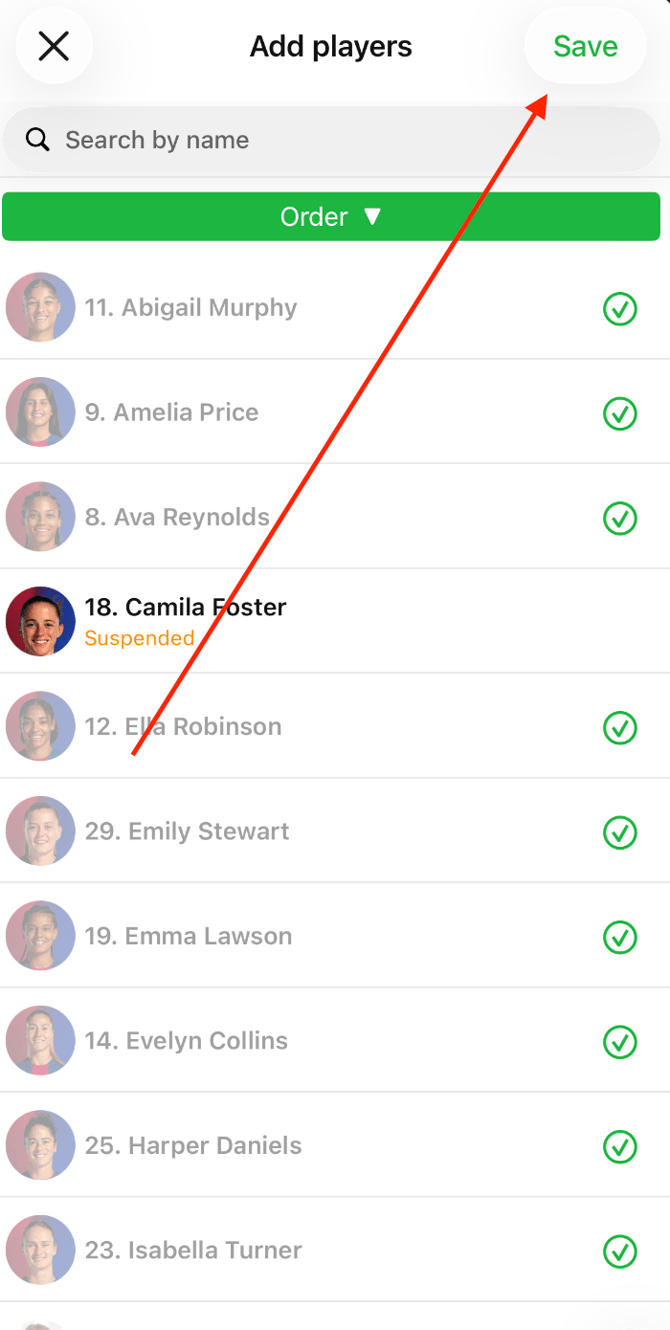
### Step 7: Click the "Add team staff" button to add team staff to your gameday roster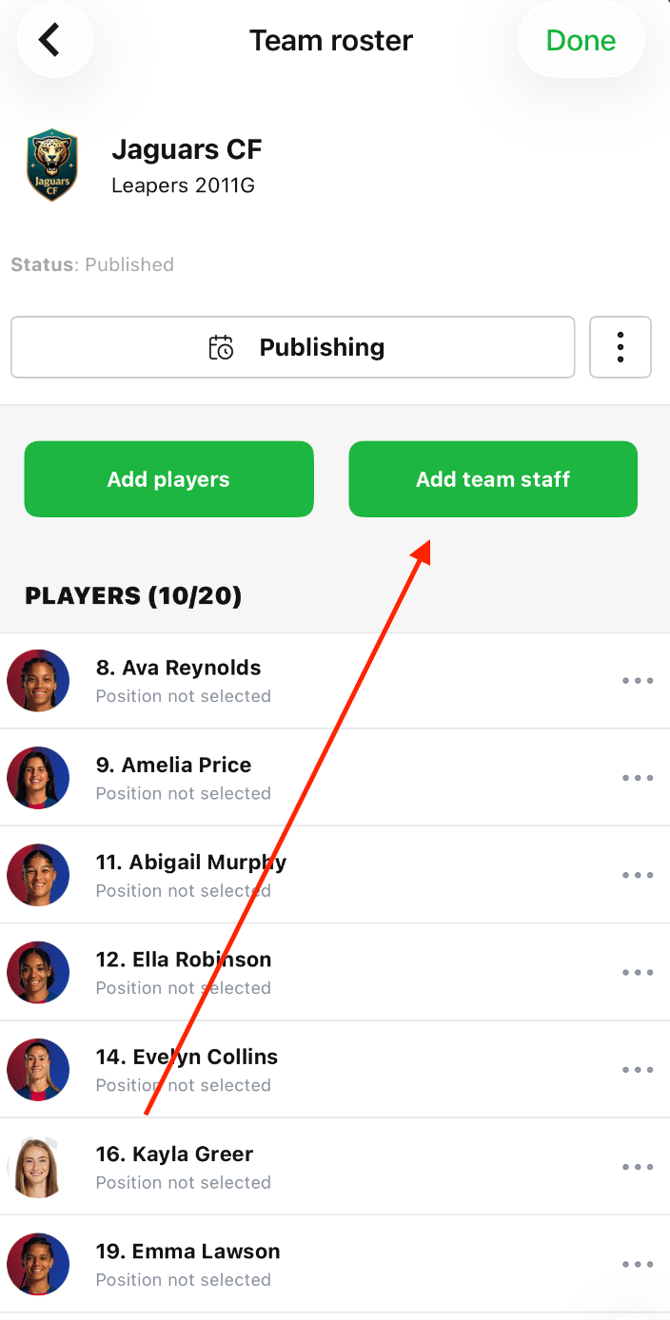
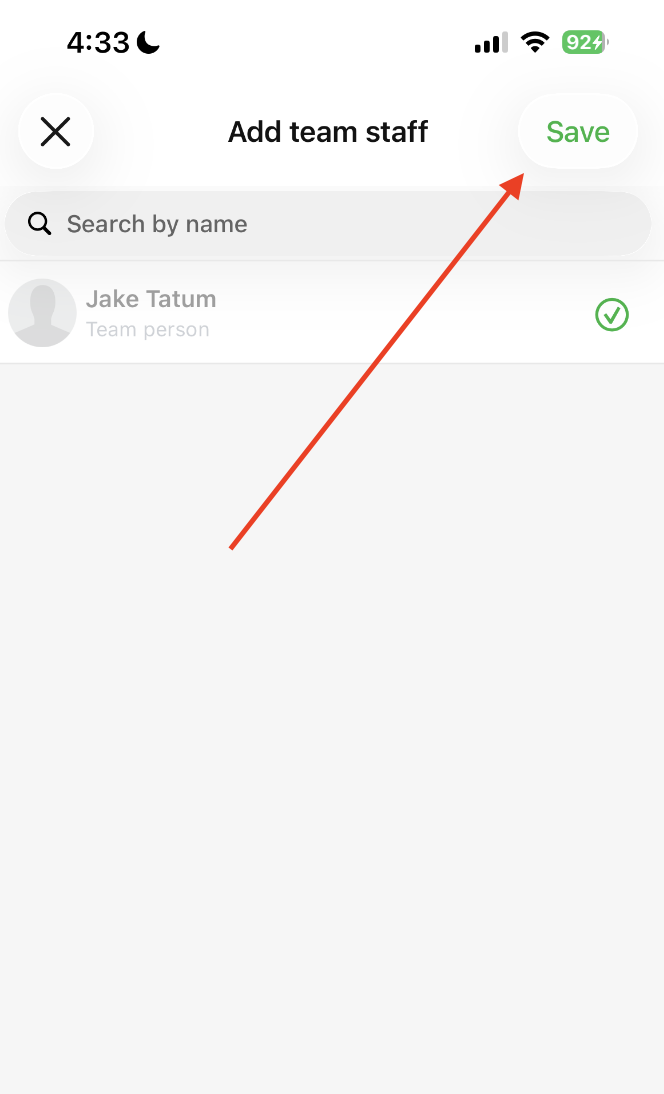
### Step 8: Select team staff to add to your gameday roster and then click "Save"
The list of available team staff members pulls directly from the roster used for the event in GotSport
### Step 9: Review your gameday roster and click "Done"
- Review your gameday roster to ensure it is accurate. If it is accurate, you can click the "Done" button in the upper right corner of the screen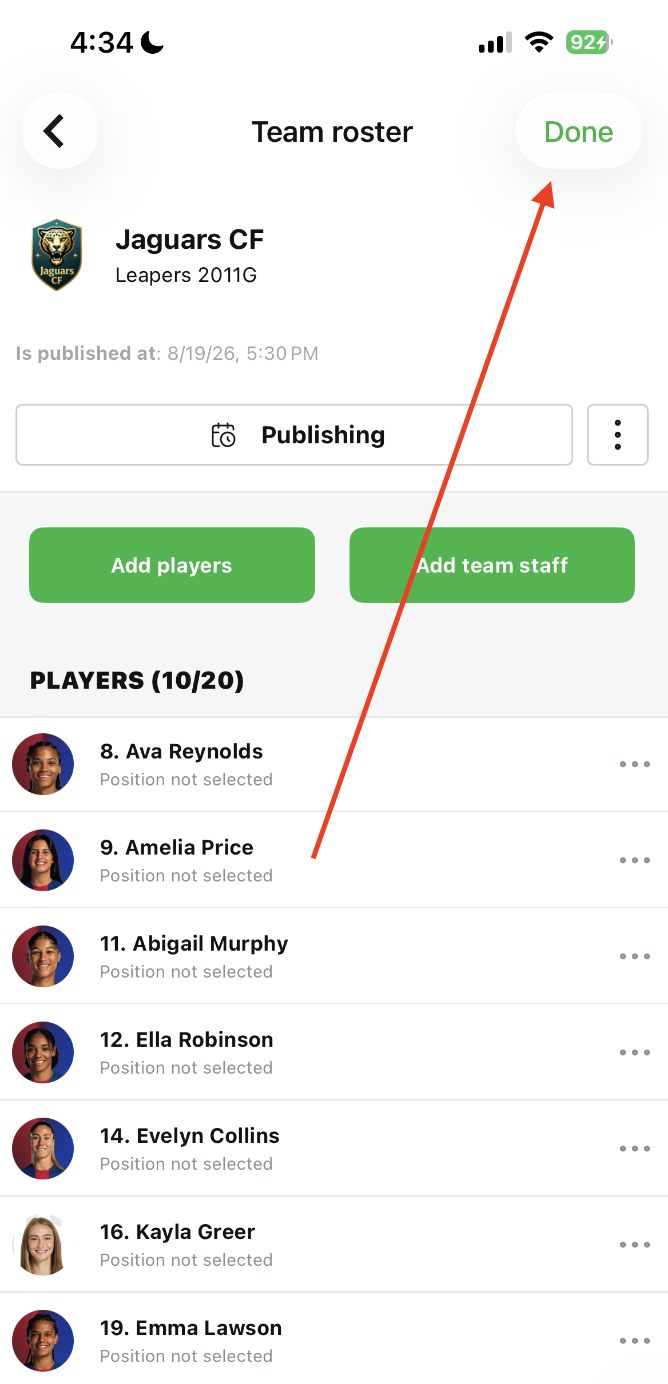
### Step 10: Publishing your gameday roster
- You can choose to publish your gameday roster when it is created by clicking "Publish now"
- If you do not want your roster to be published before the game, you can click "No", which will then publish the roster automatically at the scheduled start time of the game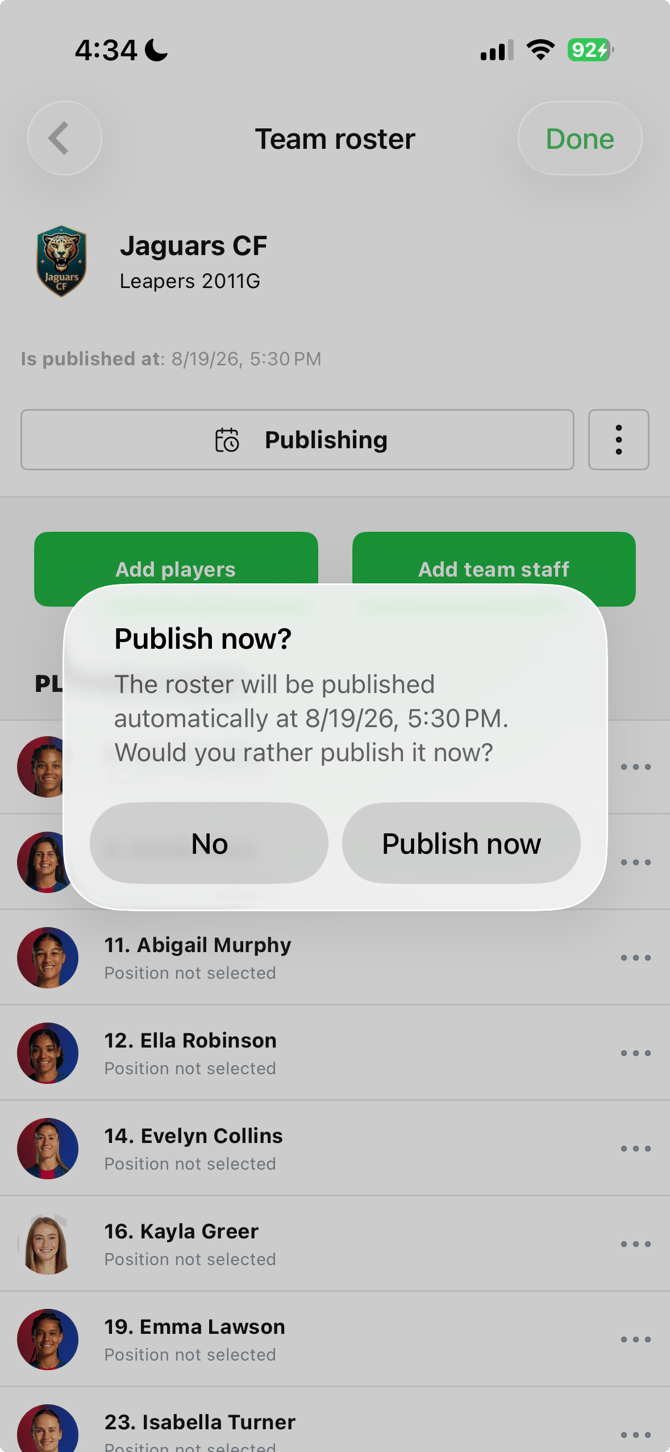
Can't publish your roster? Please refer to [THIS VIDEO](https://support.gotsport.com/as-a-coach/manager-or-club-admin-accessing-team-roster-publishing-setting-gotsport-live?hsLang=en-us) for instructions on how to do so.
### ***Optional Step:*** ***Creating a Lineup***
- You can optionally choose to create a lineup. Lineups are NOT required.
- Please refer to [THIS ARTICLE](https://support.gotsport.com/add-graphical-lineup-gotsport-live?hsLang=en-us) for instructions on how to create a lineup.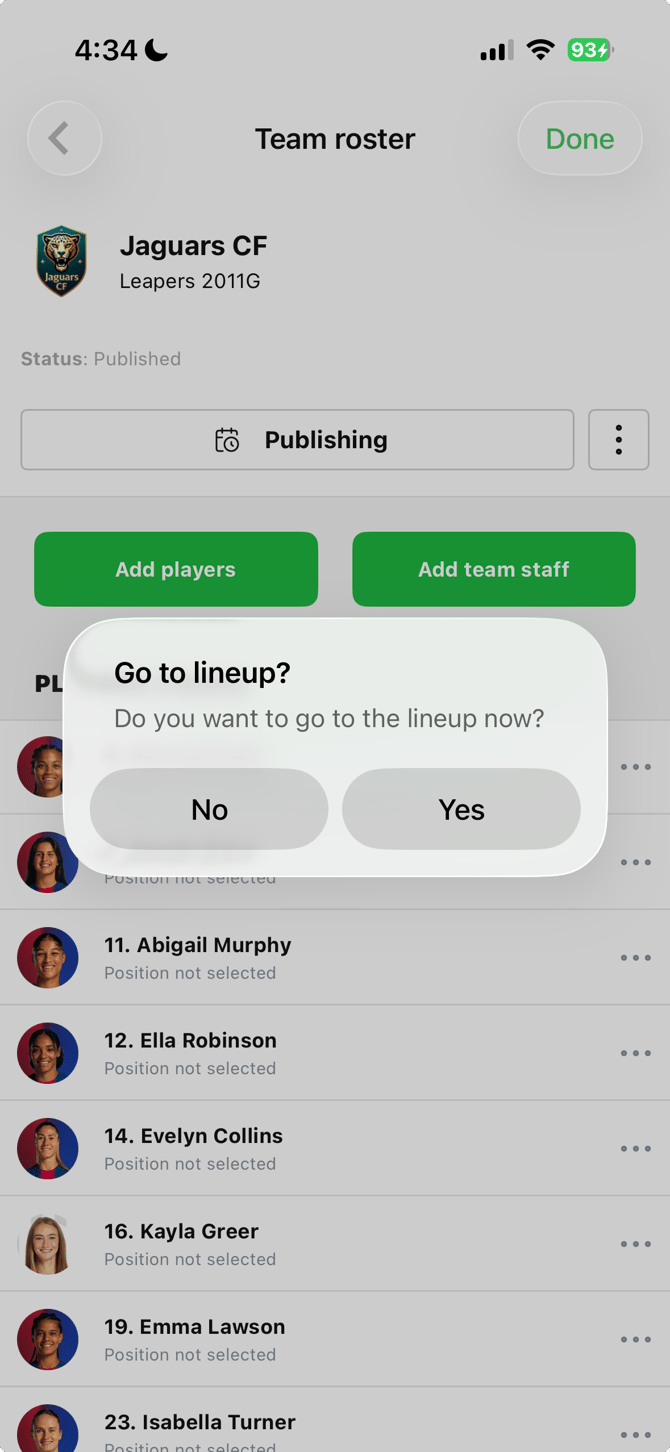
- [Recent Updates/Additions](https://support.gotsport.com/recent-updates-additions?hsLang=en-us#main-content)
- [Recent Updates](https://support.gotsport.com/recent-updates-additions?hsLang=en-us#recent-updates)
- [New Functionality](https://support.gotsport.com/recent-updates-additions?hsLang=en-us#new-functionality)
- [Club Administrators](https://support.gotsport.com/club-administrators?hsLang=en-us#main-content)
- [Dashboard & Users](https://support.gotsport.com/club-administrators?hsLang=en-us#dashboard-users)
- [Preparing For Upcoming Season](https://support.gotsport.com/club-administrators?hsLang=en-us#preparing-for-upcoming-season)
- [Risk Management and Governing Body Forms](https://support.gotsport.com/club-administrators?hsLang=en-us#risk-management-and-governing-body-forms)
- [Communications](https://support.gotsport.com/club-administrators?hsLang=en-us#communications)
- [Club Management](https://support.gotsport.com/club-administrators?hsLang=en-us#club-management)
- [Programs](https://support.gotsport.com/club-administrators?hsLang=en-us#programs)
- [Billing](https://support.gotsport.com/club-administrators?hsLang=en-us#billing)
- [Forms](https://support.gotsport.com/club-administrators?hsLang=en-us#forms)
- [Events and Rosters](https://support.gotsport.com/club-administrators?hsLang=en-us#events-and-rosters)
- [Features (Discounts and Add-Ons)](https://support.gotsport.com/club-administrators?hsLang=en-us#features-discounts-and-add-ons)
- [Managers/Coaches](https://support.gotsport.com/managers-coaches?hsLang=en-us#main-content)
- [Team and Player Management](https://support.gotsport.com/managers-coaches?hsLang=en-us#team-and-player-management)
- [GotTravel - Hotels](https://support.gotsport.com/managers-coaches?hsLang=en-us#gottravel-hotels)
- [Risk Management](https://support.gotsport.com/managers-coaches?hsLang=en-us#risk-management)
- [Event Management](https://support.gotsport.com/managers-coaches?hsLang=en-us#event-management)
- [Registering Teams to Leagues & Tournaments](https://support.gotsport.com/managers-coaches?hsLang=en-us#registering-teams-to-leagues-tournaments)
- [Parents/Players](https://support.gotsport.com/parents-players?hsLang=en-us#main-content)
- [Parent/Player Account Management](https://support.gotsport.com/parents-players?hsLang=en-us#parent-player-account-management)
- [Risk Management and Required Forms](https://support.gotsport.com/parents-players?hsLang=en-us#risk-management-and-required-forms)
- [GotTravel - Hotels](https://support.gotsport.com/parents-players?hsLang=en-us#gottravel-hotels)
- [Registering for a Program](https://support.gotsport.com/parents-players?hsLang=en-us#registering-for-a-program)
- [Billing](https://support.gotsport.com/parents-players?hsLang=en-us#billing)
- [Governing Bodies](https://support.gotsport.com/governing-bodies?hsLang=en-us#main-content)
- [General Instructions For Governing Bodies](https://support.gotsport.com/governing-bodies?hsLang=en-us#general-instructions-for-governing-bodies)
- [US Club Soccer](https://support.gotsport.com/governing-bodies?hsLang=en-us#us-club-soccer)
- [USSSA SOCCER](https://support.gotsport.com/governing-bodies?hsLang=en-us#usssa-soccer)
- [Girls Academy](https://support.gotsport.com/governing-bodies?hsLang=en-us#girls-academy)
- [U.S. Futsal](https://support.gotsport.com/governing-bodies?hsLang=en-us#u-s-futsal)
- [Governing Body Forms/Risk Management](https://support.gotsport.com/governing-bodies?hsLang=en-us#governing-body-forms-risk-management)
- [State Specific Processes](https://support.gotsport.com/governing-bodies?hsLang=en-us#state-specific-processes)
- [Managing Child Organizations](https://support.gotsport.com/governing-bodies?hsLang=en-us#managing-child-organizations)
- [Preparing for an Upcoming Season](https://support.gotsport.com/governing-bodies?hsLang=en-us#preparing-for-an-upcoming-season)
- [Billing](https://support.gotsport.com/governing-bodies?hsLang=en-us#billing)
- [Event Directors](https://support.gotsport.com/event-directors?hsLang=en-us#main-content)
- [Competition & Event Setup](https://support.gotsport.com/event-directors?hsLang=en-us#competition-event-setup)
- [Managing Event Registrations](https://support.gotsport.com/event-directors?hsLang=en-us#managing-event-registrations)
- [Billing](https://support.gotsport.com/event-directors?hsLang=en-us#billing)
- [Scheduling](https://support.gotsport.com/event-directors?hsLang=en-us#scheduling)
- [Rosters, Match Cards, and Game Day Procedures](https://support.gotsport.com/event-directors?hsLang=en-us#rosters-match-cards-and-game-day-procedures)
- [Officials Management](https://support.gotsport.com/event-directors?hsLang=en-us#officials-management)
- [Scoring](https://support.gotsport.com/event-directors?hsLang=en-us#scoring)
- [Suspensions](https://support.gotsport.com/event-directors?hsLang=en-us#suspensions)
- [Got Travel - Hotels](https://support.gotsport.com/event-directors?hsLang=en-us#got-travel-hotels)
- [College Coaches](https://support.gotsport.com/event-directors?hsLang=en-us#college-coaches)
- [Rankings](https://support.gotsport.com/rankings?hsLang=en-us#main-content)
- [FAQ](https://support.gotsport.com/rankings?hsLang=en-us#faq)
- [Rankings Overview](https://support.gotsport.com/rankings?hsLang=en-us#rankings-overview)
- [Team Merge / Team ID's](https://support.gotsport.com/rankings?hsLang=en-us#team-merge-team-ids)
- [GotSport Pay](https://support.gotsport.com/gotsport-pay?hsLang=en-us#main-content)
- [GotSport Pay](https://support.gotsport.com/gotsport-pay?hsLang=en-us#gotsport-pay)
- [Ticketing and Store](https://support.gotsport.com/ticketing-and-store?hsLang=en-us#main-content)
- [Ticket/Store Purchasers Help](https://support.gotsport.com/ticketing-and-store?hsLang=en-us#ticket-store-purchasers-help)
- [Ticketing/Store Admin - Store Setup](https://support.gotsport.com/ticketing-and-store?hsLang=en-us#ticketing-store-admin-store-setup)
- [Ticketing/Store Admin - Managing Tickets and Orders](https://support.gotsport.com/ticketing-and-store?hsLang=en-us#ticketing-store-admin-managing-tickets-and-orders)
- [Scanner App](https://support.gotsport.com/ticketing-and-store?hsLang=en-us#scanner-app)
- [GotSport Live](https://support.gotsport.com/gotsport-live?hsLang=en-us#main-content)
- [How to Get Started](https://support.gotsport.com/gotsport-live?hsLang=en-us#how-to-get-started)
- [Digital Gameday](https://support.gotsport.com/gotsport-live?hsLang=en-us#digital-gameday)
- [GotSport Live FAQ](https://support.gotsport.com/gotsport-live?hsLang=en-us#gotsport-live-faq)
- [GotSport Live - Manage the Team](https://support.gotsport.com/gotsport-live?hsLang=en-us#gotsport-live-manage-the-team)
- [GotSport Live Livestreaming](https://support.gotsport.com/gotsport-live?hsLang=en-us#gotsport-live-livestreaming)
- [GotSport Live Create Game Content](https://support.gotsport.com/gotsport-live?hsLang=en-us#gotsport-live-create-game-content)
- [GotSport Live Team Rosters and Lineups](https://support.gotsport.com/gotsport-live?hsLang=en-us#gotsport-live-team-rosters-and-lineups)
- [GotSport Connect](https://support.gotsport.com/gotsport-connect?hsLang=en-us#main-content)
- [Newsfeed](https://support.gotsport.com/gotsport-connect?hsLang=en-us#newsfeed)
- [Schedule](https://support.gotsport.com/gotsport-connect?hsLang=en-us#schedule)
- [Chat](https://support.gotsport.com/gotsport-connect?hsLang=en-us#chat)
- [GotSport Team App](https://support.gotsport.com/gotsport-team-app?hsLang=en-us#main-content)
- [Parent/Athlete Mobile App](https://support.gotsport.com/gotsport-team-app?hsLang=en-us#parent-athlete-mobile-app)
- [GotSport Team App - General Support](https://support.gotsport.com/gotsport-team-app?hsLang=en-us#gotsport-team-app-general-support)
- [Coach/Manager - Mobile App](https://support.gotsport.com/gotsport-team-app?hsLang=en-us#coach-manager-mobile-app)
- [Club Administrator](https://support.gotsport.com/gotsport-team-app?hsLang=en-us#club-administrator)
- [Parent/Athlete Desktop](https://support.gotsport.com/gotsport-team-app?hsLang=en-us#parent-athlete-desktop)
- [Commonly Asked Questions](https://support.gotsport.com/gotsport-team-app?hsLang=en-us#commonly-asked-questions)
- [Coach/Manager - Desktop](https://support.gotsport.com/gotsport-team-app?hsLang=en-us#coach-manager-desktop)
- [US Club Soccer Articles](https://support.gotsport.com/us-club-soccer-articles?hsLang=en-us#main-content)
- [Club Administrators - Preparing for the Upcoming Season](https://support.gotsport.com/us-club-soccer-articles?hsLang=en-us#club-administrators-preparing-for-the-upcoming-season)
- [Club Administrators - Events](https://support.gotsport.com/us-club-soccer-articles?hsLang=en-us#club-administrators-events)
- [US Club Soccer - Parents and Players](https://support.gotsport.com/us-club-soccer-articles?hsLang=en-us#us-club-soccer-parents-and-players)
- [Club Admin - General](https://support.gotsport.com/us-club-soccer-articles?hsLang=en-us#club-admin-general)
- [Referees and Assigning](https://support.gotsport.com/referees-and-assigning?hsLang=en-us#main-content)
- [Referees](https://support.gotsport.com/referees-and-assigning?hsLang=en-us#referees)
- [Assignors](https://support.gotsport.com/referees-and-assigning?hsLang=en-us#assignors)
- [College Coaches](https://support.gotsport.com/college-coaches?hsLang=en-us#main-content)
- [College Coach Articles](https://support.gotsport.com/college-coaches?hsLang=en-us#college-coach-articles)
- [Pro Schedules](https://support.gotsport.com/pro-schedules?hsLang=en-us#main-content)
- [Dashboard](https://support.gotsport.com/pro-schedules?hsLang=en-us#dashboard)
- [Club Information](https://support.gotsport.com/pro-schedules?hsLang=en-us#club-information)
- [Venues](https://support.gotsport.com/pro-schedules?hsLang=en-us#venues)
- [Constraints](https://support.gotsport.com/pro-schedules?hsLang=en-us#constraints)
- [Scheduling](https://support.gotsport.com/pro-schedules?hsLang=en-us#scheduling)
- [Reports and Exports](https://support.gotsport.com/pro-schedules?hsLang=en-us#reports-and-exports)
- [Pro Services](https://support.gotsport.com/pro-services?hsLang=en-us#main-content)
- [Team Services](https://support.gotsport.com/pro-services?hsLang=en-us#team-services)
- [Match Countdown](https://support.gotsport.com/pro-services?hsLang=en-us#match-countdown)
- [Rate Cards](https://support.gotsport.com/pro-services?hsLang=en-us#rate-cards)
- [USYS NL](https://support.gotsport.com/usys-nl?hsLang=en-us#main-content)
- [Coach/Manager Roles](https://support.gotsport.com/usys-nl?hsLang=en-us#coach-manager-roles)
- [Players](https://support.gotsport.com/usys-nl?hsLang=en-us#players)
- [CAF](https://support.gotsport.com/caf?hsLang=en-us)
- [Store](https://support.gotsport.com/store?hsLang=en-us)
[](https://home.gotsport.com)
[mailto:email@email.com](mailto:email@email.com)
Copyright © 2026, GotSport