Method 1: From the Event Info Page
Step 1:
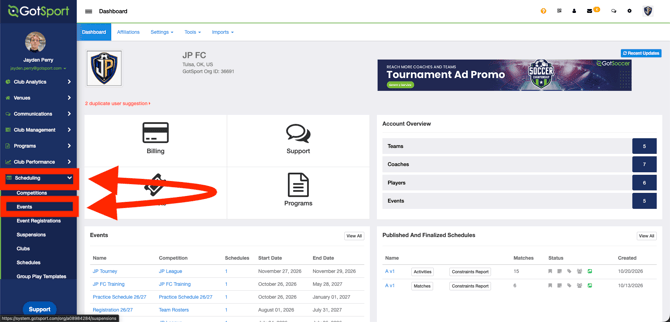
- From the Dashboard, go to “Scheduling” and select “Events”.
Step 2:
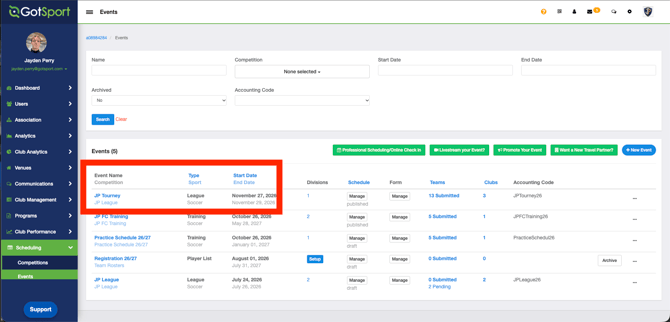
- Select the event you want to publish the schedule for.
Step 3:
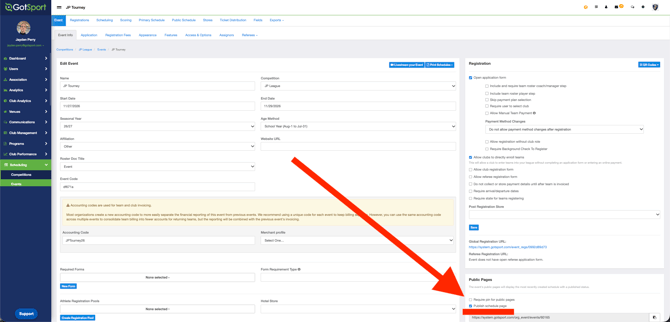
- On the event info page, find the right-hand sidebar and select the option to publish the event schedule.
Method 2: From the Schedules Page
Step 1:
- From the Dashboard, go to “Scheduling” and select “Schedules”.
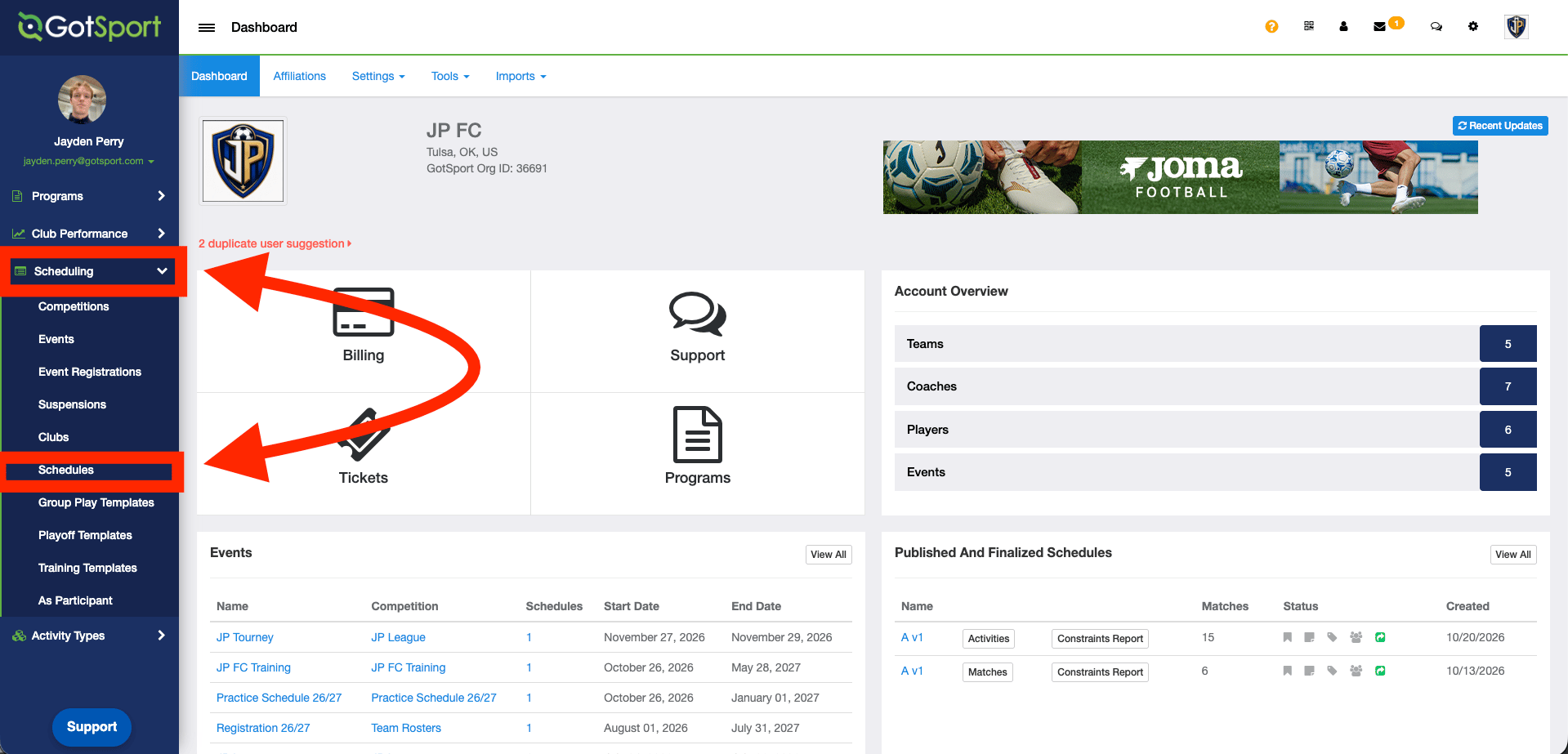
Step 2:
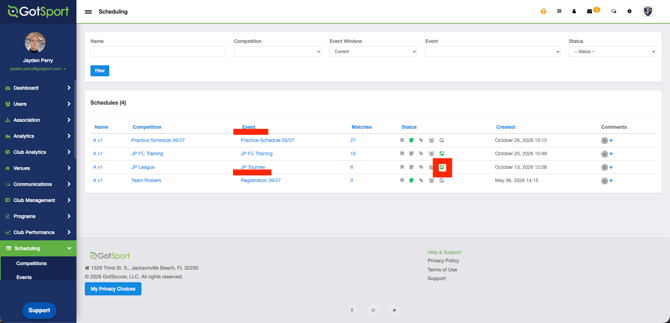
- Find the event in the list.
- Click the last button in the event’s row, the one shaped like an arrow in a box. Hover over it to check that it’s the publish button.
- Select the last icon, and when the arrow turns green, the schedule is published.
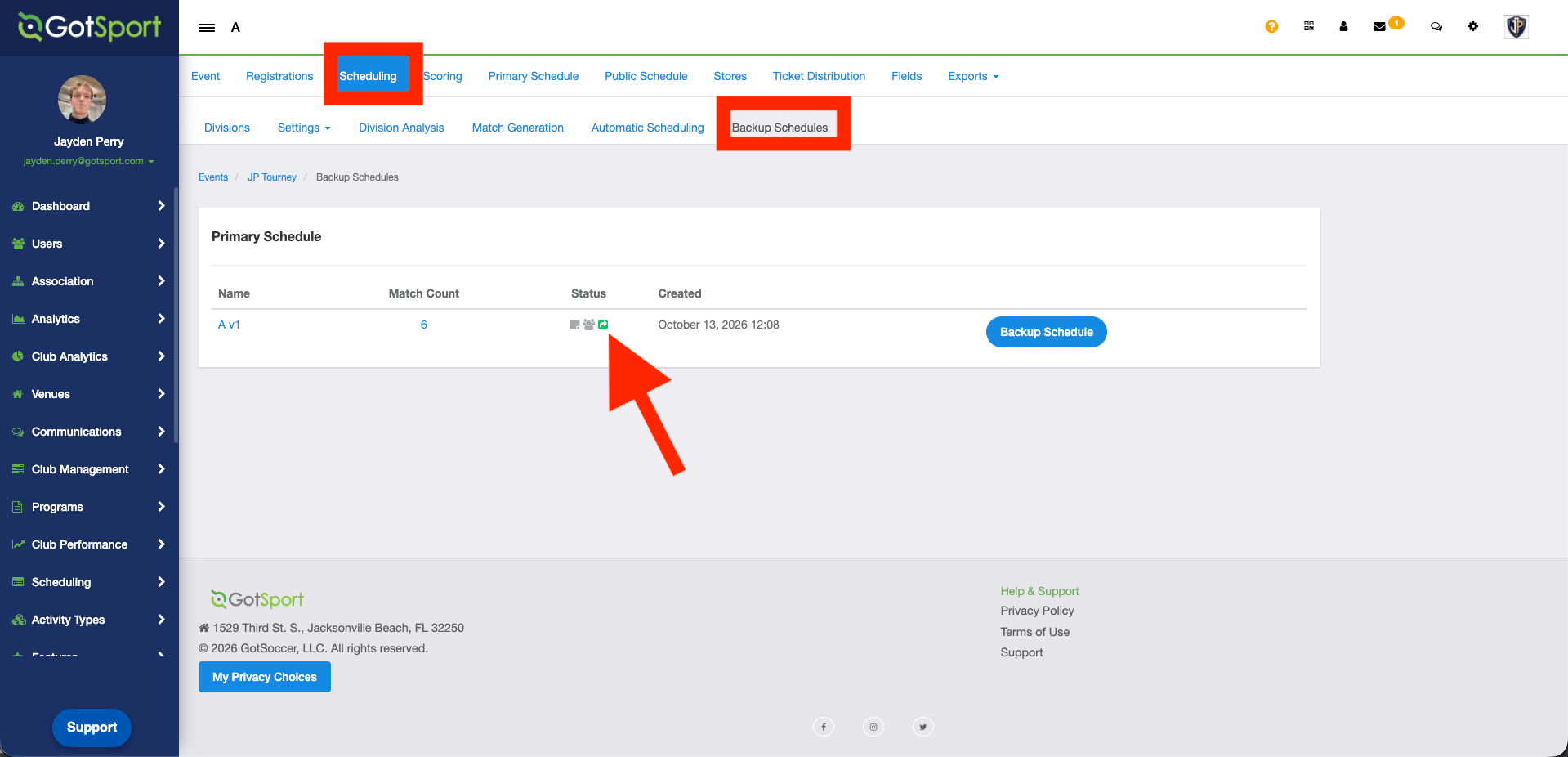
Method 3: From Backup Schedules
Step 1:
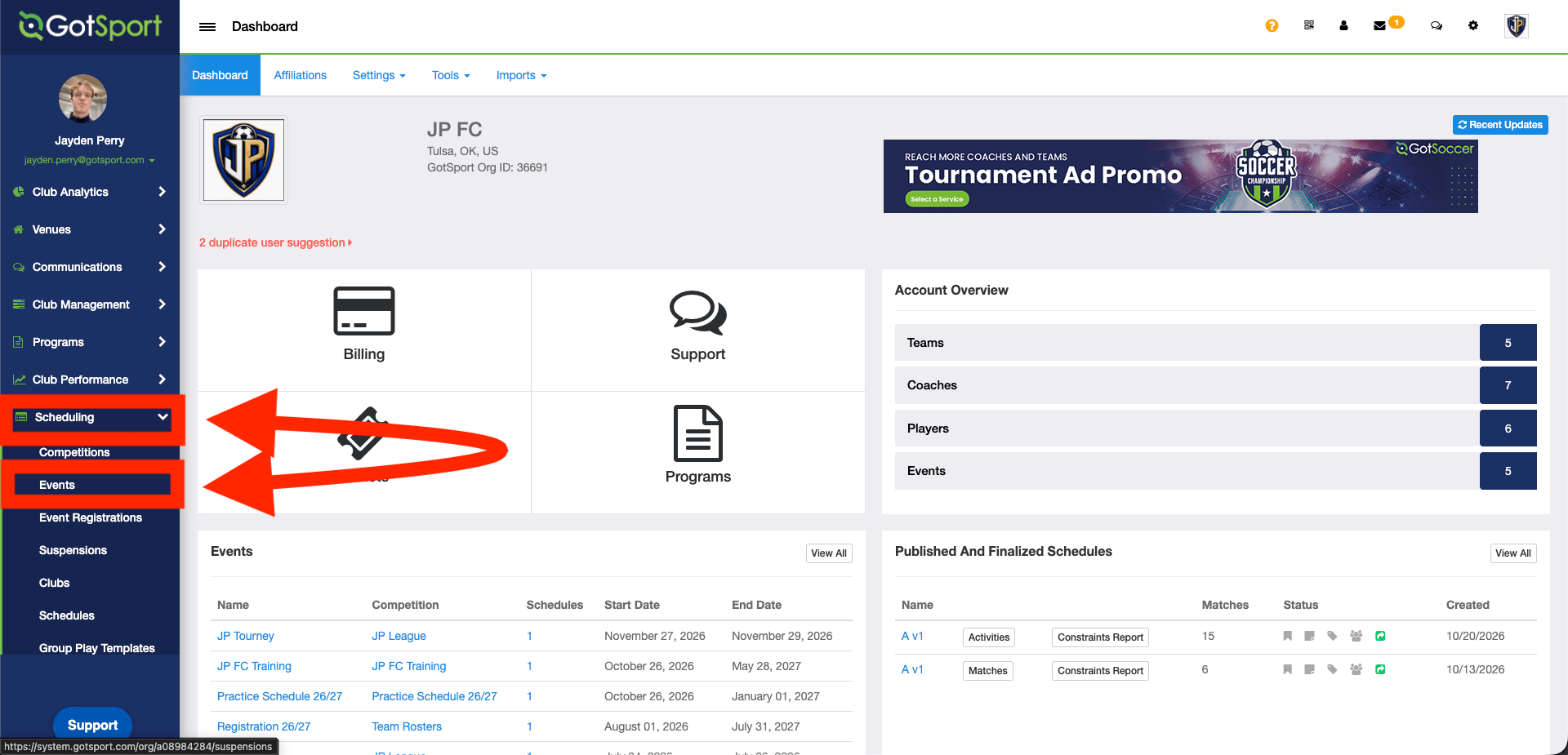
- From the Dashboard, go to “Scheduling” and select “Events”.
Step 2:
- Select the event you want to publish the schedule for.
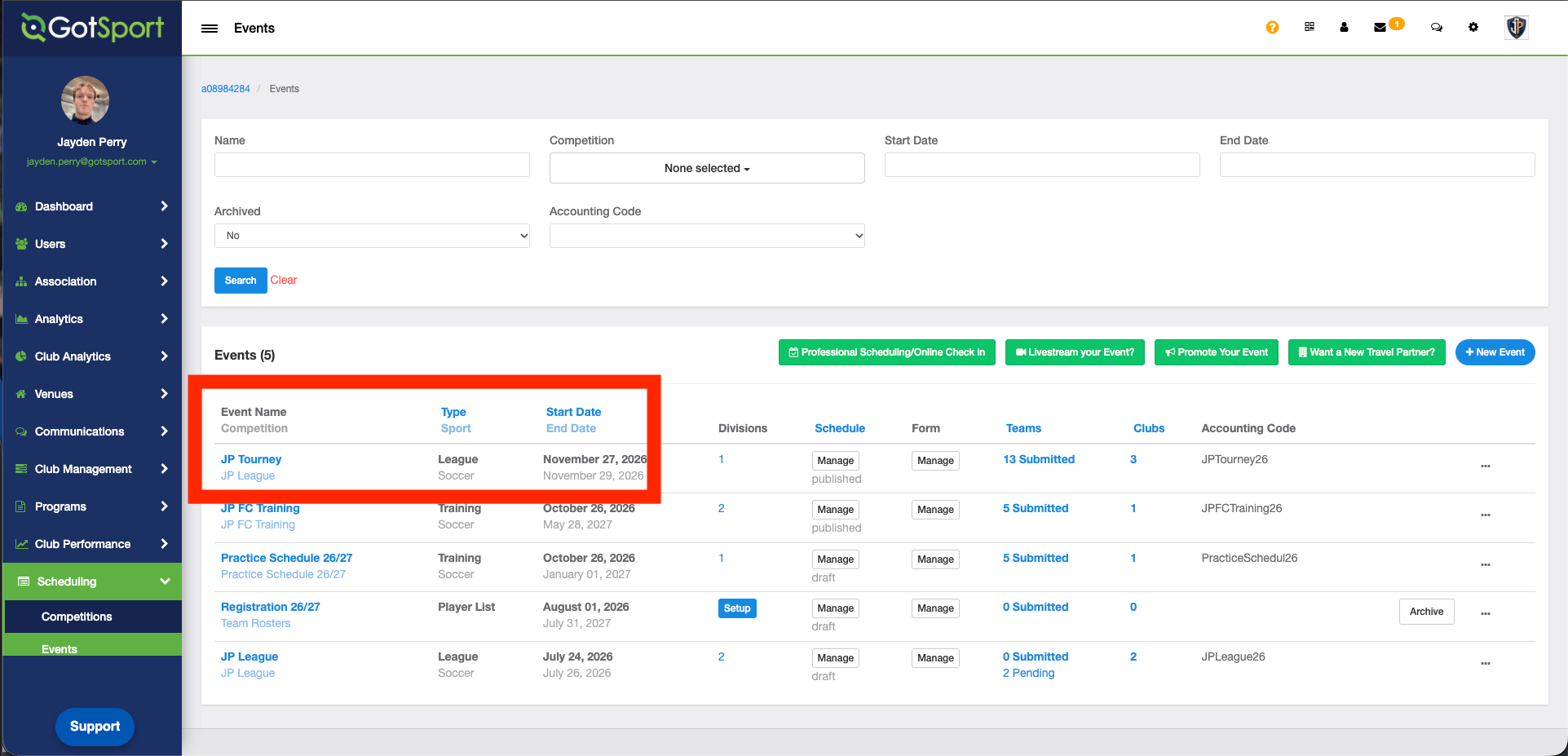
Step 3:
Click the “Scheduling” tab, then the “Scheduling” sub-tab.- Click the arrow-in-a-box button, the same one as in Method 2.
- When the arrow turns green, the schedule is published.
Note: In Methods 2 and 3, a green arrow means the schedule is published.