---
title: 8 Steps to Build a Training/Practice Schedule
description: Practice/Training Scheduler - How to in 8 steps
---
[Skip to content](https://support.gotsport.com/8-steps-to-build-a-training/practice-schedule-#main-content)
English - United States
Show submenu for translations

Open main navigation
Close main navigation
- English - United States
Show submenu for translations
- Contact us
Contact us
How can we help you?
- There are no suggestions because the search field is empty.
1. [GotSport](https://support.gotsport.com/?hsLang=en-us)
2. [Club Administrators](https://support.gotsport.com/club-administrators?hsLang=en-us)
3. [Events and Rosters](https://support.gotsport.com/club-administrators?hsLang=en-us#events-and-rosters)
# 8 Steps to Build a Training/Practice Schedule
Select the section title to navigate directly to that section
Step 1: [Create the Competition](https://support.gotsport.com/8-steps-to-build-a-training/practice-schedule-#Step1)
Step 2: [Create the Training Event](https://support.gotsport.com/8-steps-to-build-a-training/practice-schedule-#Step2)
Step 3: [Bulk register your teams](https://support.gotsport.com/8-steps-to-build-a-training/practice-schedule-#Step3)
Step 4: [Create Training and Group Templates](https://support.gotsport.com/8-steps-to-build-a-training/practice-schedule-#Step4)
Step 5: [Seed Teams Into the Groups](https://support.gotsport.com/8-steps-to-build-a-training/practice-schedule-#Step5)
Step 6: [Add Venues and Fields](https://support.gotsport.com/8-steps-to-build-a-training/practice-schedule-#Step6)
Step 7: [Primary Schedule](https://support.gotsport.com/8-steps-to-build-a-training/practice-schedule-#Step7)
Step 8: [Publish Schedule](https://support.gotsport.com/8-steps-to-build-a-training/practice-schedule-#Step8)
### Step 1: Creating the Competition
*In GotSport, a "Competition" is the umbrella that all of your similar events will be stored under. For Example, if you have an annual tournament called "Christmas Day Shootout" you will create the Competition as "Annual Christmas Shootout", and every year, the tournament will be placed inside of that Competition folder.*
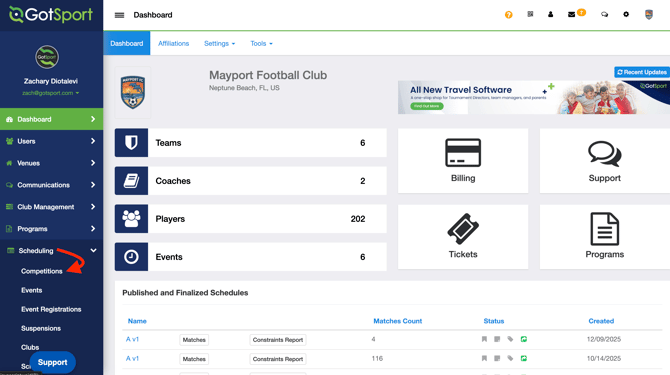
- From your Admin Dashboard, click "**Scheduling \> Competitions**"
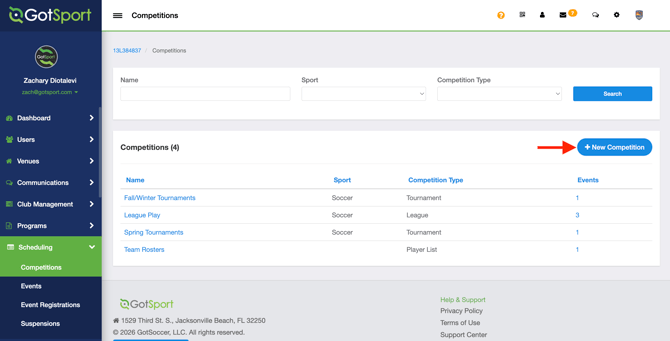
- Click "**New Competition**"
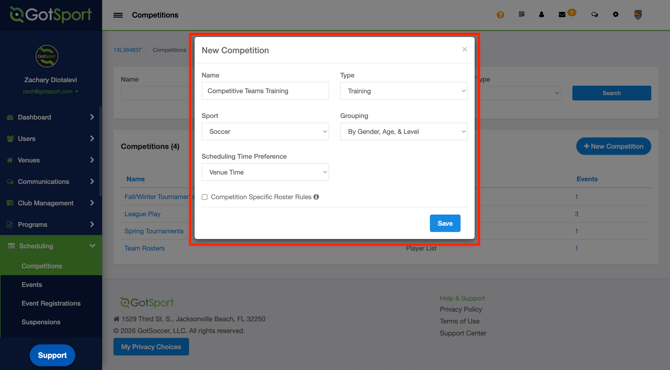
- Fill in the empty fields and for practice schedules, select "**Training**" under the "**Type**"
- Click "**Save"**
Additional Resource: [How to Create Competitions](https://support.gotsport.com/create-a-league-or-tournament-competition?hsLang=en-us)
### Step 2: Create the Training Event
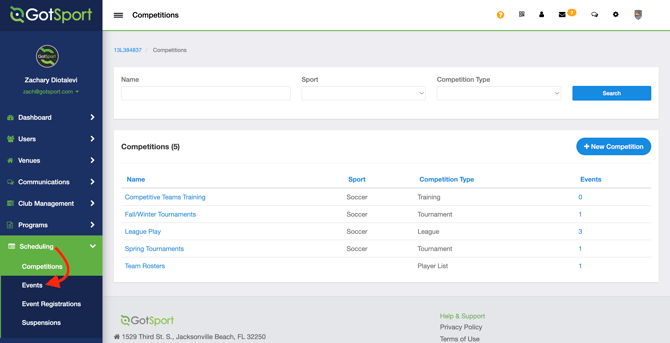
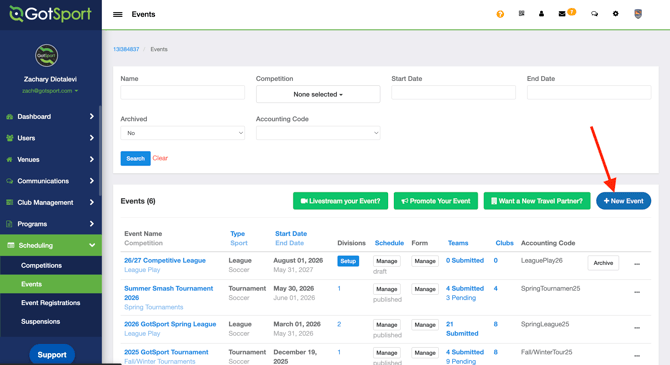
- Next, clicking "**Scheduling \> Events**"
- Click "**New Event**"
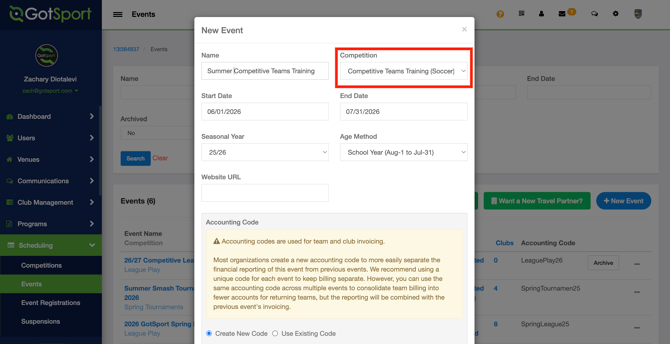
- Ensure the "**Competition**" is set to the training that you just created
### Step 3: Bulk register your teams
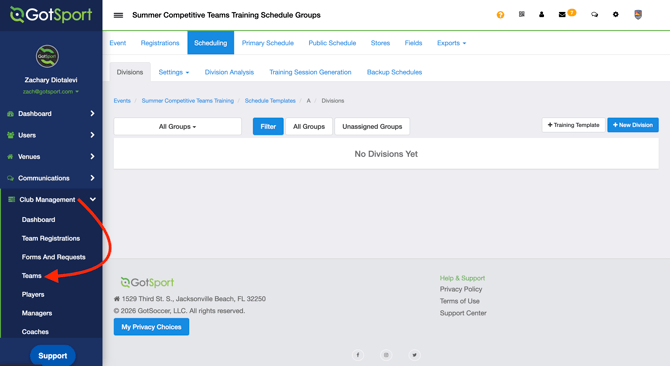
- On the left side pane, click "**Club Management \> Teams**"
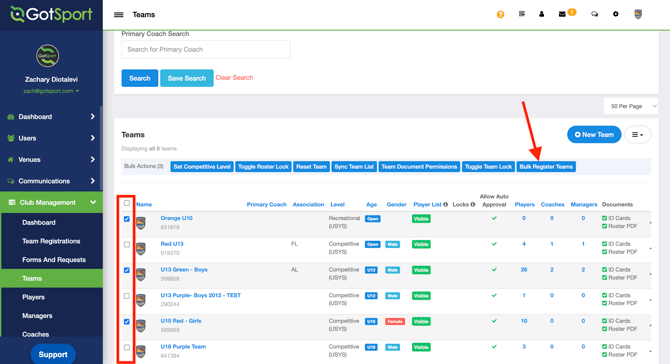
- Use the filters to find the teams you want to build a practice schedule for by clicking the bulk action box to the left of the name
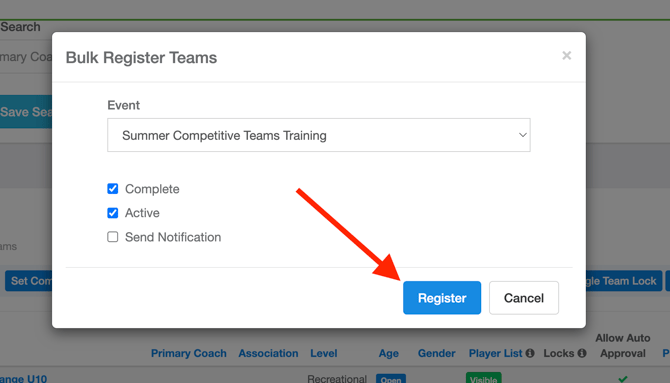
- At the top, click "**Bulk Register Teams**"
- Select the training event that you just created
- Click "**Register**" to automatically enroll those teams into the event.
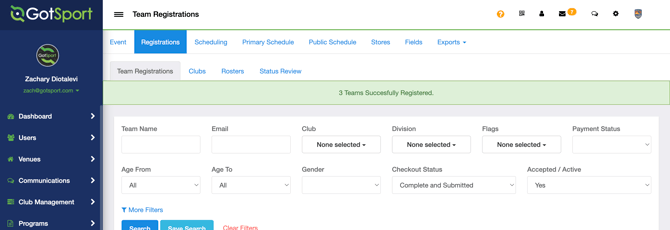
- You will see a green successful banner upon completion
### Step 4: Create Groups and Training Template
*NOTE\*\*\* For the Practice/Training Scheduler, you can combine multiple age groups and genders*
- You will be automatically redirected to the training event
- Click the "**Scheduling**" tab
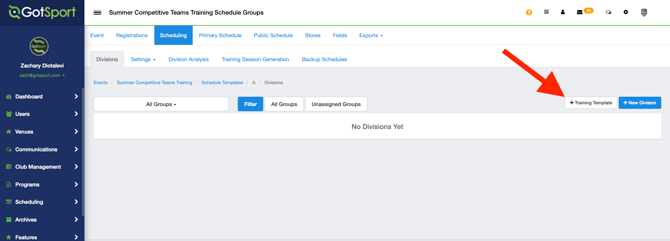
- Click "**+Training Template**"
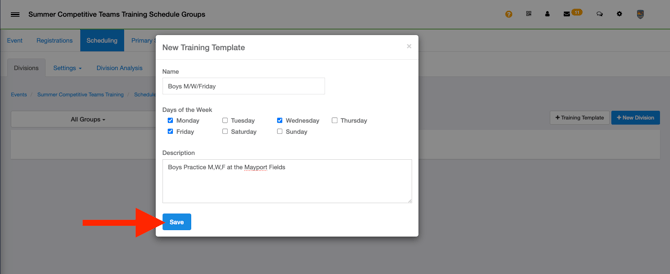
- Select the days of the week for this training template
- Once all of the information is filled in, click **Save**
- Complete this step as many times as you need
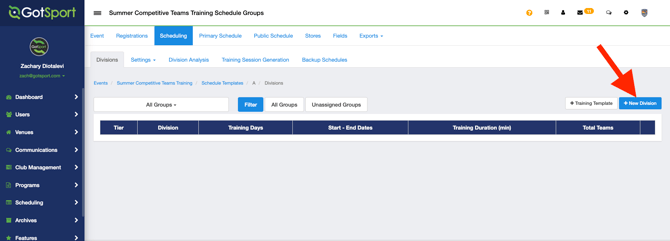
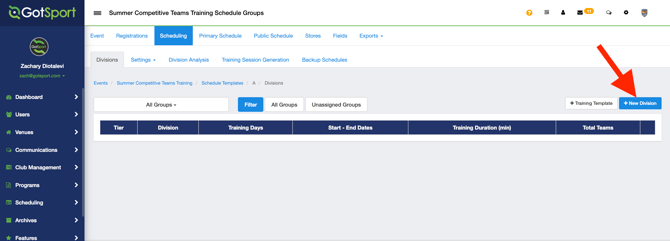
- Once the Training Templates have been created, Click "**New Division**" to create your groups
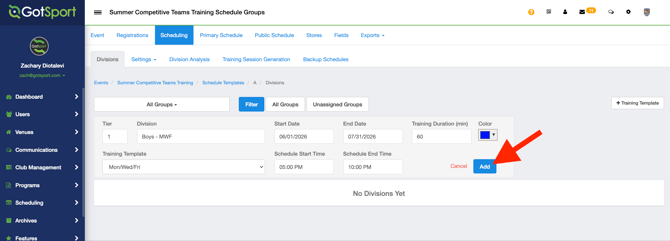
- Fill in the blank fields.
- Once complete, click "**Add**"
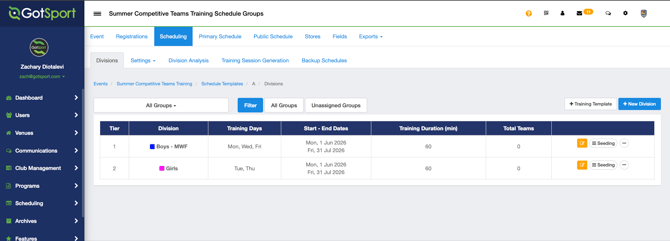
- Complete this step as many times as you need
### Step 5: Seed Teams Into the Groups
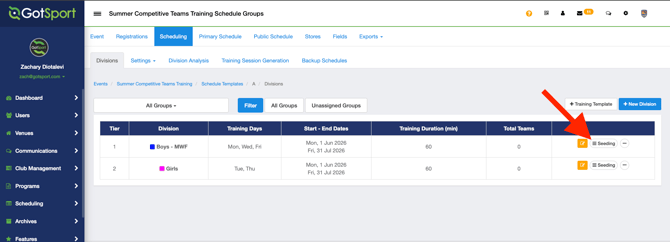
- Click "Seeding" from within the "**Scheduling**" \> "**Divisions**" tab
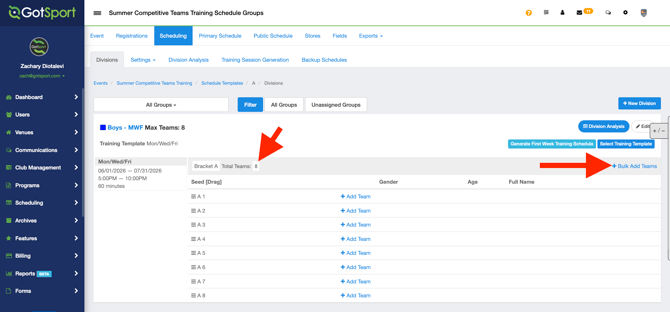
- From here, you can Edit the number of teams for this group
- Click "**Bulk Add Teams**" to easy add teams into this group.
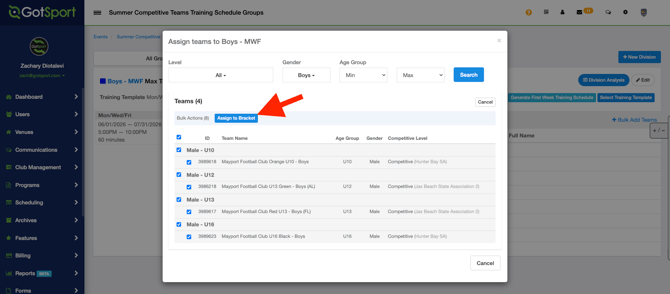
- Once the teams are assigned, click "**Add to Bracket**"
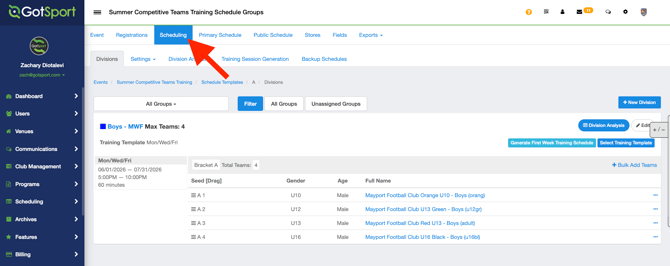
- Repeat this step for all of your divisions. Click the "**Scheduling**" tab to see all of your divisions
### Step 6: Add your Venues and Fields
*Once your teams are assigned to their groups, and training templates assigned, the last step before scheduling the training sessions is to add your Venues/Fields for the trainings*
- Click "**Fields**"
- Bulk select the fields and click "**Bulk Field Inclusion**"
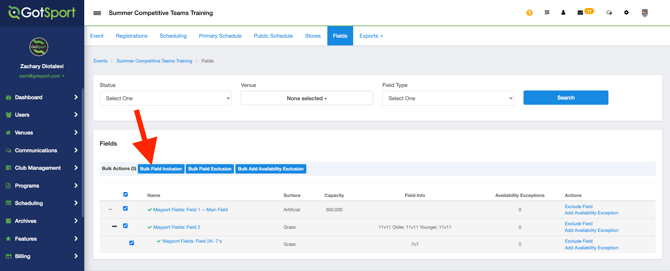
For additional support, please see these guides:
- [As an Event Director - How to Create a Venue and Add Fields](https://support.gotsport.com/how-to-create-a-venue-and-add-fields?hsLang=en-us)
- [As an Event Director - Add Field Exclusions (Time/Date Exclusions) for Specific Fields in an Event](https://support.gotsport.com/as-an-event-director-add-field-exclusions-time/date-exclusions-for-specific-fields-in-an-event?hsLang=en-us)
### Step 7: Primary Schedule
- You are now ready to generate the schedule
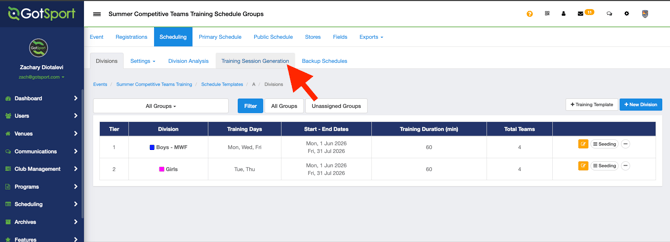
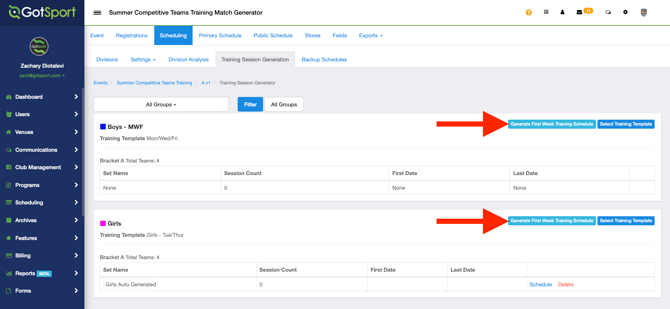
- Click "**Scheduling**" \> "**Training Session Generation**" and then click "**Generate First Week Training Schedule**"
- Complete this step for all of your divisions/groups
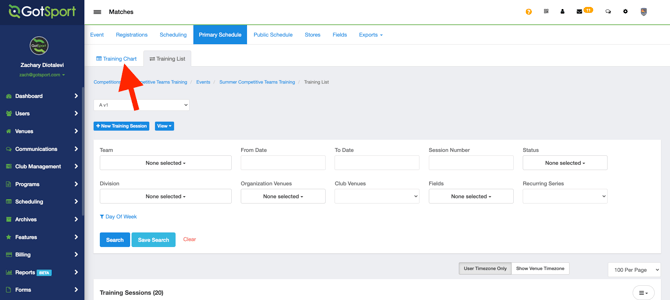
- Once all of the trainings have been created, click "**Training Chart**"
- Drag and Drop your matches onto the available fields and times
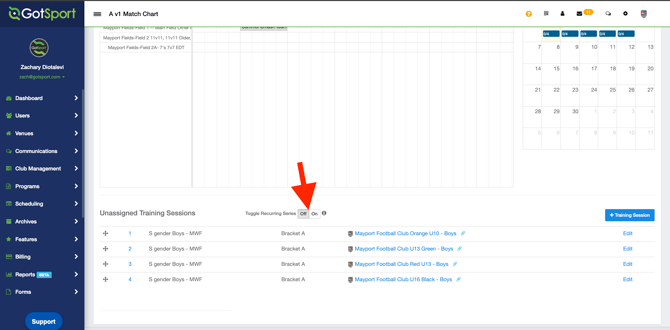
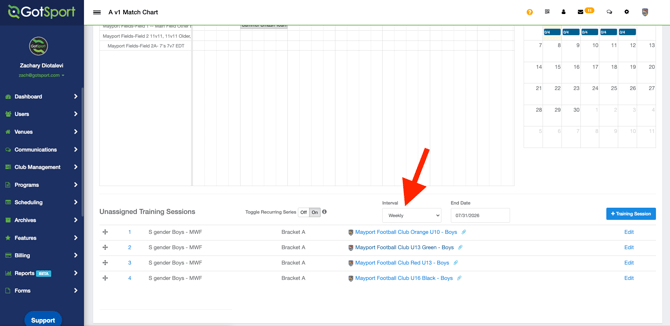
*NOTE\*\*\* There is a toggle for "**Toggle Recurring Series**", by turning this setting ON, a new dropdown menu for "Interval" will appear. This will allow you to schedule a reoccurring training on the same field, day of the week, and time as the one you schedule until the specific End Date*
**
### Step 8: Publish Schedule
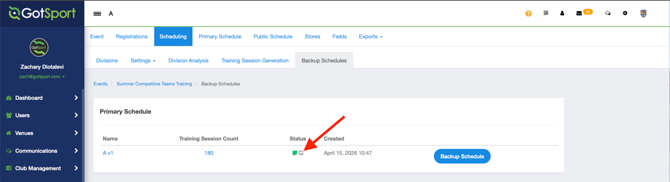
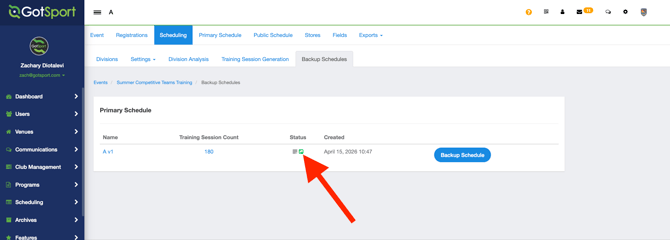
- Once you've scheduled all your trainings, click "Scheduling" \> "Backup Schedules"
- Change the "Status" from "**Draft**" to "**Published**"
Additional Resource: [How Do I Publish My Schedule?](https://support.gotsport.com/how-do-i-publish-my-schedule?hsLang=en-us)
- [Recent Updates/Additions](https://support.gotsport.com/recent-updates-additions?hsLang=en-us#main-content)
- [Recent Updates](https://support.gotsport.com/recent-updates-additions?hsLang=en-us#recent-updates)
- [New Functionality](https://support.gotsport.com/recent-updates-additions?hsLang=en-us#new-functionality)
- [Club Administrators](https://support.gotsport.com/club-administrators?hsLang=en-us#main-content)
- [Dashboard & Users](https://support.gotsport.com/club-administrators?hsLang=en-us#dashboard-users)
- [Preparing For Upcoming Season](https://support.gotsport.com/club-administrators?hsLang=en-us#preparing-for-upcoming-season)
- [Risk Management and Governing Body Forms](https://support.gotsport.com/club-administrators?hsLang=en-us#risk-management-and-governing-body-forms)
- [Communications](https://support.gotsport.com/club-administrators?hsLang=en-us#communications)
- [Club Management](https://support.gotsport.com/club-administrators?hsLang=en-us#club-management)
- [Programs](https://support.gotsport.com/club-administrators?hsLang=en-us#programs)
- [Billing](https://support.gotsport.com/club-administrators?hsLang=en-us#billing)
- [Forms](https://support.gotsport.com/club-administrators?hsLang=en-us#forms)
- [Events and Rosters](https://support.gotsport.com/club-administrators?hsLang=en-us#events-and-rosters)
- [Features (Discounts and Add-Ons)](https://support.gotsport.com/club-administrators?hsLang=en-us#features-discounts-and-add-ons)
- [Managers/Coaches](https://support.gotsport.com/managers-coaches?hsLang=en-us#main-content)
- [Team and Player Management](https://support.gotsport.com/managers-coaches?hsLang=en-us#team-and-player-management)
- [GotTravel - Hotels](https://support.gotsport.com/managers-coaches?hsLang=en-us#gottravel-hotels)
- [Risk Management](https://support.gotsport.com/managers-coaches?hsLang=en-us#risk-management)
- [Event Management](https://support.gotsport.com/managers-coaches?hsLang=en-us#event-management)
- [Registering Teams to Leagues & Tournaments](https://support.gotsport.com/managers-coaches?hsLang=en-us#registering-teams-to-leagues-tournaments)
- [Parents/Players](https://support.gotsport.com/parents-players?hsLang=en-us#main-content)
- [Parent/Player Account Management](https://support.gotsport.com/parents-players?hsLang=en-us#parent-player-account-management)
- [Risk Management and Required Forms](https://support.gotsport.com/parents-players?hsLang=en-us#risk-management-and-required-forms)
- [GotTravel - Hotels](https://support.gotsport.com/parents-players?hsLang=en-us#gottravel-hotels)
- [Registering for a Program](https://support.gotsport.com/parents-players?hsLang=en-us#registering-for-a-program)
- [Billing](https://support.gotsport.com/parents-players?hsLang=en-us#billing)
- [Governing Bodies](https://support.gotsport.com/governing-bodies?hsLang=en-us#main-content)
- [General Instructions For Governing Bodies](https://support.gotsport.com/governing-bodies?hsLang=en-us#general-instructions-for-governing-bodies)
- [US Club Soccer](https://support.gotsport.com/governing-bodies?hsLang=en-us#us-club-soccer)
- [USSSA SOCCER](https://support.gotsport.com/governing-bodies?hsLang=en-us#usssa-soccer)
- [Girls Academy](https://support.gotsport.com/governing-bodies?hsLang=en-us#girls-academy)
- [U.S. Futsal](https://support.gotsport.com/governing-bodies?hsLang=en-us#u-s-futsal)
- [Governing Body Forms/Risk Management](https://support.gotsport.com/governing-bodies?hsLang=en-us#governing-body-forms-risk-management)
- [State Specific Processes](https://support.gotsport.com/governing-bodies?hsLang=en-us#state-specific-processes)
- [Managing Child Organizations](https://support.gotsport.com/governing-bodies?hsLang=en-us#managing-child-organizations)
- [Preparing for an Upcoming Season](https://support.gotsport.com/governing-bodies?hsLang=en-us#preparing-for-an-upcoming-season)
- [Billing](https://support.gotsport.com/governing-bodies?hsLang=en-us#billing)
- [Event Directors](https://support.gotsport.com/event-directors?hsLang=en-us#main-content)
- [Competition & Event Setup](https://support.gotsport.com/event-directors?hsLang=en-us#competition-event-setup)
- [Managing Event Registrations](https://support.gotsport.com/event-directors?hsLang=en-us#managing-event-registrations)
- [Billing](https://support.gotsport.com/event-directors?hsLang=en-us#billing)
- [Scheduling](https://support.gotsport.com/event-directors?hsLang=en-us#scheduling)
- [Rosters, Match Cards, and Game Day Procedures](https://support.gotsport.com/event-directors?hsLang=en-us#rosters-match-cards-and-game-day-procedures)
- [Officials Management](https://support.gotsport.com/event-directors?hsLang=en-us#officials-management)
- [Scoring](https://support.gotsport.com/event-directors?hsLang=en-us#scoring)
- [Suspensions](https://support.gotsport.com/event-directors?hsLang=en-us#suspensions)
- [Got Travel - Hotels](https://support.gotsport.com/event-directors?hsLang=en-us#got-travel-hotels)
- [College Coaches](https://support.gotsport.com/event-directors?hsLang=en-us#college-coaches)
- [Rankings](https://support.gotsport.com/rankings?hsLang=en-us#main-content)
- [FAQ](https://support.gotsport.com/rankings?hsLang=en-us#faq)
- [Rankings Overview](https://support.gotsport.com/rankings?hsLang=en-us#rankings-overview)
- [Team Merge / Team ID's](https://support.gotsport.com/rankings?hsLang=en-us#team-merge-team-ids)
- [GotSport Pay](https://support.gotsport.com/gotsport-pay?hsLang=en-us#main-content)
- [GotSport Pay](https://support.gotsport.com/gotsport-pay?hsLang=en-us#gotsport-pay)
- [Ticketing and Store](https://support.gotsport.com/ticketing-and-store?hsLang=en-us#main-content)
- [Ticket/Store Purchasers Help](https://support.gotsport.com/ticketing-and-store?hsLang=en-us#ticket-store-purchasers-help)
- [Ticketing/Store Admin - Store Setup](https://support.gotsport.com/ticketing-and-store?hsLang=en-us#ticketing-store-admin-store-setup)
- [Ticketing/Store Admin - Managing Tickets and Orders](https://support.gotsport.com/ticketing-and-store?hsLang=en-us#ticketing-store-admin-managing-tickets-and-orders)
- [Scanner App](https://support.gotsport.com/ticketing-and-store?hsLang=en-us#scanner-app)
- [GotSport Live](https://support.gotsport.com/gotsport-live?hsLang=en-us#main-content)
- [How to Get Started](https://support.gotsport.com/gotsport-live?hsLang=en-us#how-to-get-started)
- [Digital Gameday](https://support.gotsport.com/gotsport-live?hsLang=en-us#digital-gameday)
- [GotSport Live FAQ](https://support.gotsport.com/gotsport-live?hsLang=en-us#gotsport-live-faq)
- [GotSport Live - Manage the Team](https://support.gotsport.com/gotsport-live?hsLang=en-us#gotsport-live-manage-the-team)
- [GotSport Live Livestreaming](https://support.gotsport.com/gotsport-live?hsLang=en-us#gotsport-live-livestreaming)
- [GotSport Live Create Game Content](https://support.gotsport.com/gotsport-live?hsLang=en-us#gotsport-live-create-game-content)
- [GotSport Live Team Rosters and Lineups](https://support.gotsport.com/gotsport-live?hsLang=en-us#gotsport-live-team-rosters-and-lineups)
- [GotSport Connect](https://support.gotsport.com/gotsport-connect?hsLang=en-us#main-content)
- [Newsfeed](https://support.gotsport.com/gotsport-connect?hsLang=en-us#newsfeed)
- [Schedule](https://support.gotsport.com/gotsport-connect?hsLang=en-us#schedule)
- [Chat](https://support.gotsport.com/gotsport-connect?hsLang=en-us#chat)
- [GotSport Team App](https://support.gotsport.com/gotsport-team-app?hsLang=en-us#main-content)
- [Parent/Athlete Mobile App](https://support.gotsport.com/gotsport-team-app?hsLang=en-us#parent-athlete-mobile-app)
- [GotSport Team App - General Support](https://support.gotsport.com/gotsport-team-app?hsLang=en-us#gotsport-team-app-general-support)
- [Coach/Manager - Mobile App](https://support.gotsport.com/gotsport-team-app?hsLang=en-us#coach-manager-mobile-app)
- [Club Administrator](https://support.gotsport.com/gotsport-team-app?hsLang=en-us#club-administrator)
- [Parent/Athlete Desktop](https://support.gotsport.com/gotsport-team-app?hsLang=en-us#parent-athlete-desktop)
- [Commonly Asked Questions](https://support.gotsport.com/gotsport-team-app?hsLang=en-us#commonly-asked-questions)
- [Coach/Manager - Desktop](https://support.gotsport.com/gotsport-team-app?hsLang=en-us#coach-manager-desktop)
- [US Club Soccer Articles](https://support.gotsport.com/us-club-soccer-articles?hsLang=en-us#main-content)
- [Club Administrators - Preparing for the Upcoming Season](https://support.gotsport.com/us-club-soccer-articles?hsLang=en-us#club-administrators-preparing-for-the-upcoming-season)
- [Club Administrators - Events](https://support.gotsport.com/us-club-soccer-articles?hsLang=en-us#club-administrators-events)
- [US Club Soccer - Parents and Players](https://support.gotsport.com/us-club-soccer-articles?hsLang=en-us#us-club-soccer-parents-and-players)
- [Club Admin - General](https://support.gotsport.com/us-club-soccer-articles?hsLang=en-us#club-admin-general)
- [Referees and Assigning](https://support.gotsport.com/referees-and-assigning?hsLang=en-us#main-content)
- [Referees](https://support.gotsport.com/referees-and-assigning?hsLang=en-us#referees)
- [Assignors](https://support.gotsport.com/referees-and-assigning?hsLang=en-us#assignors)
- [College Coaches](https://support.gotsport.com/college-coaches?hsLang=en-us#main-content)
- [College Coach Articles](https://support.gotsport.com/college-coaches?hsLang=en-us#college-coach-articles)
- [Pro Schedules](https://support.gotsport.com/pro-schedules?hsLang=en-us#main-content)
- [Dashboard](https://support.gotsport.com/pro-schedules?hsLang=en-us#dashboard)
- [Club Information](https://support.gotsport.com/pro-schedules?hsLang=en-us#club-information)
- [Venues](https://support.gotsport.com/pro-schedules?hsLang=en-us#venues)
- [Constraints](https://support.gotsport.com/pro-schedules?hsLang=en-us#constraints)
- [Scheduling](https://support.gotsport.com/pro-schedules?hsLang=en-us#scheduling)
- [Reports and Exports](https://support.gotsport.com/pro-schedules?hsLang=en-us#reports-and-exports)
- [Pro Services](https://support.gotsport.com/pro-services?hsLang=en-us#main-content)
- [Team Services](https://support.gotsport.com/pro-services?hsLang=en-us#team-services)
- [Match Countdown](https://support.gotsport.com/pro-services?hsLang=en-us#match-countdown)
- [Rate Cards](https://support.gotsport.com/pro-services?hsLang=en-us#rate-cards)
- [USYS NL](https://support.gotsport.com/usys-nl?hsLang=en-us#main-content)
- [Coach/Manager Roles](https://support.gotsport.com/usys-nl?hsLang=en-us#coach-manager-roles)
- [Players](https://support.gotsport.com/usys-nl?hsLang=en-us#players)
- [CAF](https://support.gotsport.com/caf?hsLang=en-us)
- [Store](https://support.gotsport.com/store?hsLang=en-us)
- [Parks and Recreation](https://support.gotsport.com/parks-and-recreation?hsLang=en-us#main-content)
- [Programs](https://support.gotsport.com/parks-and-recreation?hsLang=en-us#programs)
[](https://home.gotsport.com)
[mailto:email@email.com](mailto:email@email.com)
Copyright © 2026, GotSport